
What the connection does
DABO AI reads the latest data straight from your business system: customers, quotations, sales orders, invoices, stock, deals and more. Staff simply ask in the chat, and answers are built from real figures, with the source shown.
When someone asks the AI to create or update a record (for example a new lead), the AI only prepares a proposal. Nothing is written until a person with approval rights clicks “Approve” in the chat. DABO never deletes data in your systems.
The same connection can also copy data into a knowledge base on a schedule, and can be used by automated workflows (for example a sales report every Monday at 8:00).
Before you start
- Sign in to the DABO admin console with an administrator account.
- The DABO server must be able to reach the address of your CRM/ERP. Cloud services (HubSpot, Salesforce…) only need Internet access. If the system runs on the same machine as DABO, enter
http://localhost:port— DABO handles it automatically. - Recommended: create a dedicated integration user in the CRM/ERP that has only the rights the AI needs (read, plus write on the few record types you will allow). The AI can never see more than this user can.
- Keys are stored encrypted on your own DABO server and are never sent to DABO the company. You can revoke a key at any time in the source system.
Add a connection in DABO
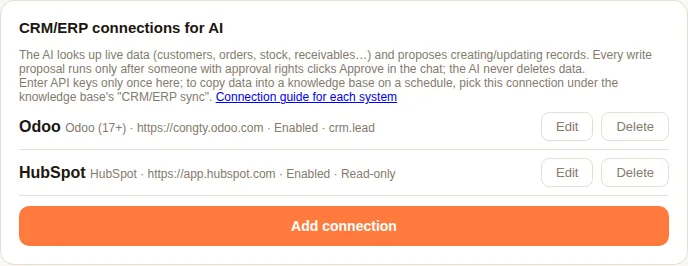
- Open the admin console → tab “Users & documents” → card “CRM/ERP connections for AI”.
- Click “Add connection” and choose your system from the list.
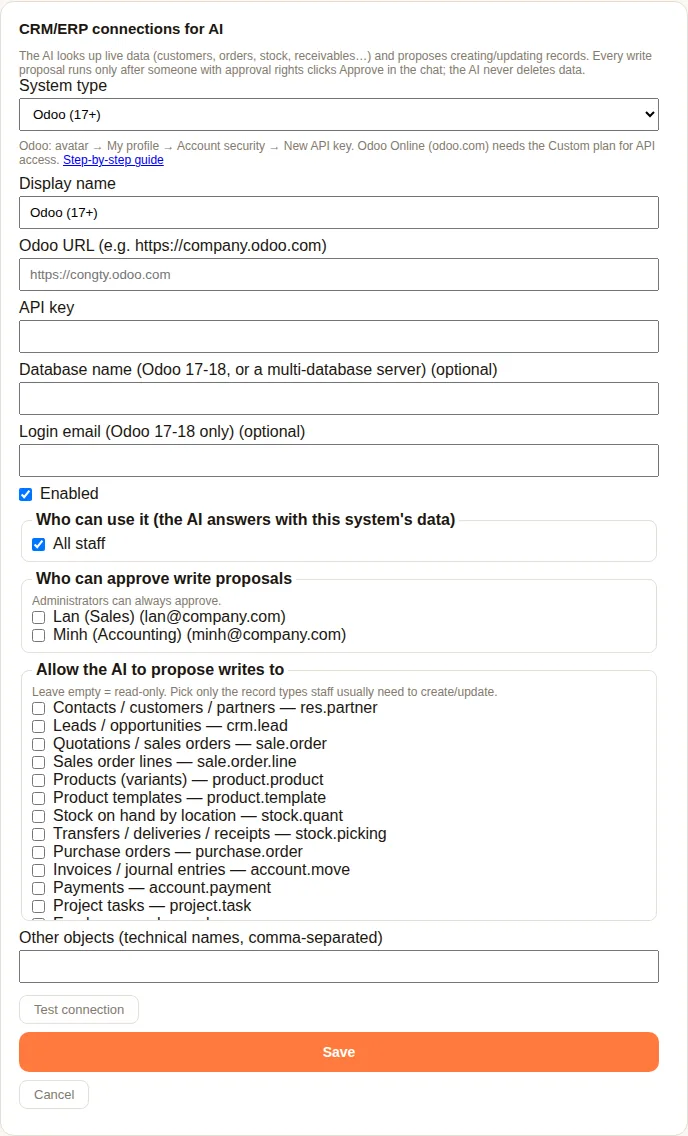
- Fill in the fields for that system (see the system's section below for where to find each value).
- Click “Test connection”. A success message shows the system version and a sample count of records.
- Choose who can use it: all staff, or specific departments/users. The AI only answers with this system's data for those people.
- Choose who can approve write proposals (administrators always can), and which record types the AI may propose to create or update. Leave it empty to keep the connection read-only.
- Click “Save”. Staff can start asking in the chat right away.
Getting the keys for each system
Bitrix24
You need
Steps
- In Bitrix24: Applications → “Developer resources” → “Other” → “Inbound webhook”.
- Grant the “CRM” permission, save, and copy the whole webhook URL (
https://…/rest/1/xxxx/). - In DABO choose “Bitrix24” and paste the URL.
Data the AI can read
Good to know
- The webhook URL is itself the key — keep it private.
ERPNext / Frappe
You need
Steps
- Create or choose an integration user with the roles the AI needs (e.g. Sales User, Stock User, Accounts User).
- Open User list → that user → “Settings” tab → section “API Access” → “Generate Keys”.
- Copy the API Secret from the pop-up (shown once). The API Key stays visible on the user form.
- In DABO choose “ERPNext / Frappe”, enter the site address, API Key and API Secret.
Data the AI can read
Good to know
- Works with Frappe Cloud and self-hosted ERPNext.
HubSpot
You need
Steps
- As a Super Admin in HubSpot: Settings (gear icon) → “Integrations” → “Service Keys” → “Create service key”. If you do not see Service Keys: “Development” → “Legacy apps” → “Create legacy app” → “Private”.
- Name it “DABO AI” and add read scopes:
crm.objects.contacts.read,crm.objects.companies.read,crm.objects.deals.read,crm.objects.owners.read,crm.schemas.contacts.read,crm.schemas.companies.read,crm.schemas.deals.read(plus tickets, e-commerce orcrm.objects.quotes.readif you use them). - Add the matching .write scopes only for record types the AI may propose to change (e.g.
crm.objects.contacts.write,crm.objects.deals.write). - Create the key and copy it. In DABO choose “HubSpot” and paste it.
Data the AI can read
Good to know
- Amounts are shown with the deal currency (or the account's company currency).
Microsoft Dynamics 365
You need
Steps
- Microsoft Entra admin center (or Azure portal) → “App registrations” → “New registration” → name “DABO AI”, single tenant → Register. Copy the Application (client) ID and Directory (tenant) ID.
- In the app: “Certificates & secrets” → “New client secret” → copy the Value immediately.
- Power Platform admin center → Environments → your environment → Settings → “Users + permissions” → “Application users” → “New app user” → add the DABO AI app, choose the business unit and a security role that can read the tables you need (and write only where allowed) → Create.
- Copy the environment URL from the environment details (e.g.
https://yourorg.crm.dynamics.com). - In DABO choose “Microsoft Dynamics 365” and enter the four values.
Data the AI can read
Good to know
- No “Dynamics CRM user_impersonation” API permission is needed for this server-to-server setup, and application users need no paid licence.
- Client secrets expire: create a new one and update DABO before the expiry date.
Odoo (17+)
You need
Steps
- Sign in to Odoo as the user DABO will act as (ideally a dedicated user with only the rights it needs).
- Click your avatar (top right) → “My Profile” (“Preferences” in some versions) → tab “Account Security” → “New API Key”.
- Enter a description such as “DABO AI”, choose how long the key is valid, confirm your password, then copy the key — it is shown only once.
- In DABO choose “Odoo (17+)”, enter the Odoo address (e.g.
https://yourcompany.odoo.com) and the API key. On Odoo 17–18 also enter the database name and login email.
Data the AI can read
Good to know
- Odoo Online (odoo.com) only allows API access on the Custom plan.
- When the key expires, create a new one and update the connection.
Pipedrive
You need
Steps
- Sign in as the user DABO will act as — the token sees what this user sees.
- Click your avatar (top right) → “Personal preferences” → “API” tab → copy your API token.
- In DABO choose “Pipedrive”, enter your company URL (e.g.
https://yourcompany.pipedrive.com) and the token.
Data the AI can read
Good to know
- Each user has one active token; generating a new one disconnects DABO until you update the connection.
- DABO filters up to 2,000 records per lookup.
Salesforce
You need
Steps
- Recommended: create an integration user with only the permissions the AI needs.
- Setup → Quick Find “External Client App Manager” → “New External Client App”. Name it “DABO AI”, enter a contact email, Distribution State “Local”.
- Enable OAuth: any https callback URL (e.g.
https://localhost/callback), OAuth scope “Manage user data via APIs (api)”, and under Flow Enablement tick “Enable Client Credentials Flow”. Create. - Open the app → “Policies” tab → Edit → in OAuth Policies enable the Client Credentials Flow and set “Run As” to the integration user → Save.
- “Settings” tab → OAuth Settings → “Consumer Key and Secret” (verify your identity) → copy both values.
- Your My Domain URL is in Setup → “My Domain” (e.g.
https://yourcompany.my.salesforce.com). In DABO choose “Salesforce” and enter the three values.
Data the AI can read
Good to know
- Since Spring ’26 Salesforce creates External Client Apps instead of Connected Apps; an existing Connected App with the client credentials flow also works.
- The AI acts with the rights of the “Run As” user.
SAP Business One
You need
https://server:50000)Company database (CompanyDB)SAP B1 user namePasswordSteps
- Ask your SAP partner or IT for the Service Layer address and a SAP Business One user with read rights.
- In DABO choose “SAP Business One” and enter the Service Layer URL, company database, user name and password.
Data the AI can read
Good to know
- Self-signed certificates used by on-premise servers are accepted.
Zoho CRM
You need
Steps
- Find your data center in the address bar of Zoho CRM:
crm.zoho.com→ com, .eu → eu, .in → in, .com.au → com.au, .jp → jp, zohocloud.ca → ca, .sa → sa, .uk → uk, .com.cn → com.cn. - Open the API console of that data center (e.g.
https://api-console.zoho.com,https://api-console.zoho.eu) → “Add Client” → “Self Client” → Create. - Tab “Client Secret”: copy the Client ID and Client Secret.
- Tab “Generate Code”: scope
ZohoCRM.modules.ALL,ZohoCRM.settings.fields.READ,ZohoCRM.settings.modules.READ,ZohoCRM.org.READ,ZohoCRM.users.READ,ZohoCRM.coql.READ— duration 10 minutes — description “DABO AI” → Create → choose your CRM organisation → copy the code. - Before the code expires, in DABO choose “Zoho CRM”, select the data center, enter Client ID, Client Secret and the code, then click “Test connection” and “Save”.
Data the AI can read
Good to know
- DABO exchanges the code once for a long-lived refresh token, stored encrypted. If you edit the connection later, leave the code empty.
- For read-only access use
ZohoCRM.modules.READinstead ofZohoCRM.modules.ALL. DABO never deletes records either way.
Email, calendar & files
Besides CRM/ERP, the AI can work with each employee's own email, calendar and files (Microsoft 365, Google). This is set up in the same admin tab, in the card “Email, calendar & files”. To let the AI answer customers on WhatsApp, Messenger, LINE, your website and other channels, see the administration guide (Customer messaging channels).
Staff email (any provider)
You need
Steps
- Admin: admin console → “Users & documents” → card “Email, calendar & files” → tick “Let the AI work with staff email” → choose what the AI may use (Email, Calendar, Files, Propose sending email / creating meetings) and who → Save.
- Staff: webchat → “🔗 Connect email account” → enter their email → “Next”. DABO recognises the provider.
- Microsoft 365 / Outlook / Hotmail: click the orange button “Copy code & open Microsoft” → paste the code (Ctrl+V) → sign in → Accept. No password is typed into DABO. The first time with work accounts, Microsoft may ask your Microsoft 365 admin to connect first and tick “Consent on behalf of your organization” (once).
- Gmail, Yahoo, iCloud, Zoho, Yandex, QQ…: enter an “app password” (DABO shows the link to create one; 2-step verification required). Normal sign-in passwords don’t work with these providers.
- Company hosted email (cPanel, DirectAdmin, Plesk, Zimbra, any IMAP host): enter the email password you use for webmail. DABO finds the servers; if it can’t, open “Server settings (advanced)” and enter the IMAP/SMTP servers from your provider’s help page (often mail.<your-domain>, ports 993 and 465).
Good to know
- The AI only reads the mailbox of the person asking. Sending email or creating meetings always becomes a request that person must Approve. Deleting email also creates an approval card listing every message (untick to keep); deleted mail goes to the trash and can be recovered.
- Email from any provider: the AI reads, searches by date/sender, counts, reads attachments and drafts replies. Calendar: Microsoft 365/Outlook, Google, and providers with a standard CalDAV calendar (iCloud, Yahoo, Zoho, Fastmail, cPanel, Zimbra, Nextcloud… — detected automatically when connecting). Files: Microsoft 365 / Google. Mail the AI sends through hosted email is copied to the “Sent” folder.
- Folders, groups, contacts, attachments: the AI lists folders/labels and files mail into folders (approval card); reads company email groups (Microsoft 365: an IT admin opens
https://login.microsoftonline.com/<company-domain>/adminconsent?client_id=2ba8169e-1409-4f79-9af8-97f08f094411once → Accept; Google Workspace: fill in “Google admin email”; hosted email: declare groups in the “Email, calendar & files” card); finds contacts and contact groups (Outlook, Gmail, iCloud, Yahoo, cPanel… via CardDAV); sends email with files the AI just created. Microsoft/Google accounts connected before 2 Oct 2026 must reconnect once to grant delete/organise and contacts permissions. - Passwords are encrypted and stored only on your company’s DABO server. After changing the email password, reconnect in “Connect email account”.
- If the server uses its own certificate (certificate error): try the provider’s other server name, or tick “Skip certificate check” in advanced settings (only if you trust the server).
App passwords by email provider
You need
Steps
- Gmail: turn on “2-Step Verification” at myaccount.google.com/security → open myaccount.google.com/apppasswords → in “App name” type DABO AI → “Create” → copy the 16-letter code (e.g. abcd efgh ijkl mnop) → paste it into the password box in DABO.
- Yahoo: login.yahoo.com/account/security → “Generate app password” → type DABO AI → “Generate” → copy the password.
- AOL: login.aol.com/account/security → “Generate app password” → type DABO AI → copy the password.
- iCloud (@icloud.com, @me.com): turn on two-factor authentication for your Apple ID → account.apple.com → Sign-In and Security → “App-Specific Passwords” → “+” → label DABO AI → copy the code xxxx-xxxx-xxxx-xxxx (keep the dashes). The AI can also read your iCloud calendar.
- Zoho Mail: Settings → Mail Accounts → turn on “IMAP Access”. If two-factor authentication is on: accounts.zoho.com → Security → App Passwords → “Generate New Password” → name DABO AI → copy.
- Fastmail: Settings → Privacy & Security → App passwords → “New app password” → name DABO AI, access “Mail, Contacts & Calendars” → copy. The AI can also read your Fastmail calendar.
- Yandex: Mail → Settings → “Email clients” → enable IMAP; then id.yandex.com/security/app-passwords → “Mail” → name DABO AI → copy.
- Mail.ru: account.mail.ru → Security → “Passwords for external applications” → Add → name DABO AI → copy.
- QQ Mail: 设置 (Settings) → 账户 (Account) → turn on “IMAP/SMTP服务” → verify by SMS → use the authorization code (授权码) instead of your password. 163/126: 设置 → POP3/SMTP/IMAP → turn on IMAP/SMTP → get the 授权码.
- GMX: Settings → “POP3 & IMAP” → enable “Allow access via POP3 and IMAP” → use your normal GMX password.
- Company hosted email (cPanel, Zimbra, Plesk…) and Outlook/Hotmail/Microsoft 365: NO app password needed — hosted email uses the normal email password, Microsoft uses the sign-in button.
Good to know
- The “Connect email account” screen in Webchat recognises the provider and shows exactly these steps, with a button that opens the app-password page.
- The code is shown only once — copy it right away. To disconnect: delete the “DABO AI” app password on the same page, or disconnect in “Connect email account”.
- Work Gmail says “not available”: your Google Workspace admin has turned app passwords off — ask them to allow it, or use the company-wide Google Workspace connection (Google sign-in, no app password).
- “Wrong password” although it is correct: usually the normal sign-in password was used instead of an app password, or IMAP is not enabled in the mailbox settings.
Advanced — Microsoft 365 company-wide
You need
Steps
- Use this to let the AI open every employee’s mailbox by their DABO email without each person signing in. Card “Email, calendar & files” → “Advanced — company-wide connection” → “+ Microsoft 365”.
- Advanced — company-wide connection (the AI opens mailboxes by DABO account email, no per-person sign-in): untick “Use DABO’s built-in app”. In Microsoft Entra → “App registrations” → “New registration” (single tenant) → “API permissions” → Microsoft Graph → Application permissions: Mail.Read, Mail.Send, Calendars.ReadWrite, Files.Read.All, Sites.Read.All, User.Read.All → “Grant admin consent” → “Certificates & secrets” → “New client secret”. Enter Tenant ID, Client ID, Client secret, the company email domains (and shared SharePoint sites, optional) → Save → enter a staff email → “Test connection”.
- For the company-wide connection, limit which mailboxes the app can open with Exchange Online “RBAC for Applications” (a management scope containing only the staff who use DABO).
Good to know
- If your organisation blocks code sign-in with Conditional Access, use the company-wide connection.
- Client secrets (company-wide) expire — create a new one and update DABO before the expiry date.
Google Workspace & Gmail
You need
Steps
- Google Cloud console → create or pick a project → “APIs & Services” → enable Gmail API, Google Calendar API and Google Drive API.
- Company-wide (Google Workspace): “IAM & Admin” → “Service accounts” → Create → “Keys” → “Add key” → JSON → download the file.
- Google Admin console (admin.google.com) → Security → Access and data control → API controls → “Manage domain-wide delegation” → “Add new”: the service account Client ID (DABO shows it after saving) with the scopes
https://www.googleapis.com/auth/gmail.readonly,https://www.googleapis.com/auth/gmail.send,https://www.googleapis.com/auth/calendar.events,https://www.googleapis.com/auth/drive.readonly - Staff self-connection (optional): “OAuth consent screen” → configure → “Credentials” → “Create OAuth client ID” → Web application → Authorized redirect URI:
https://<your-DABO-webchat-address>/api/dabo/ws/google/callback→ copy the Client ID and secret. - In DABO: card “Email, calendar & files” → “+ Google Workspace” → paste the JSON content, enter the company domains and (optional) the OAuth client → Save → “Test connection” with a staff email.
- Each employee (if allowed): webchat → “🔗 Connect email account” → “Connect Google” → sign in and allow.
Good to know
- With an External consent screen still in “Testing”, Google refresh tokens expire after 7 days — publish the app (Gmail scopes may require Google verification) or use the Internal type for Workspace-only users.
- Google does not allow code sign-in for Gmail/Calendar/Drive, so staff self-connection needs DABO on its own HTTPS domain.
Automations, APIs, MCP & auto-approval
You need
Steps
- Create an automation: tell the AI in chat (e.g. “every Monday 8am email last week’s sales report to boss@company.com with Excel”), or Webchat → “⚙ Automations” → “+ From a template” (templates by industry: sales, accounting, inventory, customer care, office, construction, retail, marketing, HR).
- Run when: on a schedule (daily, workdays, weekly/monthly, several times a day, every 15/30 min, hourly), when a new email matches a keyword/sender/folder, when a new CRM/ERP record appears, or when another system calls the webhook (URL shown on the card).
- Results: report only when something happens (“only report when”), data “since the last run”, send by email with the file, Teams / Slack / Telegram / Google Chat / webhook, save to OneDrive or Google Drive; share with departments; failed runs retry once and notify the owner.
- Admin → “Users & documents” → “Extended connections & auto-approval”: add a REST API (base URL, key, endpoint description) or an MCP server (Streamable HTTP URL, headers) → Test → choose who can use it.
- Auto-approval rules: pick the kind (CRM/ERP writes, email/calendar, API, MCP), connection, object, operations and limits (e.g. amount ≤ 5,000,000; email only to the company domain) → matching requests run immediately and are marked “Auto rule”.
Good to know
- Reads (GET, read-only MCP tools) run immediately; every data change still needs approval unless it matches an admin auto-approval rule.
- Saving to OneDrive needs the Files.ReadWrite permission on the DABO AI Azure app and reconnecting the Microsoft account once.
- MCP servers: connect by URL (no auth / key in headers / account sign-in with OAuth — click “Sign in & grant access”; DABO registers itself and refreshes tokens) or run the program on the DABO server (stdio: npx, uvx, docker). Trust levels: Balanced (read-only tools run directly, writes need approval) · Strict (every tool needs approval) · Fully trusted (every tool runs directly).
Try it in the chat
Ask the way you normally would. Examples:
- “Total confirmed sales orders this month, grouped by customer?”
- “Which customers have unpaid invoices over 10,000?”
- “How many units of product X are left in each warehouse?”
- “Create a new lead: ABC Company, contact John Smith, +1 555 0100, interested in the annual plan.” → an approval card appears under the answer.
- “Every Monday at 8am, summarise last week's confirmed orders by customer.” → creates an automated workflow that you switch on.
Optional: copy data into a knowledge base
Live lookup is best for figures that change. If you also want the AI to search the text of records together with your documents (notes, descriptions), you can copy them into a knowledge base on a schedule.
In the knowledge base panel → “CRM/ERP sync” → mode “Scheduled” → pick one of your saved connections and the data to copy → set the interval → Save → “Sync now” to test. Keys are reused from the connection, so you never enter them twice.
Troubleshooting
| Message / problem | What to do |
|---|---|
| “Could not connect to … (timeout / ENOTFOUND / ECONNREFUSED)” | The DABO server cannot reach that address. Check the URL (https://…), firewall and VPN. For a system on the same machine use http://localhost:port. |
| “Invalid API key or insufficient rights (HTTP 401/403)” | The key is wrong, expired or revoked, or the integration user lacks rights to that data. Create a new key or adjust the user's roles, then update the connection. |
| Salesforce: “invalid_client” or “no client credentials user enabled” | Enable the Client Credentials Flow in the app's Policies and set the “Run As” user. New settings can take a few minutes to apply. |
| Zoho: “invalid_code” | The grant code has expired, was already used, or was created in a different data center. Generate a new code and enter it within its validity time. |
| Dynamics 365: application user / privilege error | Add the app as an Application user in the environment and give it a security role that can read the tables you need. |
| Odoo Online: API not available | Odoo Online only opens the external API on the Custom plan. Self-hosted Odoo and Odoo.sh are not affected. |
| The AI says you have no access to the system | Add the person (or their department) under “Who can use it” in the connection. |
| An approved change failed | The error from the CRM/ERP is shown on the approval card (for example a required field). Ask the AI to correct it and approve again. |
Security at a glance
- Keys are encrypted (AES-256-GCM) on your DABO server; only the DABO admin service uses them.
- The AI reads only what the integration user can read, and only for the people you allow.
- Every create/update needs a human approval; the AI never deletes.
- System, user and security tables (passwords, roles, settings) are blocked for the AI.
DABO AI — your own AI, on your own servers
Your data never leaves your company. Connect your CRM/ERP, internal documents and automated workflows in one platform.