
Start here — 6 steps
DABO AI runs entirely on your company server: the AI model, documents and chat history stay on your machine and are never sent out. The DABO-Setup installer does all the technical work (Linux environment, Docker, graphics driver, AI model download). You only click a few buttons and answer 3 questions: where to store data, which AI model, and which address staff will use.
- Check the machine meets the requirements and do the 5 preparation steps (about 10 minutes).
- Run the installer for your OS: Windows · Linux · macOS.
- Answer the installer’s 3 questions (pictures for each step below).
- The browser opens DABO → create the first ADMIN account.
- Activate your license (not needed for Free).
- Follow the post-install checklist: staff accounts, documents, automatic backups…
support@dabotech.ai.Is your machine powerful enough?
DABO needs a computer with an NVIDIA graphics card (GPU) to run the AI — like a gaming PC or graphics workstation. The more card memory (VRAM), the smarter the AI model it can run.
| Windows | Linux | macOS | |
|---|---|---|---|
| Operating system | Windows 10 (version 2004+), Windows 11, Windows Server 2022 / 2025 (with desktop) | Ubuntu 22.04 / 24.04, Red Hat / Rocky / Alma 8–10 (64-bit) | Apple Silicon Mac (M1 or later). Intel Macs work but are very slow |
| Graphics card | NVIDIA — any line: GeForce GTX 900 or newer, RTX 20 / 30 / 40 / 50, Quadro, RTX A / Ada / PRO Blackwell, data-center cards (Tesla, A100, H100, H200, B200…). Setup detects the card — even one without a driver — and installs the driver | NVIDIA — any line: GeForce GTX 900 or newer, RTX 20 / 30 / 40 / 50, Quadro, RTX A / Ada / PRO Blackwell, data-center cards (Tesla, A100, H100, H200, B200…). Setup detects the card — even one without a driver — and installs the driver | Apple M1 – M5 chips (including Pro / Max / Ultra): setup detects the chip and the amount of memory to choose the model. No NVIDIA needed |
| Free disk | At least 80 GB (NTFS drive) | At least 80 GB | At least 60 GB |
| Other | A Windows administrator account | root (sudo) | Your Mac password (to install Docker Desktop) |
How to check your graphics card on Windows
- Press Ctrl + Shift + Esc to open Task Manager.
- Open the Performance tab → click GPU. The card name is at the top right (e.g. NVIDIA GeForce RTX 4090); Dedicated GPU memory is the VRAM (e.g. 24 GB).
- Compare with the table below — the installer also recommends a model automatically.
| AI model | VRAM needed | Download | Best for |
|---|---|---|---|
| DABO-12B | 16 GB | ~25 GB | 16 GB cards, fast replies, reads images, fair reasoning |
| DABO-27B-24G | 24 GB | ~22 GB | 24 GB cards, fair reasoning |
| DABO-27B | 30 GB | ~17 GB | New-generation 32 GB cards |
| DABO-26B | 32 GB | ~28 GB | 32 GB cards, very fast, reads images |
| DABO-27B-48G | 44 GB | ~29 GB | 48 GB cards |
| DABO-122B | 80 GB (or 2 × 48 GB) | ~72 GB | Best reasoning for larger companies |
| DABO-284B | 280 GB (2× 141 GB or 4× 80 GB GPUs) | ~170 GB | Top-tier reasoning, very long documents — project-based |
| DABO-320B | 480 GB (4× 141 GB or 8× 80 GB GPUs) | ~330 GB | Project deployment with the DABO team |
Which NVIDIA cards does DABO detect?
- Every NVIDIA card on Windows and Linux, from GeForce GTX 900 to RTX 50, Quadro, RTX A / Ada / PRO Blackwell and data-center cards Tesla P40 / P100 / V100 / T4, A2 – A100, L4 / L40S, H100 / H200, B200. Setup reads the card’s chip generation rather than only its name, so cards released later are recognised too.
- Ampere generation or newer (RTX 30 / 40 / 50, RTX A / Ada / PRO, A10, A40, A100, L4, L40S, H100, H200, B200…) with enough VRAM: runs the main AI engine — the fastest.
- Older cards (GTX 900 – 16, RTX 20, Quadro P / RTX, Tesla P40 / P100 / V100 / T4) or 8 – 12 GB cards: run the compatibility AI engine — all features, but slower answers. Admin panel → AI model tab shows AI engine: Compatibility.
- Several identical cards (e.g. 2× RTX A6000, 4× A40, 8× H100): DABO splits the model across the cards and runs extra copies in parallel. Mixed cards: only the strongest group is used — setup tells you which card is left idle.
- The VRAM shown by Windows / nvidia-smi is usually a little below the box (e.g. RTX 5090 shows 31.8 GB, L4 / A10 show 22.5 GB): DABO allows for this, so the card still gets the right tier.
- Card in MIG mode (A100, H100…): setup warns you. To use the whole card, run
nvidia-smi -i <GPU number> -mig 0and restart the machine. - NVIDIA driver too old: setup updates it (one restart needed). Maxwell / Pascal / Volta cards use the 580 driver branch — the last branch that supports them.
- No GPU, or a very old card (Kepler or earlier): you can still install; the AI runs on the CPU — very slow, for trying out only.
5 things to prepare
- Internet during installation (20–80 GB download). Afterwards DABO works without Internet. No Internet on site: contact DABO for installation from a portable drive.
- Give the server a fixed (static) IP: ask whoever manages your network/router to reserve an IP for this machine (e.g.
192.168.1.20). Staff open DABO with this address — if it changes, they lose access. - Pick the drive with the most free space for AI models (e.g. drive D:). This location cannot be changed after installation.
- Windows: CPU virtualization enabled (usually already on). Check: Task Manager → Performance → CPU → Virtualization: Enabled. If Disabled: restart, enter BIOS/UEFI (usually Del, F2 or F10 at boot) → enable Intel VT-x or AMD-V / SVM → save (F10).
- Turn off sleep on the server: Settings → System → Power → Sleep: Never. A sleeping server cannot serve staff.
subscription-manager register before installing.Network ports & firewall — open only what is needed
DABO does not need every port open, and when it is used only inside your company network it needs no port open to the Internet at all. Below is the complete list so IT can configure the firewall on a least-access basis — you can send this section to your network administrator as is.
Inbound — other computers connecting to the DABO server
| Port | Open to | Used for | Needed? |
|---|---|---|---|
| 443/TCP (HTTPS) | Company LAN / VPN | Staff using the webchat; DABO AI Desktop on staff computers; developer API | Required |
| 80/TCP (HTTP) | Company LAN / VPN | Only redirects to HTTPS (443) — no data goes through this port | Recommended (users can type the address without https://) |
| 443 and 80 from the Internet | Internet | Only if you use: Let’s Encrypt certificates, Microsoft Teams, customer messaging channels that use webhooks (WhatsApp, Messenger, Instagram, LINE, Viber, WeChat, website chat…), SCIM provisioning from Microsoft Entra ID / Okta, or staff working remotely without VPN | No — only for those features |
- All other ports: keep closed. The admin page (3003), AI models, database, remote-support channel… listen only on
127.0.0.1(the server itself) — other computers cannot reach them even if the firewall were open. - Administering from another computer: sign in to the server (Remote Desktop / SSH) and open the admin page there, or use an SSH tunnel
ssh -L 3003:127.0.0.1:3003 <server>. - The installer opens 80/443 in the server’s own firewall: on Windows it creates the rule DABO AI (HTTP/HTTPS); on Linux it opens them in firewalld / ufw if active. To allow only the local network (Windows, admin PowerShell):
Set-NetFirewallRule -DisplayName "DABO AI (HTTP/HTTPS)" -RemoteAddress LocalSubnet. - Linux: Docker manages ports 80/443 itself, so ufw cannot block them — to restrict who can connect, add rules on the company network firewall or in the iptables
DOCKER-USERchain. - Staff computers with DABO AI Desktop only connect out to the DABO server on port 443. The app listens only on
127.0.0.1of that computer (for the “One-tap connect” button in the browser) and opens no port to the network.
Outbound — the DABO server connecting out
All outbound connections are HTTPS on port 443, except where noted. If you only use chat and your internal documents, DABO needs no Internet after installation; each extra feature you turn on needs only its own row. If your firewall / proxy filters by domain, allow the domains below.
| When | Domains / ports | Notes |
|---|---|---|
| During installation (one time) | Operating system: Ubuntu package mirrors (archive.ubuntu.com, security.ubuntu.com) or Red Hat (Red Hat repositories, dl.fedoraproject.org) · NVIDIA: developer.download.nvidia.com, nvidia.github.io, *.download.nvidia.com · Docker: *.docker.com, *.docker.io (incl. download.docker.com, registry-1.docker.io, auth.docker.io), mcr.microsoft.com, *.data.mcr.microsoft.com · DABO components: deb.debian.org, registry.npmjs.org, pypi.org, files.pythonhosted.org, download.pytorch.org, github.com, *.githubusercontent.com · AI models: huggingface.co, *.huggingface.co, *.hf.co | 20–80 GB download. Windows also: cloud-images.ubuntu.com, wslstorestorage.blob.core.windows.net, gfwsl.geforce.com. macOS also: desktop.docker.com, registry.ollama.ai, ollama.com. Providers may change their download servers (CDN): if something is blocked, the installer log names the domain. You can close these again afterwards. |
| Online license activation, 30-day trial, update check | dabotech.ai | Sends only the license code and a machine identifier (one-way hashed) — never documents, questions or company data. Offline servers: use a .dabo license file. |
| Downloading updates | github.com, *.githubusercontent.com | Or update offline with a file copied by USB. |
| Adding / switching AI models, turning on voice | huggingface.co, *.huggingface.co, *.hf.co, github.com, *.githubusercontent.com | |
| Internet search, AI browser (off by default, enabled per department) | Search engines (Google, Bing, DuckDuckGo, Brave…) and the web pages the AI is asked to read | Only search keywords are sent, never documents. |
| Importing web pages into a knowledge base | The websites your administrator adds | |
| Financial analysis (Max plan and above) | Free: api.coingecko.com, api.binance.com, data-api.binance.vision, api.frankfurter.dev, api.worldbank.org · With API key: api.twelvedata.com, eodhd.com, www.alphavantage.co, financialmodelingprep.com · Your company’s own data source | Only tickers / currency pairs and date ranges are sent. |
| Email, calendar, files | Microsoft 365: login.microsoftonline.com, graph.microsoft.com · Google: accounts.google.com, oauth2.googleapis.com, *.googleapis.com · Other email: your IMAP / SMTP server (ports 993, 465 / 587) | |
| Single sign-on (SSO) | Your Microsoft Entra ID / Google / Okta / Keycloak · internal Active Directory / LDAP: port 389 or 636 (LDAPS) | |
| Chat via Telegram, Slack, Microsoft Teams | api.telegram.org · slack.com, *.slack.com · login.botframework.com, api.botframework.com, smba.trafficmanager.net, login.microsoftonline.com | Telegram and Slack need no inbound port. |
| Customer messaging channels | Per channel used: openapi.zalo.me, oauth.zaloapp.com · graph.facebook.com (WhatsApp, Messenger, Instagram) · api.line.me · chatapi.viber.com · api.weixin.qq.com · discord.com · api.twilio.com · api.telegram.org | Most channels also need inbound 443 from the Internet (webhooks). |
| CRM/ERP connections, “My apps”, MCP | Only the systems your administrator connects (e.g. your company’s Odoo, Salesforce, Jira) | |
| Let’s Encrypt certificate (if chosen in the Network tab) | acme-v02.api.letsencrypt.org (fallback: acme.zerossl.com) | Also needs inbound 80/443 from the Internet. |
| Always (like any server) | DNS (port 53) to your company DNS server · NTP time sync (UDP 123) |
Check after installing
- From another computer on the LAN, open
https://<server IP>— the DABO sign-in page means port 443 is open. - From another computer, try
http://<server IP>:3003— it must not open (the admin page is only available on the server itself). - Linux (on the server):
sudo ss -tlnp— only ports 80 and 443 listen on all addresses (0.0.0.0/*); every other DABO port is127.0.0.1.
Installing on Windows — step by step
Step 1 — Open the installer
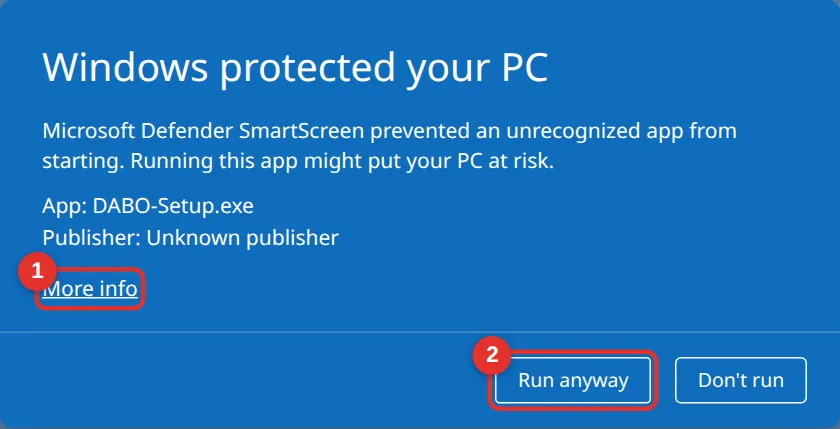
Copy DABO-Setup.exe to the server and double-click it. If Windows shows the blue “Windows protected your PC” screen: click More info (1) → Run anyway (2). This is a normal warning for new software, not a virus. When Windows asks “Do you want to allow this app to make changes…?” → click Yes.
Step 2 — Choose the language
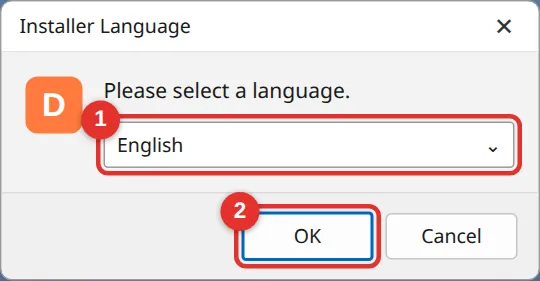
Choose English (1) and click OK (2). This also becomes DABO’s default language.
Step 3 — Welcome and program folder
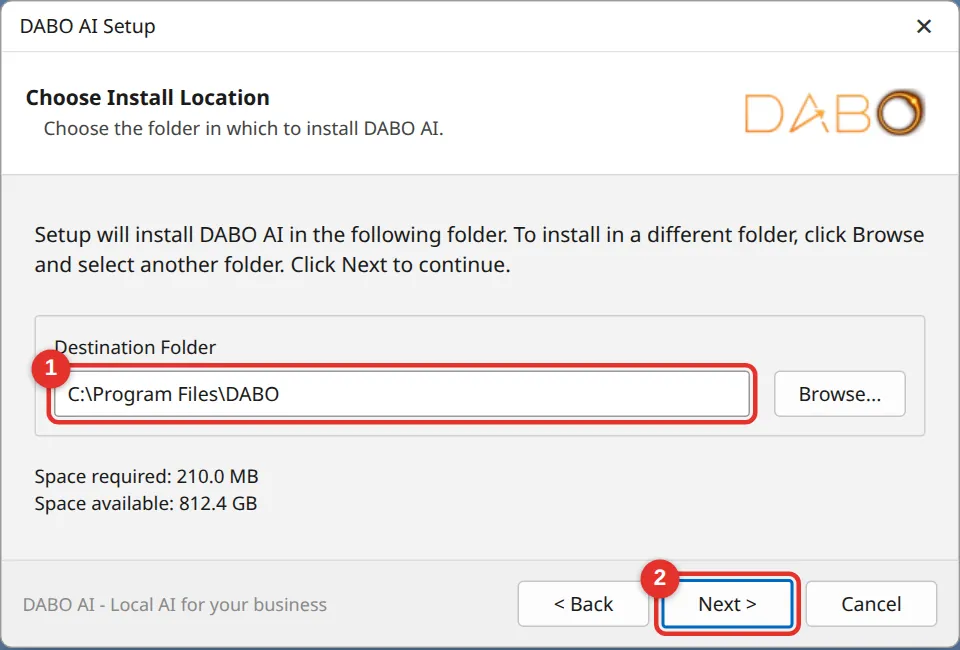
Read the information and click Next (1). On the next screen keep the program folder C:\Program Files\DABO (1) and click Next (2). It is small (about 200 MB); the large AI data location is chosen next.

Step 4 — AI data location (important)
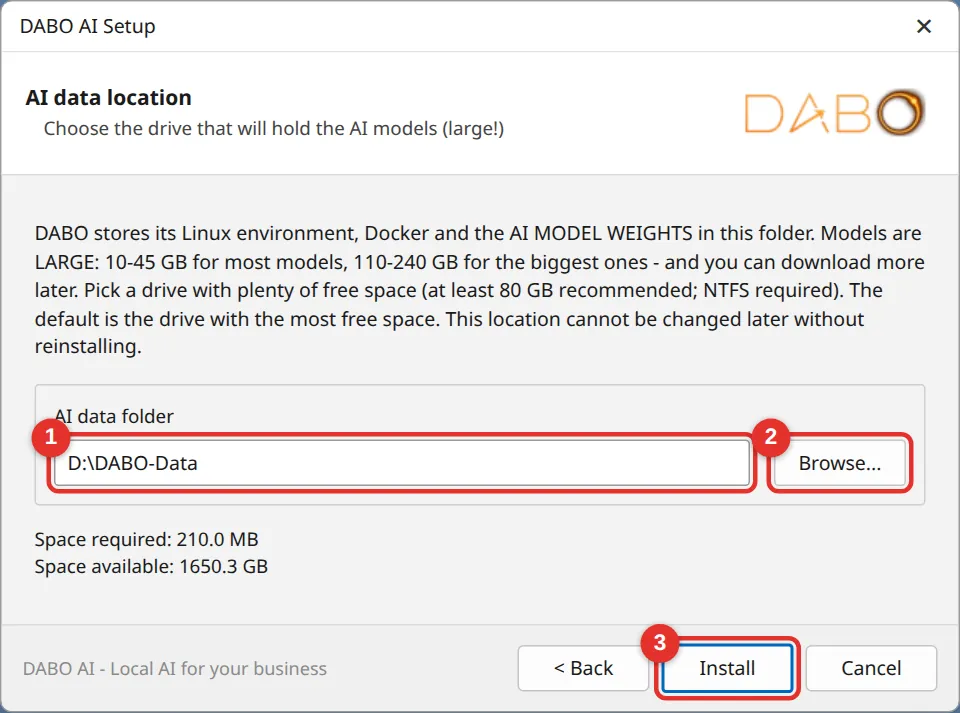
The installer pre-selects the drive with the most free space (1), e.g. D:\DABO-Data. To change it, click Browse… (2). The drive needs at least 80 GB free; otherwise you get a warning — pick another drive. Click Install (3).
Step 5 — Wait for the environment (10–30 minutes)
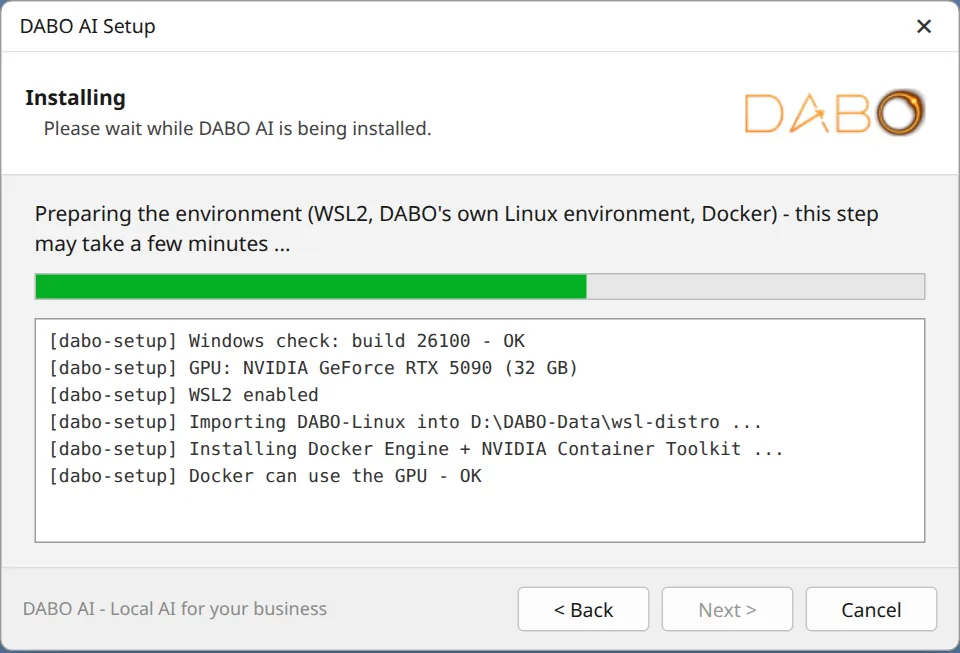
The installer enables WSL2, creates DABO’s own Linux environment “DABO-Linux”, installs Docker and the NVIDIA driver. Nothing to do but wait. If a restart is needed you get a 30-second notice — after the restart, sign in to Windows as usual and setup continues in a new window. Do not close that window.
Step 6 — Choose the AI model
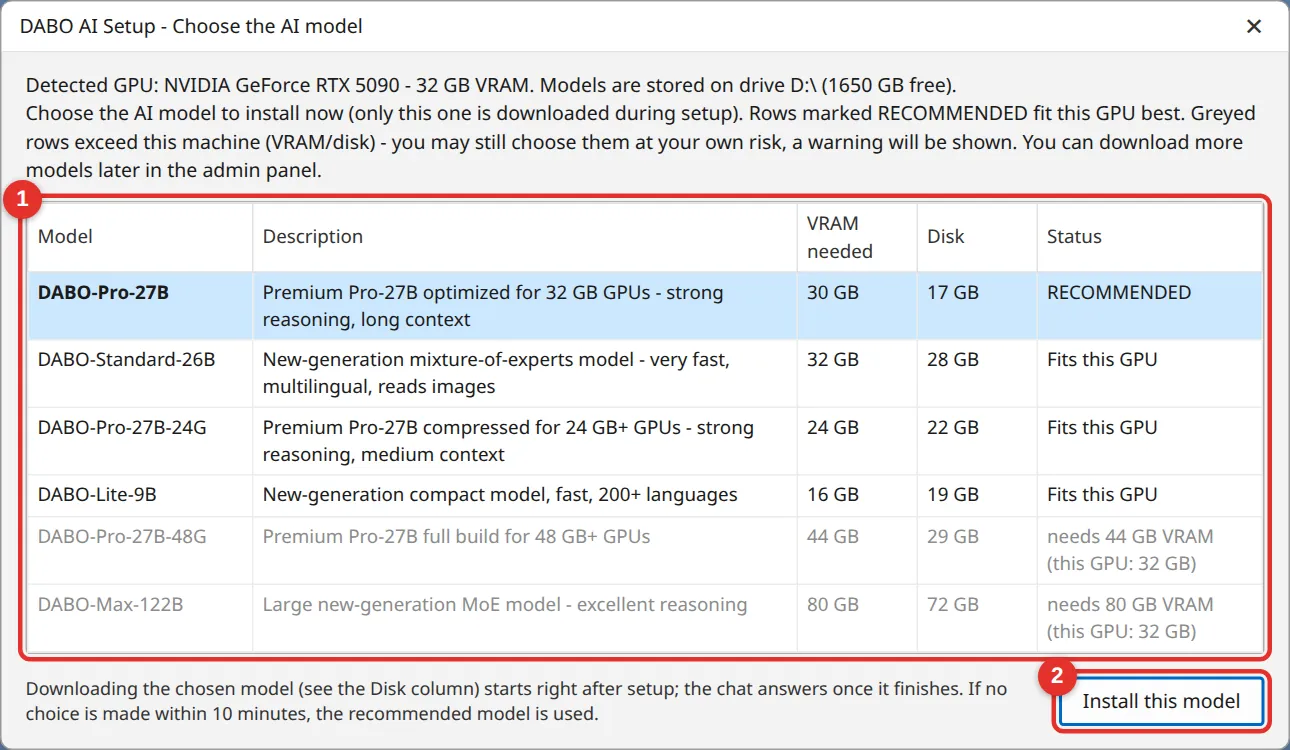
The installer shows your graphics card, memory and a list of models (1). The bold row marked RECOMMENDED fits your machine best — just pick it and click Install this model (2). Grey rows exceed your hardware (selectable, but may not run). No choice within 10 minutes → the recommended model is used.
Step 7 — Address for staff
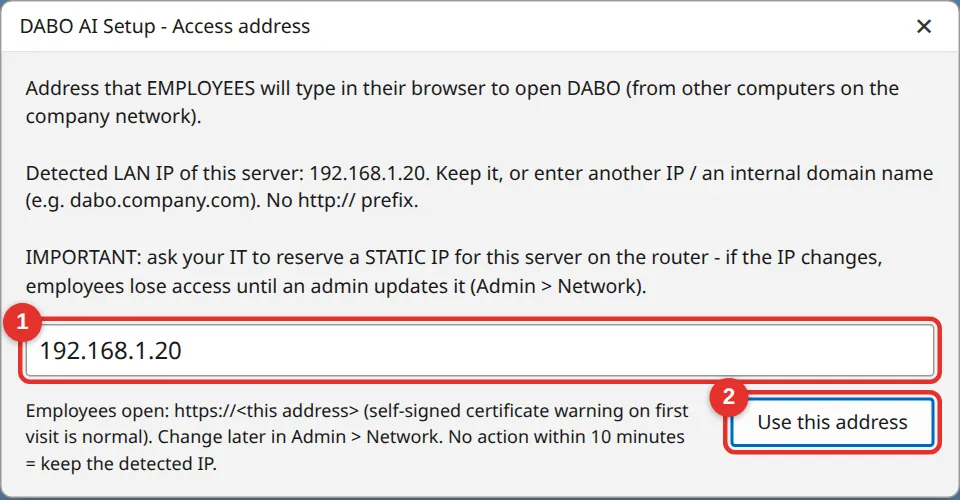
Field (1) is pre-filled with the server’s IP on the company network (e.g. 192.168.1.20). Keep it if you reserved a static IP, or type an internal domain your IT created (e.g. dabo.company.com, without http://). Click Use this address (2).
Step 8 — Done
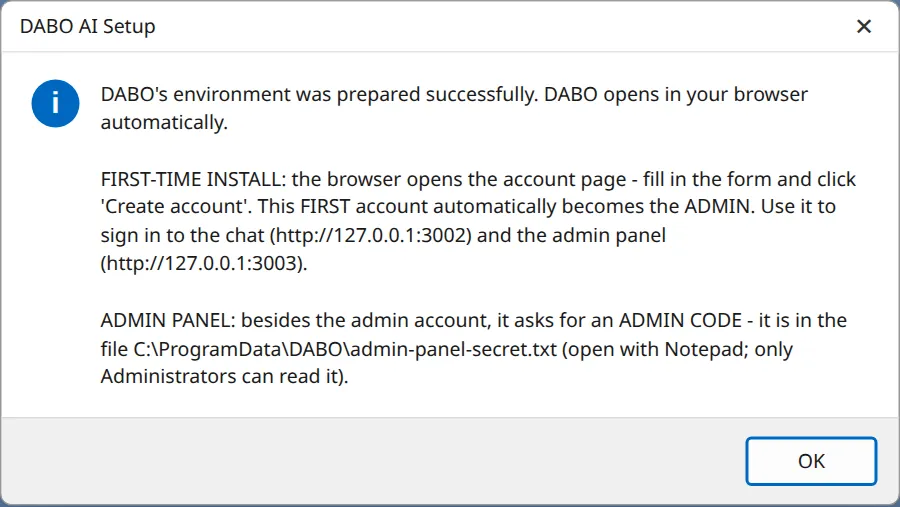
The installer downloads the AI model, starts DABO and shows a completion message. The browser opens http://127.0.0.1:3002 so you can create the first admin account. Note the admin panel address and the admin code file location from the message.
| What | Where on Windows |
|---|---|
| Program | C:\Program Files\DABO |
| Data (models, documents, chat history) | <chosen drive>:\DABO-Data\wsl-distro |
| Backups | <chosen drive>:\DABO-Data\backup |
| Admin code | C:\ProgramData\DABO\admin-panel-secret.txt — open with Notepad (ProgramData is hidden: paste the path into File Explorer’s address bar) |
| Setup log (send to DABO on errors) | C:\ProgramData\DABO\dabo-setup-log.txt |
Installing on Linux (Ubuntu / Red Hat)
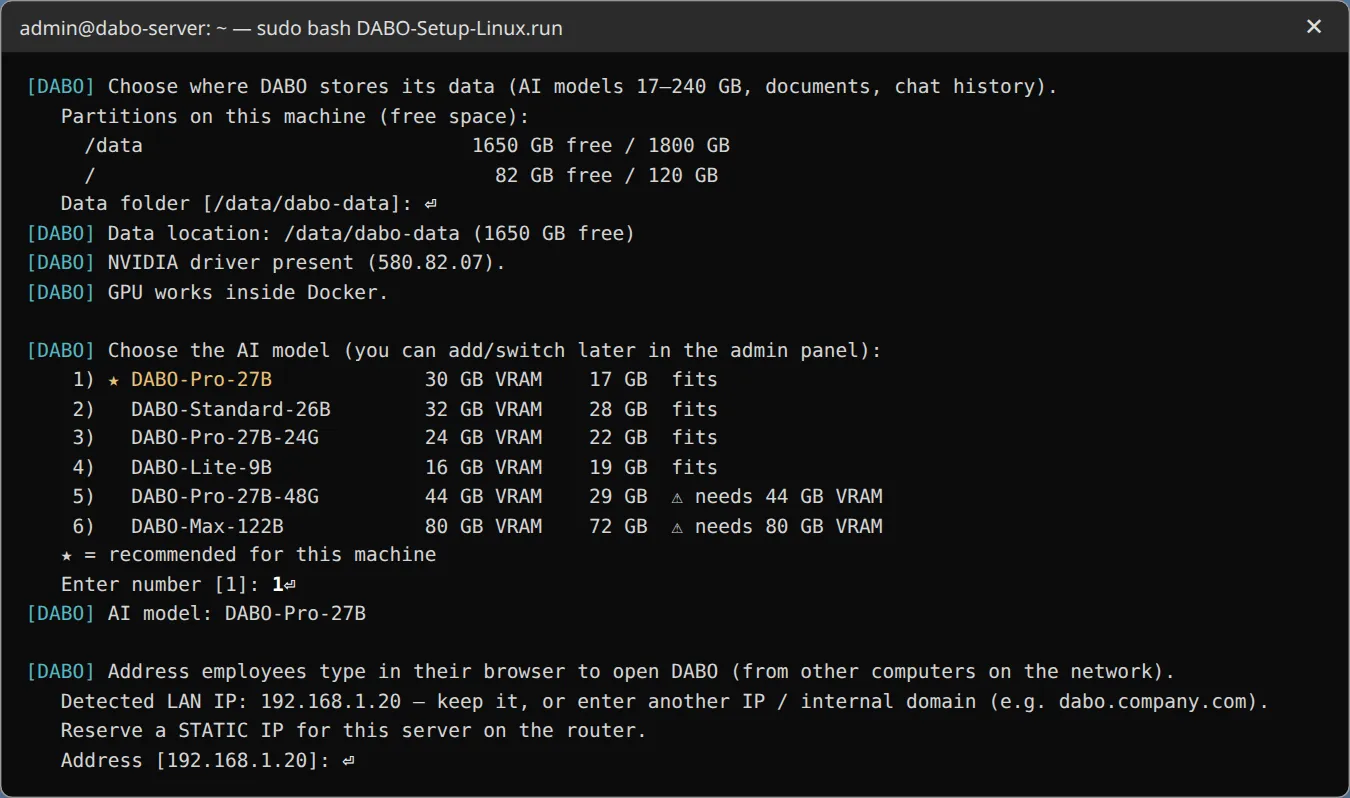
DABO recommends Linux for long-running servers (most stable and fastest). The installer runs in a terminal and asks one question at a time — type a number or press Enter to accept the value in square brackets.
- Copy
DABO-Setup-Linux.runto the server, open a terminal in that folder and type:sudo bash DABO-Setup-Linux.run(enter your password when asked). - Choose the language. The installer checks the OS, permissions and Internet.
- Data location: partitions and free space are listed and the emptiest one is suggested. Press Enter to accept.
- No NVIDIA driver yet: it is installed (5–15 minutes) and you are asked Reboot now? → type
y. After the restart continue withsudo bash /opt/dabo/bootstrap/linux.sh. - Choose the AI model: the row with
★is recommended — press Enter. - Access address: press Enter to use the detected IP (or type an internal domain).
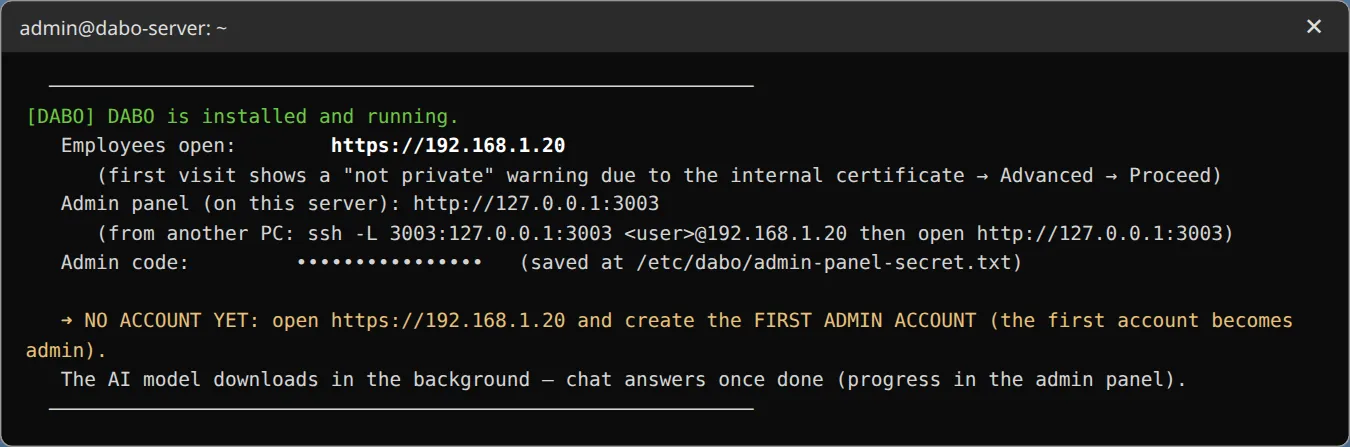
- Wait while DABO is built and started (first time 10–30 minutes). Finally the staff address, admin panel address and admin code are printed.
- Admin code:
/etc/dabo/admin-panel-secret.txt(sudo cat /etc/dabo/admin-panel-secret.txt). Log:/var/log/dabo-setup.log. - The admin panel only opens on the server (
http://127.0.0.1:3003). From another computer IT can use an SSH tunnel:ssh -L 3003:127.0.0.1:3003 <user>@<server-ip>then openhttp://127.0.0.1:3003. - Unattended install (for IT):
sudo DABO_YES=1 DABO_DATA_ROOT=/data/dabo DABO_MODEL=<model> DABO_ADDRESS=<ip> DABO_LANG=en bash DABO-Setup-Linux.run.
Installing on macOS
- Double-click
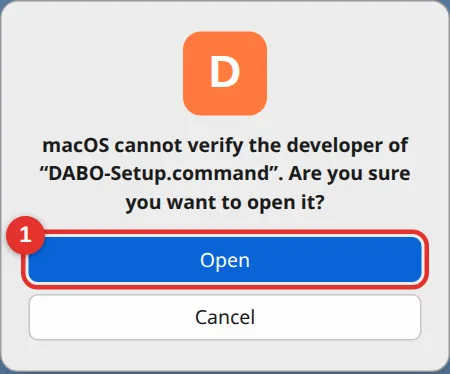
DABO-Setup-Mac.zipto unzip, then double-clickDABO-Setup.command. - The first time macOS blocks unknown files: right-click the file → Open → click Open (1). On macOS 15 or later: go to System Settings → Privacy & Security, scroll down, click Open Anyway, then open the file again.
- A Terminal window appears — do not close it until you see “DABO is ready” (10–40 minutes).
- The installer downloads Docker Desktop and opens it: click Accept and enter your Mac password once.
- AI data location → “Use this location”. Access address → “Use this address”.
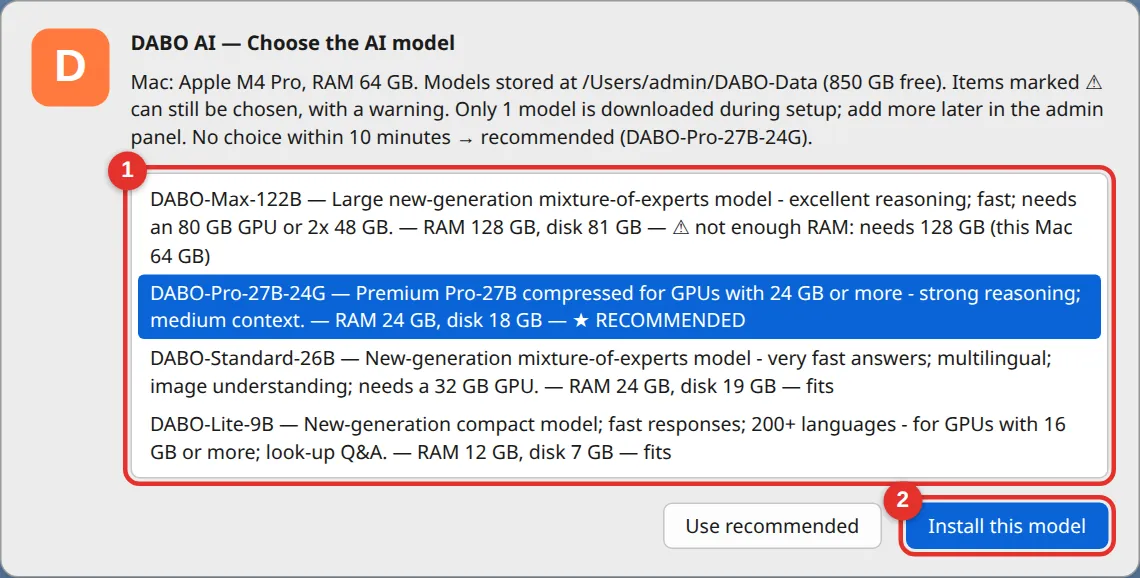
- Choose the AI model: pick the ★ row (1) → Install this model (2), or click Use recommended.
- Done: chat at
http://127.0.0.1:3002, admin athttp://127.0.0.1:3003, admin code in~/Library/Application Support/DABO/admin-panel-secret.txt.
DABO-Setup.command again. Docker Desktop is free for companies under 250 employees and under USD 10 million annual revenue.Create the first admin account
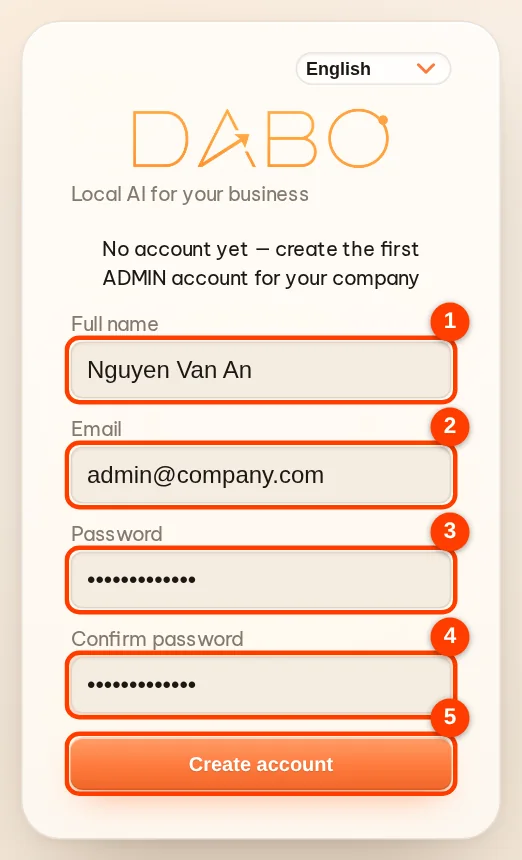
Right after installation the browser opens DABO on the server (http://127.0.0.1:3002). Since there are no accounts yet, DABO shows the create the first ADMIN account form:
- Enter Full name (1), Email (2) — preferably a company email — and Password (3), at least 8 characters, then type it again in Confirm password (4).
- Click Create account (5). You go straight to the chat screen. This account automatically becomes administrator.
- Self-registration is now closed — staff accounts are created by you in the admin panel.
Opening the admin panel for the first time
- On the server itself, open a browser at
http://127.0.0.1:3003. - Open the admin code file (Windows:
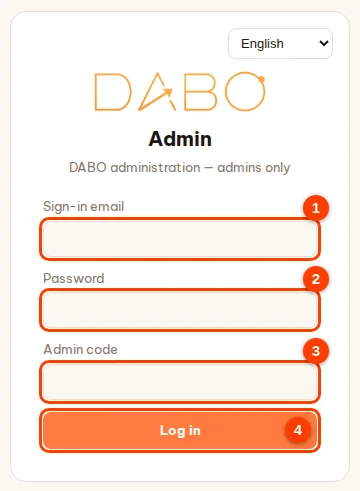
C:\ProgramData\DABO\admin-panel-secret.txt; Linux:/etc/dabo/admin-panel-secret.txt; Mac:~/Library/Application Support/DABO/admin-panel-secret.txt) and copy the code. - Enter the Email (1) and Password (2) you just created, paste the Admin code (3), click Log in (4).
Let staff in
- Admin panel → Users & documents → Create account for each employee (how).
- Send each employee the address
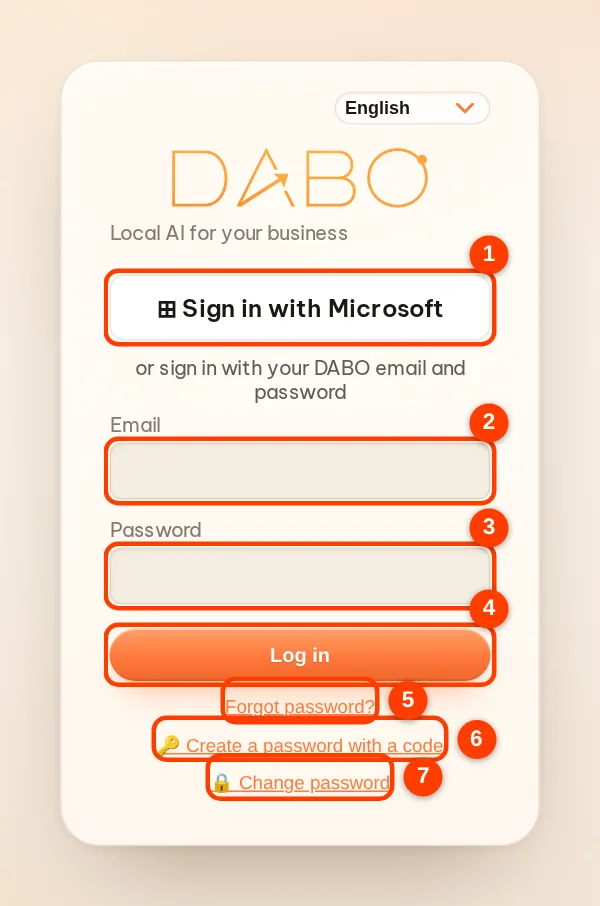
https://<IP or domain>(e.g.https://192.168.1.20) and their login email. Employees create their own password with a setup code: DABO emails the code if Approve by email is on; otherwise give them the code shown when you created the account. The employee opens Webchat → 🔑 Create a password with a code. - On first visit the browser warns “Your connection is not private” — normal, because DABO uses an internal certificate. Click Advanced → Proceed (Chrome/Edge) or Advanced → Accept the Risk (Firefox). Once per computer.
- Staff sign in and use DABO right away on computers or phones on the company network.
Activate your license
After installation DABO runs the Free plan (up to 5 users, 100 documents). To use Pro / Max / Ultra, open the admin page → License tab and pick one of three ways:
- You have a license code like
DABO-XXXX-XXXX-XXXX-XXXX(server with Internet): paste it into License code (2) → click Activate with code (3). No need to send your Machine ID. - Try before you buy: choose a plan (4) → click Start the 30-day trial (5) — every feature of the Ultra or Max plan for 30 days, once per machine.
- Server without Internet: click Copy (1) next to the Machine ID and send it to DABO (
info@dabotech.ai) or your reseller → you receive a.dabofile → Choose file (6) → Activate license (7).

- The license is tied to the server hardware: reinstalling the operating system keeps the same Machine ID. Moving to a new server: click Deactivate on the old one, then enter the code on the new one (for a
.dabofile license, ask DABO to reissue it). - When a license or trial ends, DABO falls back to the Free plan without losing data. Webchat reminds users 30 days ahead (trial: during the last 7 days).
- Details for each option: License tab.
Do this right after installing
| Task | Where | Guide | ||
|---|---|---|---|---|
| Create staff accounts, departments | Admin → Users & documents | Open | ||
| Create knowledge bases, set access | Admin → Users & documents | Open | ||
| Upload company documents | Webchat → 📁 Documents | Open | ||
| Enable automatic backups | Admin → Updates | Open | ||
| “Answer from documents only” | Admin → AI Model | Open | ||
| Sign in with Microsoft/Google/AD | Admin → Users & documents | Open | ||
| Connect CRM/ERP, email, customer channels, Telegram/Teams | Admin → Users & documents | Open | ||
| Online meeting interpreter + reply suggestions | – | – | ✓ | ✓ |
Updating DABO
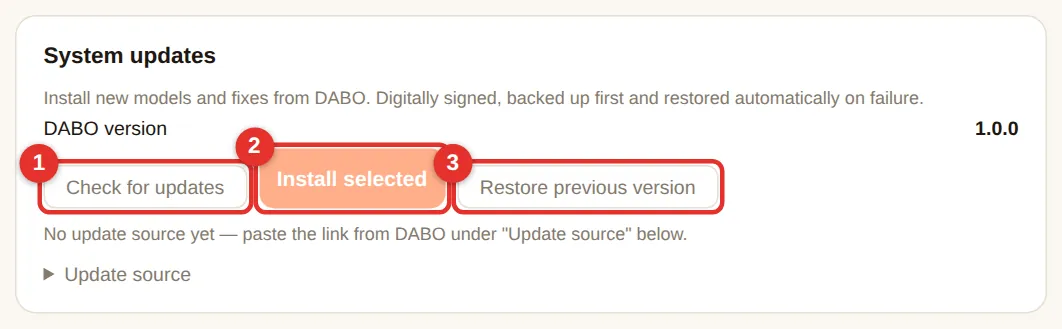
- Admin panel → Updates tab → Check for updates (1).
- Tick the items to install (new models, platform software, fixes) → Install selected (2).
- Packages are signature-checked, backed up before installing and rolled back on failure. To go back: Restore previous version (3).
- Reinstall / major upgrade: run the new installer (
DABO-Setup.exe,DABO-Setup-Linux.runorDABO-Setup.command). Data, accounts and license are kept. - Offline servers: leave “Update source” empty; DABO updates from a portable drive.
Backup & restore
Turn on daily automatic backups right after installation — it takes 1 minute. Every button explained: admin guide.
- Backups do not include AI model files (they can be downloaded again), so they are small and fast.
- Store backups on another drive, a NAS or USB — a failed main disk then does not take the backups with it.
- Moving to a new server: install DABO there → Restore from file… → choose the old server’s
.dabobakfile → ask DABO to reissue the license for the new Machine ID.
Forgotten admin password / admin code
- Another admin exists: they open the admin panel → accounts list → click ✎ → Reset password to issue you a password setup code; you open Webchat → 🔑 Create a password with a code and set a new password yourself.
- The only admin forgot the password: on a Windows server click Start → type DABO → choose DABO - Admin password recovery. Linux:
sudo bash /opt/dabo/support-tools/reset-admin-password.sh. Mac: runsupport-tools/reset-admin-password.shin the DABO folder. The tool sets a temporary password, unlocks the account and shows the admin code; you set a new password at next sign-in. - Forgot the admin code: open
admin-panel-secret.txton the server again. - 5 wrong passwords within 15 minutes lock the account for 15 minutes (an admin can unlock it immediately).
Uninstalling
- Windows: run
C:\Program Files\DABO\Uninstall.exe. When asked whether to delete all data, choose No to keep it (recommended if you will reinstall). Deleting data cannot be undone — back up first. - Linux: run
sudo bash /opt/dabo/bootstrap/uninstall.sh. macOS: open Terminal and runbash <DABO folder>/bootstrap/uninstall.sh. The script asks before each step; your data is kept unless you typeDELETE. Docker and the graphics driver are left in place.
Problems during installation?
| Message / symptom | What to do |
|---|---|
| “Windows too old, WSL2 not supported” | Update Windows 10 (Settings → Windows Update) or use Windows 11 / Server 2022+. |
| No NVIDIA GPU found / AI runs on the CPU | The machine has no NVIDIA card, or the card is not detected (loose, disabled in BIOS). DABO still installs and runs the AI on the CPU (very slow). Fit or check the card and run setup again — DABO switches to the GPU by itself. |
| Warning: GPU is in MIG mode | Run nvidia-smi -i <GPU number> -mig 0 (Linux; on Windows in PowerShell as administrator), restart the machine and run setup again to use the whole card. |
| AI model tab shows “AI engine: Compatibility” | Older or low-VRAM cards run the compatibility engine — all features, but slower. For more speed, use an Ampere-generation card or newer (RTX 30 / 40 / 50, RTX A / Ada / PRO, A10, A40, L4, A100, H100…). |
| Virtualization warning | Enable Intel VT-x / AMD-V in BIOS (see Prepare); VMs need nested virtualization. |
| “Importing the Linux environment failed” | Check virtualization as above, restart and run the installer again. |
| Cannot download environment / model | Check Internet; the company firewall/proxy must allow downloads. Run the installer again — it resumes. |
| Drive not NTFS / low disk space | Choose another drive or free up space (≥ 80 GB). |
| WSL update failed | Click Start → type PowerShell → right-click Run as administrator → type wsl --update → Enter. Then run the installer again. |
Staff cannot open https://<IP> | Check the server is on and not asleep; whether its IP changed (set a static IP and update it in the Network tab); firewall ports 80 and 443 open. |
| Chat opens but the AI does not answer | The model is still downloading or starting (minutes to over an hour for large models). See progress in the AI Model tab. |
| Microphone does not work | Only over https://; allow microphone access when the browser asks. |
| Anything else | Send the setup log or a diagnostic report (Support tab → Download report) to support@dabotech.ai. Re-running the installer is safe and keeps your data. |
DABO AI — your own AI, on your own servers
Your data never leaves your company. Internal documents, CRM/ERP, email and automated workflows in one platform.
Contact us