
Get started in 5 minutes
DABO AI is your company’s own AI assistant. The AI model, documents and chat history all stay on your company’s server and are never sent outside. The AI answers from the documents you are allowed to see — everyone sees exactly what their job requires.
Sign in
- Open a browser (Chrome, Edge, Safari or Firefox) and go to the DABO address your administrator sent you, for example
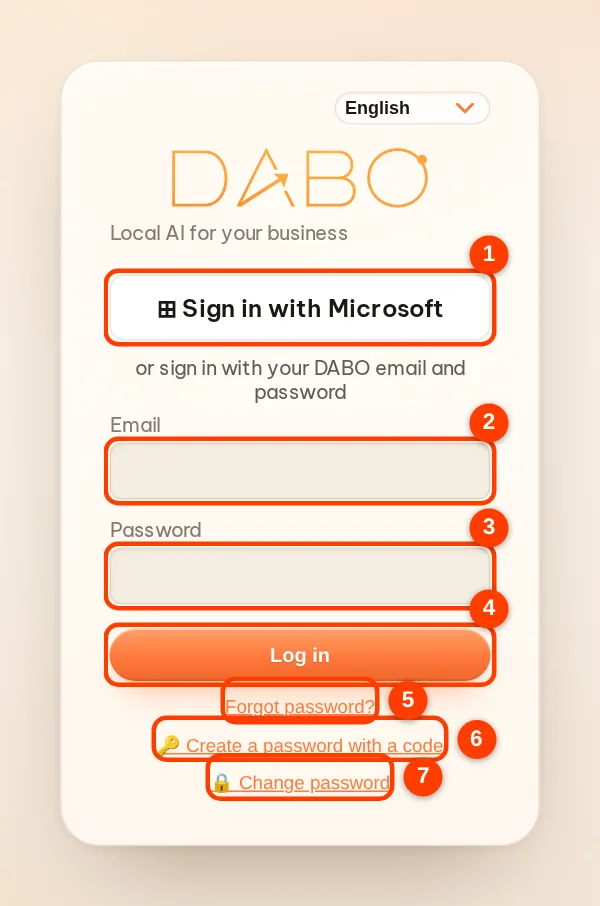
https://dabo.company.local. - If your company uses Microsoft or Google accounts, click (1) Sign in with Microsoft (or Google). Otherwise enter (2) your email or username and (3) your password, then click (4) Log in.
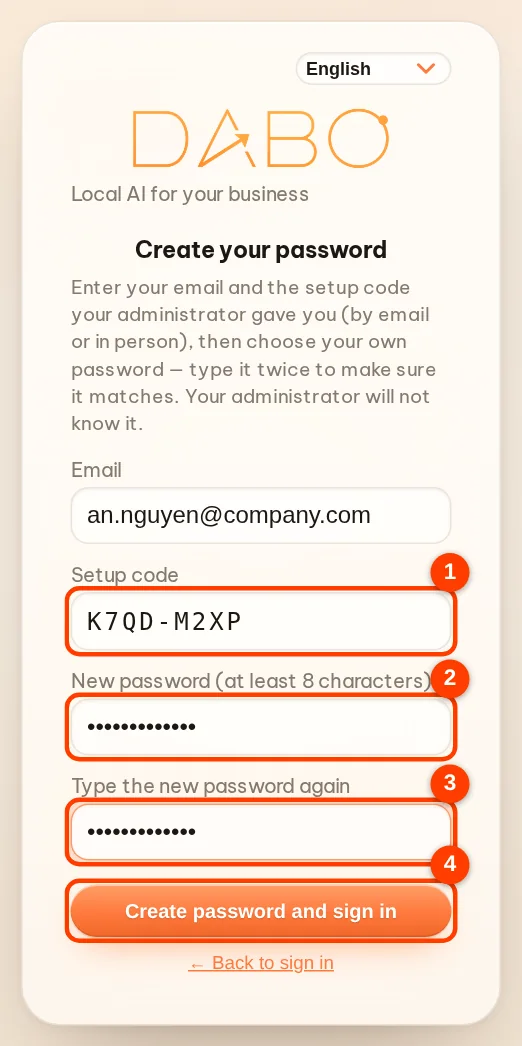
- First sign-in (an account your administrator has just created for you, or just reset): click (6) 🔑 Create a password with a code → enter your email, the setup code (8 characters, sent by email or given to you by your administrator) and your new password twice → Create password and sign in. If you click Log in straight away, DABO opens this form for you. The code works once and expires after 7 days; your administrator never knows your password.
- Forgot your password: enter your email and click (5) Forgot password? — once your administrator approves, you receive a new setup code (by email or from your administrator); then continue as for the first sign-in.
- Change password: right on the sign-in screen, click (7) 🔒 Change password → enter your email, current password and new password twice → Change password and sign in.
- Type your first question in the box at the bottom, for example “What is our process for requesting leave?” → click Send (or press Enter).
Find your way around
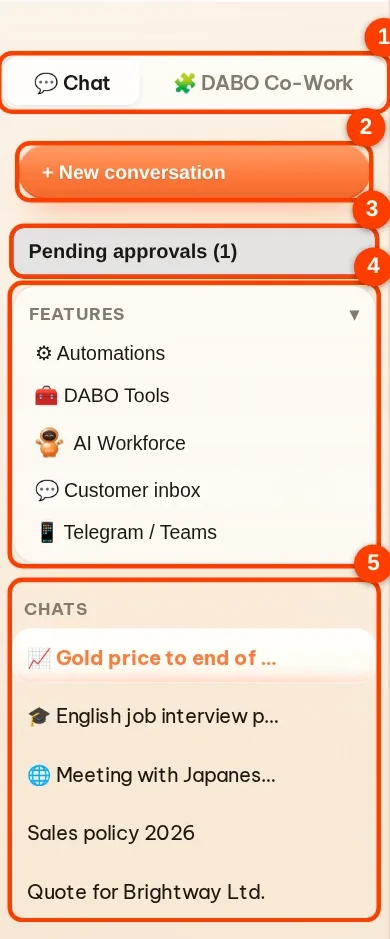
- Left sidebar: (1) the 💬 Chat / 🧩 DABO Co-Work switch — each side has its own list · (2) + New conversation · (3) Pending approvals (the number in brackets is how many requests are waiting) · (4) the Features box groups features such as ⚙ Automations, 🧰 DABO Tools (including DABO for Office, Connect email account, DABO AI Desktop, Meeting interpreter), 📱 Telegram / Teams — click its title to collapse or expand it · (5) the Chats section — your conversations; the 📈 🎓 🌐 icon before a name shows its mode. Double-click a name to rename it; click × next to it to delete the conversation.
- Depending on your plan and permissions, the sidebar can also show: AI Workforce, 📘 Correction notebook, 💬 Customer inbox, 🔌 My apps. 📝 DABO for Office, 🔗 Connect email account, 💻 DABO AI Desktop and 🎧 Meeting interpreter are in 🧰 DABO Tools ▸ DABO apps.
- Top bar: (1) choose the AI model · (2) 📁 Documents (if you may upload documents to a library) · (3) interface language · (4) ❓ Guide opens this guide · (5) Log out. To change your password, use 🔒 Change password on the sign-in screen. On a phone these buttons are under ⋯.
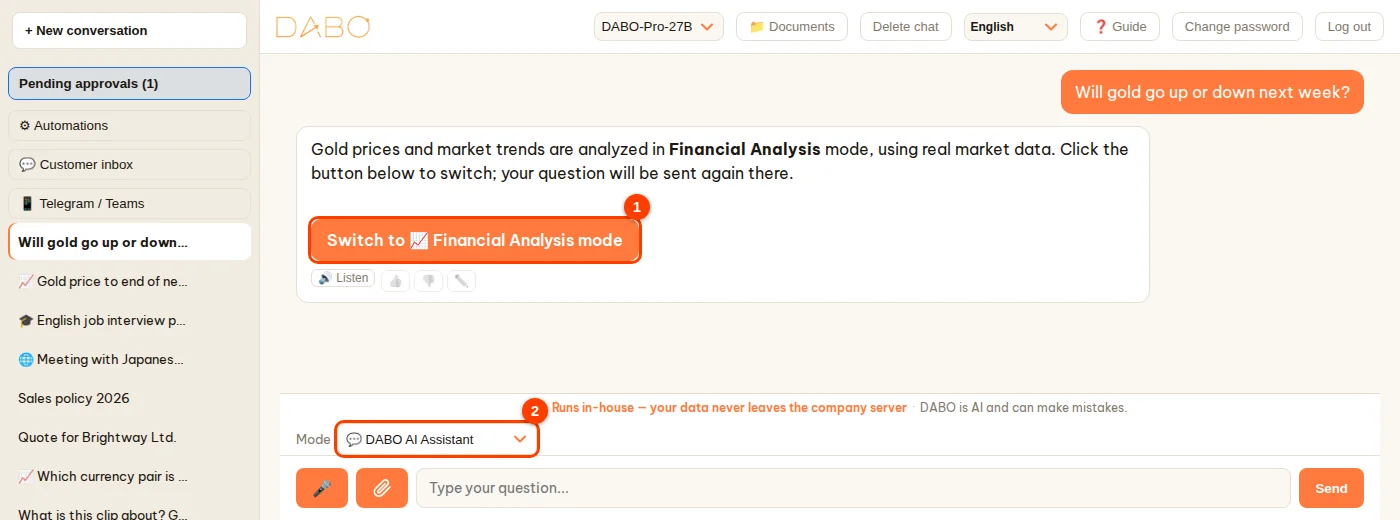
- Above the message box is the Mode box: 💬 DABO AI Assistant (default), 🌐 Conversation Interpreter, 🎓 Language Tutor, 📈 Financial Analysis — see Modes.

Use it on your phone like an app
- iPhone / iPad: open the DABO address in Safari → Share → Add to Home Screen.
- Android: open it in Chrome → ⋮ → Add to Home screen (or Install app).
- The DABO icon appears on your home screen and opens full screen like a normal app. Your phone must be able to reach the DABO server (company network, or an Internet address your company provides).
Ask the AI and get what you need
Just ask the way you would ask a capable colleague. DABO searches every document library you are allowed to see and answers with a Source line at the end of the answer — click a document name to open the exact passage the AI used. There is no need to type “search the documents”.
| Ask like this | Instead of |
|---|---|
| “Summarize the contract with ABC Corp: value, term and penalty clauses.” | “What about the ABC contract?” |
| “Draft a polite reply to a customer asking for 30 more days to pay, under 150 words.” | “Write an email to a customer.” |
| “Compare August and September sales by product, as a table.” | “How are sales?” |
- Say what it is for, who it is for and the format you want (table, bullet points, email, length…).
- Ask follow-up questions in the same conversation — the AI remembers what came before. For a new topic, click + New conversation to keep answers focused and accurate.
- While the AI is working, the answer bubble shows the steps it is taking (for example searching the documents), then the line Finishing the answer…. The answer appears all at once, complete, once it has been checked — it does not appear word by word.
- To make the AI stop: click Stop (or press Esc) — the bubble shows (response stopped). If you type another question while the AI is answering, it is queued (label Queued – the AI will answer this right after the current answer) and answered right after. When two or more questions are waiting, DABO analyses them: related questions (a later one adds to, corrects or extends an earlier one) are combined and answered together in one reply (label 🔗 … related questions combined); independent questions are answered one by one; click Remove to cancel a queued question.
- Scroll up to re-read while the AI is answering: DABO does not pull you back to the bottom, and the round ••• button above the message box shows that the AI is still answering — click it to jump to the latest part. When the answer is finished and you are far from the bottom, the ↓ button takes you back to the newest message.
- If a request needs ⚙ Automations (a task repeated on a schedule), 🤝 AI Workforce, 🔗 Connect email account (reading and sending mail, checking or booking your calendar) or 💻 DABO AI Desktop (working on your computer) and that feature is not ready yet, DABO shows a card asking whether you Agree to use it. Without access (not in your plan, or not granted by your administrator) the Agree button is locked and the card says why. If you agree but have never set it up, DABO opens that feature’s settings — when you are done, click Continue the request. Choose No, do it another way and DABO does what it can without that feature.
- You can switch to another conversation while the AI is answering: the AI keeps working, and the answer is there when you come back. Closed the browser or lost the connection? No problem — the AI finishes its answer on the server; reopen the conversation to see it.
- To change a question you just asked: click ✎ next to it → edit → Save & resend. To correct the AI’s answer itself: click ✏️ under the answer (2) and edit it directly — an edited answer is labelled Edited. For an answer with a Word, PDF, Excel or PowerPoint file, click ✏️ to edit the file content itself (title, paragraphs, tables, fields…) and click Save — DABO rebuilds the file with your changes.
- For harder tasks the AI may think before answering (the “Thinking” line) — click it to see the steps it considered.

Click a source to check it
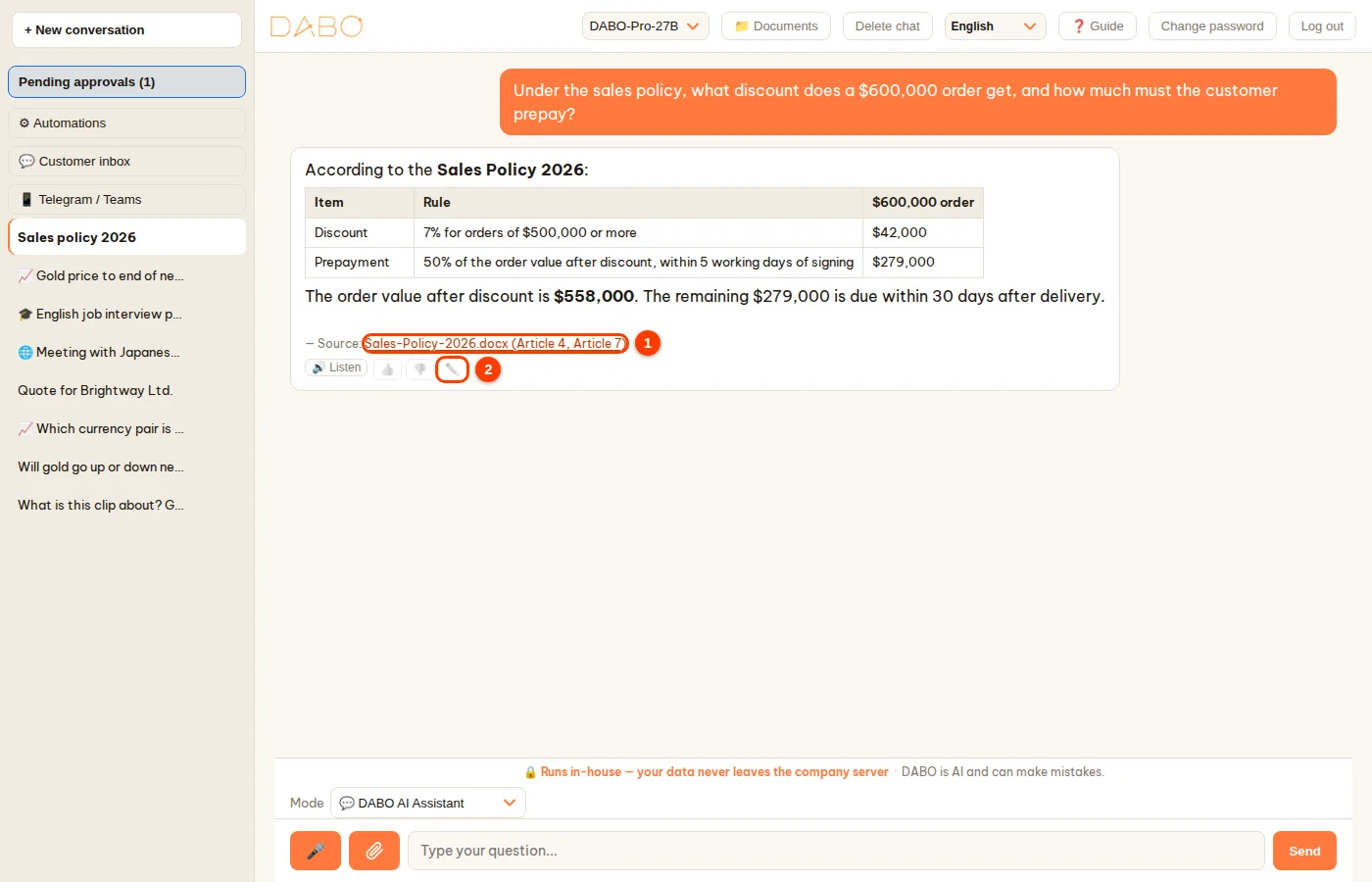
Every answer that uses documents, web pages or CRM/ERP data ends with a — Source: line. Each source is a link:
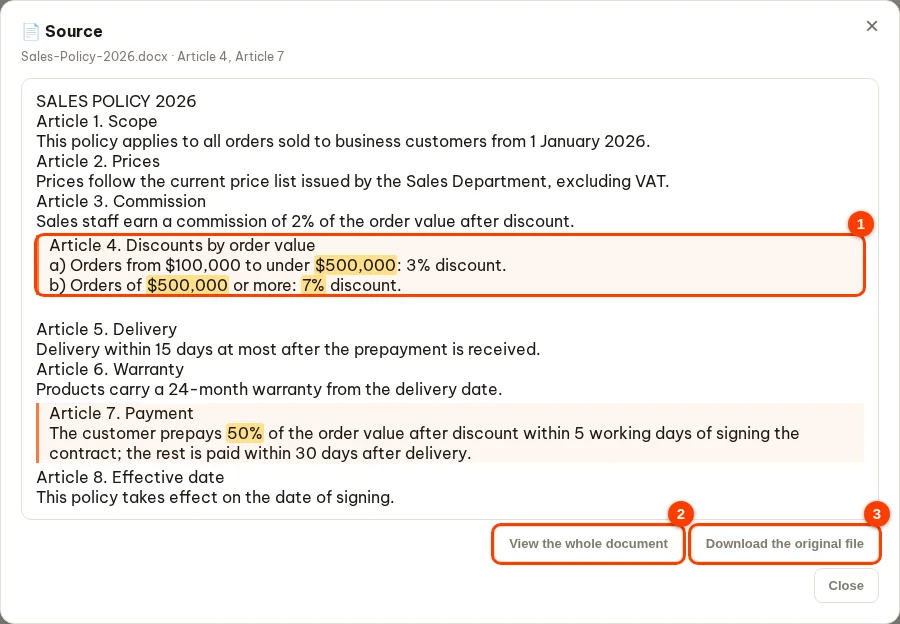
- Documents in a library (for example Sales-Policy-2026.docx (Article 4, Article 7)): click the name → the 📄 Source window opens, with the passages the AI quoted highlighted (1) and the figures and keywords marked in yellow.
- Click View the whole document (2) to read the full text (the highlights stay); click Show the quoted part only to go back. Download the original file (3) downloads the exact Word / PDF / Excel file that was uploaded to the library.
- Web pages (🌐 page name): opens the original page in a new tab. CRM/ERP data: opens a table of the current records; each row has an Open ↗ button to view the record in the original system.
Internet search (Pro plan and above)
If your administrator has turned it on for your department, DABO searches the Internet when a question needs outside information — news, market prices, public documents… — and links its sources. DABO only sends out general search terms: internal documents and files you attach are never put on the Internet.
Ask about a video from a link (YouTube…)
Paste a video link into your question — DABO watches the images and listens to what is said in the clip, then answers: a summary, the main points, quotes of what is said, or answers to questions about the clip.
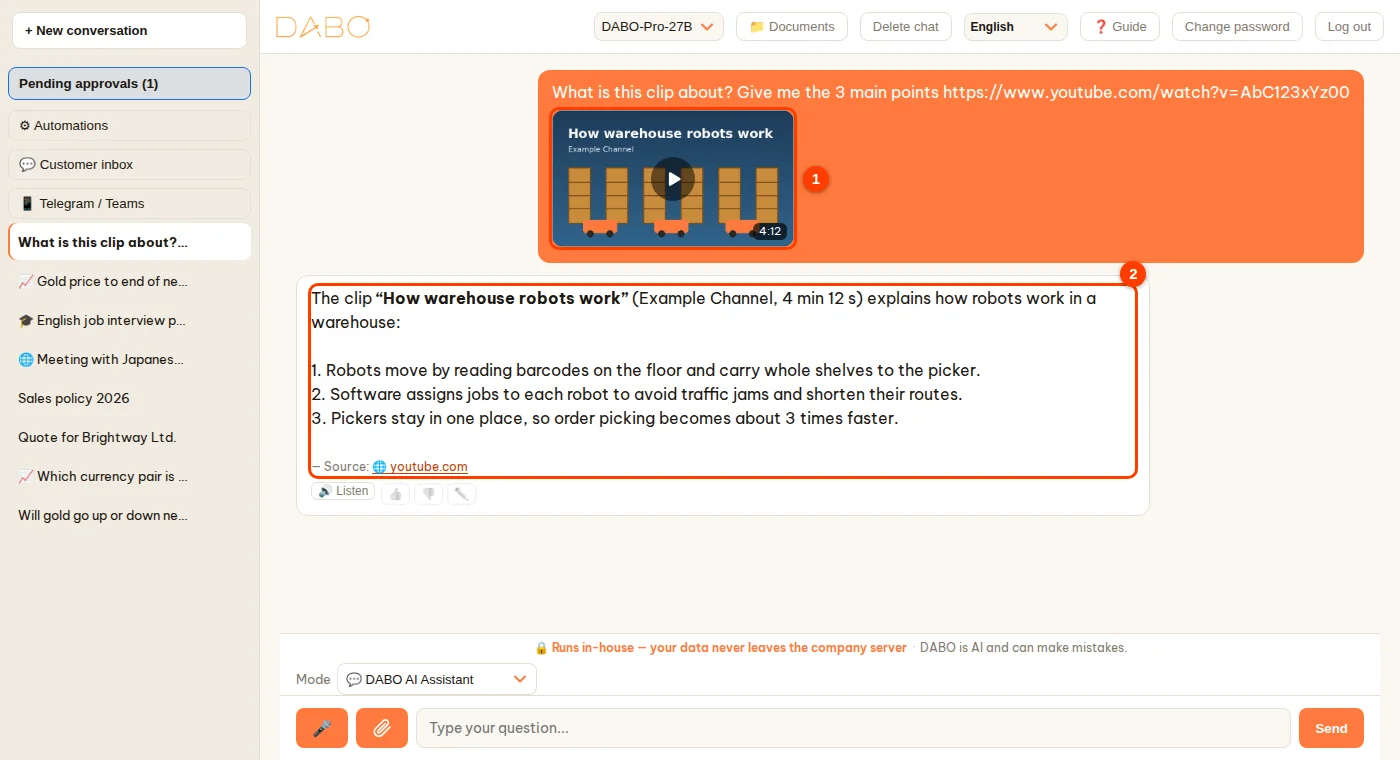
- Type your question with the link, for example “What is this clip about? Give me the 3 main points https://www.youtube.com/watch?v=…” → Send.
- A video card (1) appears above the message box and shows the progress: Opening the video… → Downloading the video… % → Listening to the video… → Summarizing the speech…. When it is done, the question is sent automatically with the frames and the speech of the clip.
- In the sent question, the video thumbnail (1) can be clicked to open the video again; the answer (2) gives the video page as its source.

- Supports YouTube (including Shorts), TikTok, Vimeo, Facebook, Instagram, Dailymotion, X, Bilibili and Twitch. Up to 2 links per question.
- Requires the Internet search permission from your administrator; listening to the speech requires a plan with voice (Pro and above).
- DABO cannot watch live streams, private videos, videos that require signing in, or playlists — in that case DABO says so briefly and still answers your question as usual.
- The video is downloaded by the DABO server for processing; only the video link goes out, and company documents are never sent to the Internet.
Attach files & create documents
Attach files and images
Click the attach button (paper clip) next to the message box → choose a file or image, or drag and drop / paste it straight into the message box. Each file can be up to 20 MB; videos and recordings up to 2 GB (DABO listens to and watches the clip by itself). The file is used only in that conversation and does not go into a shared library. Is the video online? Just paste the link — see Ask about a video from a link.
- “Read this Excel sheet and list the 5 customers with the oldest unpaid invoices.”
- “From this photo of an invoice, extract a table with supplier, date and amount.”
- “Compare the 2 attached quotes — which one is cheaper for each item?”
A file attached to an earlier message does not “take over” later questions: if your new question has no file, DABO answers the new question (searching the libraries, looking things up…) and only uses the earlier file when you mention it.
Create Word, Excel, PowerPoint and PDF files
Just ask in plain words — the AI creates the file and puts a download link right in its answer:
- “Export the list above to Excel.”
- “Draft a sales contract for ABC Corp using our company contract template.” — if your department’s library holds the template, the AI keeps its exact format.
- “Make 8 PowerPoint slides introducing product X to new customers.”
- “Write the weekly report as a Word file, with a revenue chart.”
Standard documents and forms for each country
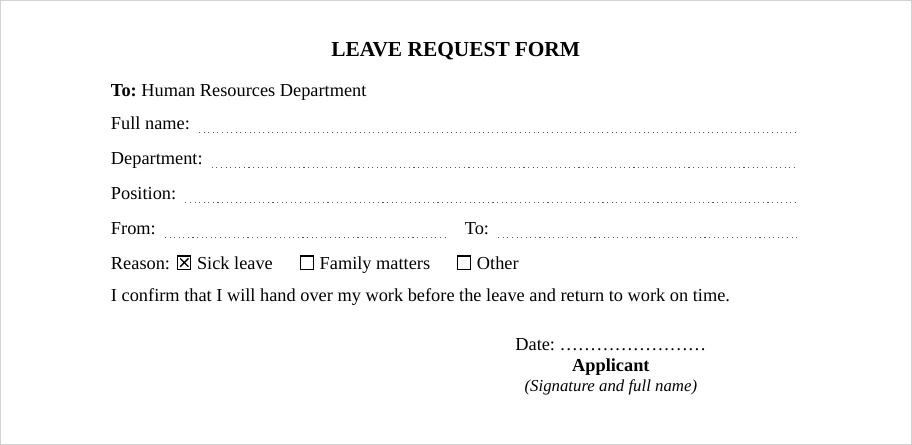
When you ask for an application, request form, contract, letter, minutes, quotation or report, DABO formats it to the standard of the country that matches the document language — whichever AI model you use. Fields to fill in get dotted lines, choices get ☐ boxes, and the document ends with a signature block and page numbers. Reports and quotations get a coloured title, bold total rows and right-aligned numbers.
- Type your request in the chat, for example: “Draft a 3-day leave request as a Word file.” If you want PDF, Excel or PowerPoint, say so, for example “…as a PDF”.
- Click the download link in the answer to open the file. Any field you have not given information for is left blank (dotted line) for you to fill in — the AI does not make things up.
- To use your own template: click the attach button (paper clip), choose your Word, Excel or PowerPoint template and type “Use this template for …”. The AI keeps the layout of your template.
Edit and sign PDF files directly
DABO can edit a PDF right on the page and let you sign it, then save the result as a new PDF — the original stays unchanged.
- Open the editor: click ✍️ Edit / sign next to the link of a PDF that DABO has just created, or click ✍️ on a PDF you attached (also before sending), or write “Sign this PDF” / “Edit this PDF” and click ✍️ Open the PDF editor / sign.
- Choose a tool in the top bar:
- ✏️ Edit text — lines of text show a blue box; click the line you want to change and type. The new text keeps the size, style and colour of the old text. Delete all its text to remove the line.
- T Add text — click where you want to add text and type; set the size, bold, italic and colour in the bar below.
- ▭ Cover / erase — drag over the area to cover; the cover colour is taken from the page background.
- 🖍️ Highlight, 〰️ Draw, 🖼️ Image, ✓ Tick, ✗ Cross, 📅 Date (today’s date).
- 🖱️ Select — click an added item to drag it, drag its corner to resize, click the red × to delete it; double-click added text to edit it.
- Sign: choose ✍️ Sign, then:
- Draw — sign with the mouse (hold the left button and drag), with your finger on a phone or tablet touch screen, or with a stylus (the line follows your pen pressure). With a laptop touchpad: turn on Sign with a laptop touchpad — click once to put the pen down, move your finger to sign, click again to lift the pen (no need to hold the button). Pick the ink colour and line thickness; use Undo stroke / Clear to sign again.
- Type — type your full name and pick one of three signature styles.
- Upload image — a photo of your signature on paper; DABO removes the white background.
- Options: Add the signer’s name and signing time under the signature; Remember this signature on this device (stored only in that browser; next time click Use saved signature).
- Click Place signature on the file, then click where it should go on the page; drag to adjust, drag the corner to resize.
- Click 💾 Save as new PDF. A download link to the new file appears in the conversation. The old text in edited lines and covered areas is removed from the new file (it can no longer be found or copied). A signed file records who signed it and when.
- Undo / redo: Ctrl+Z / Ctrl+Y; zoom with the + / − buttons. If you close without saving, DABO asks before discarding your changes.
- Scanned pages (no text): use Cover / erase and then Add text. Password-protected files: unlock them before editing.
- This is an electronic handwritten signature; DABO does not yet create certificate-based digital signatures (USB token / CA).
DABO Tools – office toolkit
Click 🧰 DABO Tools in the left sidebar to open DABO AI’s office toolkit: large tool cards, group filters (PDF, Images, Archives, Office, Audio & video, AI assistant, Calculators, Data, IT & design), a tool search box and a ‹ Chat button to return to your conversation. Included in every plan, even Free. Every file is processed on your company’s own server — nothing is sent outside — and is deleted automatically after 6 hours.
- PDF: merge, split, delete / extract / organize / rotate pages, compress, repair, OCR; convert images, Word, Excel, PowerPoint and web pages to PDF (PDF/A available) and PDF to Word, Excel, PowerPoint and images; edit and sign, page numbers, watermark, crop margins; add / remove a password, compare two versions.
- Scan documents with your phone: tap Take photo to open the camera (or choose existing photos). DABO finds the four edges of the paper, flattens the page, whitens the background and combines the pages into one clean A4 / Letter PDF. Tap a page to adjust its edges — the 4 corners or a polygon (a magnifier helps you place them precisely), rotate or reorder pages; choose Auto, Colour, Greyscale, Black & white or Original photo; optionally add a searchable, copyable text layer (OCR).
- Images: compress, resize, crop (drag a frame, 1:1, 4:3, 16:9…), convert (JPG, PNG, WebP, GIF, BMP, TIFF, ICO; opens iPhone HEIC photos), rotate / flip, text or logo watermark, remove background (with optional retouching), photo beautify, blur faces, image to Word / text.
- Archives: pack files into a ZIP (optional AES-256 password); extract ZIP, RAR, 7Z, TAR, GZ… then download each file or continue with another tool.
- Office: merge / split Excel files (by sheet or by row count, cell formatting kept), CSV ⇄ Excel (leading zeros in codes and phone numbers kept), convert DOC ⇄ DOCX, XLS ⇄ XLSX, PPT ⇄ PPTX, ODT, ODS, ODP, RTF, TXT; create QR codes (link, text, Wi-Fi, contact) and EAN-13, Code 128… barcodes as PNG / SVG; read QR codes and barcodes from images.
- Audio & video: convert to MP3, M4A, WAV or MP4, extract the audio from a video; compress videos for email and messaging.
- AI assistant: summarize, translate documents (formatting kept, exported to Word), ask questions about a file.
Original layout and fonts are kept: when converting Word / Excel / PowerPoint to PDF or between formats, DABO uses the fonts installed on the server (Windows, Ubuntu, RedHat, macOS) plus any company fonts your administrator has copied into DABO’s font folder; PDF to Word / PowerPoint keeps the font names, sizes, bold / italic and text colours. DABO never adds, removes or changes content.
Results can go straight into another tool without uploading again; download each file or everything as a .zip, or click Ask DABO about this file. In the chat, attach files and type for example “Merge these 2 PDFs”, “Compress this image”, “Unzip this file” or “Remove the background of this photo” — DABO shows a button that opens the right tool with the files you sent.
More accurate (10/2026): PDF to Word / PDF to Excel keep the right columns in tables without borders, read numbers like 1.200 (one thousand two hundred) correctly, turn sideways pages upright and keep diagonal watermarks out of the text; Image to text straightens tilted photos of documents before reading them; Repair PDF rescues the intact pages of a partly downloaded file (and says how many); CSV ⇄ Excel keeps dates, percentages and leading zeros exactly as Excel shows them; logo watermarks in Watermark images appear at the opacity you chose.
Tools for every profession
The Industry tools group sits right after All; the By department filter row — Finance & accounting, HR & admin, Sales & marketing, Legal, Engineering, Warehouse & logistics, IT, Design — helps you find the tools you use most. Click the selected item again to clear the filter.
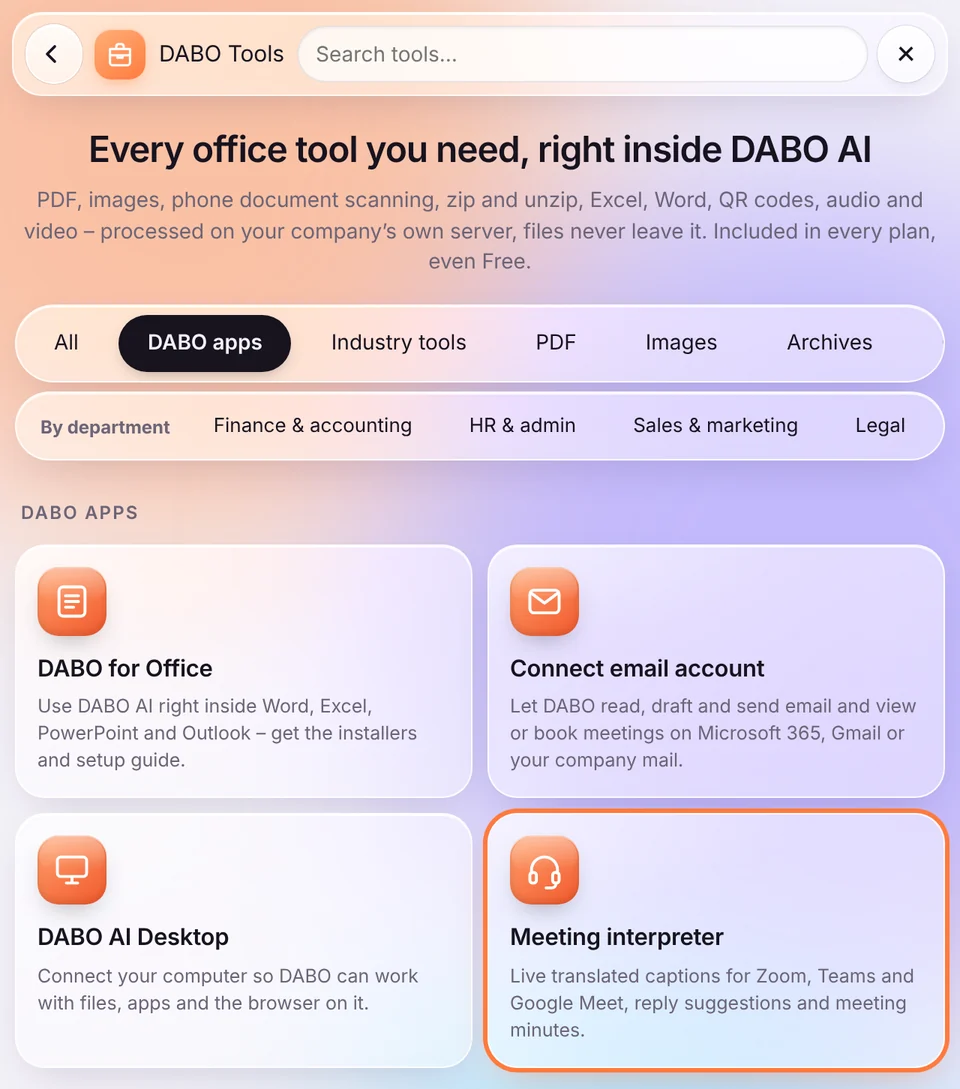
- DABO apps — DABO for Office, Connect email account, DABO AI Desktop (or DABO Browser) and Meeting interpreter now live here instead of the sidebar, keeping the chat window clean; click a card to open it as before. The group only shows what your company’s plan includes and your administrator has turned on for you; items that need a higher plan show 🔒. While a meeting is being interpreted, the 🔴 button stays in the sidebar so you can jump back quickly.
- Industry tools — default figures follow the country of your interface language (electricity tariff, grid emission factor, brick and rebar sizes, BMI classification…); every value can be edited and its source is shown: Carbon & carbon credits (emissions inventory for scope 1 – fuels and scope 2 – electricity, credits needed to offset, credits a solar or emission-reduction project can earn, the carbon market in your country); Construction quantities (concrete with cement, sand and aggregate by mix ratio, rebar weight, bricks and mortar, paint); Clinical calculators (BMI by national and WHO classification, body surface area, weight-based dose, IV drip rate, eGFR CKD-EPI 2021, due date); Electricity & solar (tiered electricity bill, appliance consumption, rooftop solar size, yield and payback, CO₂ from electricity); Insurance calculator (claim payout with underinsurance, deductible, co-payment and limit; life cover needed; premium by payment mode); Freight: CBM & chargeable weight (CBM, chargeable weight for air, express and sea, number of 20′/40′ containers); Manufacturing OEE (availability × performance × quality, takt time). In English the tools use US units (ft, yd³, lb, gal) and switch to metric with one tap.
- Scan, background removal & photo beautify — right after taking a photo you can adjust the edges: drag the 4 corners or switch to Polygon for labels, stickers and hexagonal or octagonal paper (drag the middle of an edge to add a point; double-tap or press and hold a point to remove it); Preview shows the flattened page, and everything outside the shape turns white, so no table edge or background is left. Remove background keeps fine hair edges without a fringe of the old background, with an optional Retouch after cutting out. The Photo beautify tool works like a photo-editing app on your phone: once you add a photo, the Looks strip shows every look on your own photo (Original, Natural, Portrait, Bright & airy, Dewy glow, Soft, Golden, Fresh, Vivid, Vintage film, B&W, Headshot, Product); tap a look to see the result straight away on the large photo and drag the bar across it to compare Before / After. The Intensity slider makes a look stronger or softer; Fine-tune offers brightness, contrast, saturation, warmth, smooth skin (texture kept), larger eyes, slimmer face and sharpness. The preview is made by the server with exactly the same processing as the final photo, so the download looks just like what you see.
- Scientific calculator in the style of a Casio — trigonometry (degrees / radians, inverse and hyperbolic functions), logarithms, powers, square and cube roots, factorials, combinations and permutations (nCr, nPr), percent, π, e, fraction ⇔ decimal (S⇔D), Ans and a calculation history. Type straight from the keyboard: Enter = result, Esc = clear all.
- Lunar age & yearly luck (in Dates & working days) — enter the Gregorian date of birth and gender to see the lunar date of birth, the zodiac sign (heavenly stem and earthly branch), the Na Yin element, the East Asian age, the Kua number, Tai Sui for the year, compatible signs, lucky colours and favourable directions. Click Ask DABO AI for a full reading: DABO AI opens a new chat and gives a feng shui reading based on exactly those figures; from the Pro plan, when the administrator turns on Internet search, DABO AI also looks things up online.
- Calculators — loan & instalments (annuity or equal principal, repayment schedule downloadable as Excel), savings & compound interest, NPV & IRR, depreciation, VAT, discount & margin, percentages and compound annual growth (CAGR), unit converter, dates & working days (with your own holidays), world clock, and amount in words for invoices and cheques in 14 languages.
- Data — Mail merge: a Word template with column names written as {{Column name}} (or Word merge fields) plus an Excel / CSV list → one letter, contract or certificate per row, as Word files, PDF files or one combined PDF. Compare two spreadsheets by a key column: rows only in A, rows only in B and changed cells, with a highlighted copy. Clean up data: trim extra spaces, turn numbers and dates stored as text into real values, remove empty and duplicate rows, tidy phone numbers, change upper / lower case, split full names. Barcode & QR labels printed from an Excel list (QR, Code 128, EAN-13 on A4 / Letter). Text tools: count words, change case, remove accents, sort, de-duplicate lines, find & replace.
- Redact PDF (PDF group) — blacks out email addresses, phone numbers, ID / account / card numbers and any extra terms you enter, such as names or addresses. Pages with such information are rebuilt as images with black boxes, so the hidden text is truly removed and cannot be copied or searched; document properties (author, title…) are removed too. For scanned PDFs, turn on Read scanned pages (OCR).
- IT & design — developer tools (JSON, Base64, URL, hashes, UUID, passwords, JWT, timestamps), colours (HEX, RGB, HSL, CMYK, shades and tints, WCAG contrast) and UTM campaign links with a QR code.
The calculators (except Amount in words), Text tools and the IT & design group run right in your browser — nothing is uploaded. The other tools are processed on your company’s server like every DABO tool. Redaction is an aid — review the result before sending it.
Upload documents to a library (if you have permission)
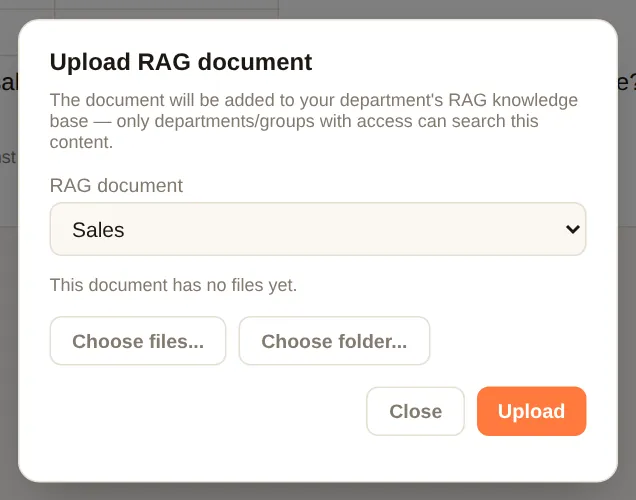
If you have Upload permission, click 📁 Documents → choose a library → Choose files... or Choose folder... → Upload. DABO reads Word, Excel, PowerPoint, PDF, images and scans (text is recognized automatically), emails, ZIP files (each file inside becomes its own document) and audio/video recordings (transcribed automatically, Pro plan and above). The list of existing files helps you avoid duplicates. Once a document is in a library, everyone allowed to see that library can ask about it.
Charts
Ask in plain words, for example “draw a bar chart of revenue by quarter this year”, “pie chart of September costs”, “staff pyramid by age”. The chart appears right in the chat; on a computer, hover over a bar or point to see its value.
- Types: column, bar, stacked, line, pie, pyramid, funnel.
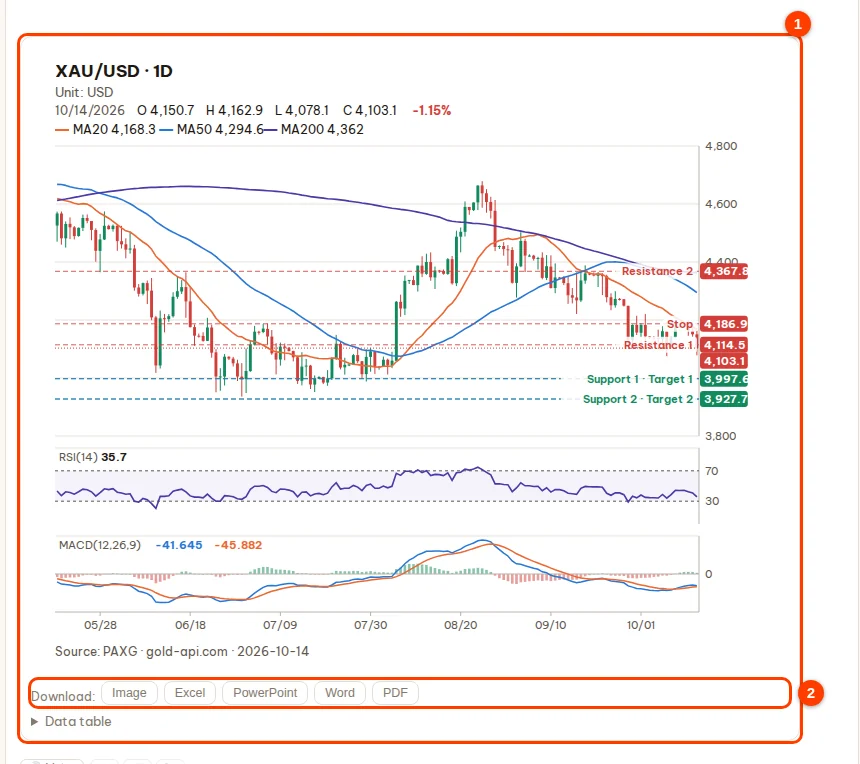
- Below the chart is a Download: row: Image, Excel (the data table), PowerPoint, Word, PDF.
- Charts are also included in Word / PowerPoint files the AI exports and in AI Workforce results.
Financial Analysis (Max plan and above)
Ask DABO about stocks, indices, currencies, gold, oil, crypto, loans, real estate… DABO fetches real price data, the system calculates the trend, the confidence and the indicators, and draws a candlestick chart right under the answer. The AI only interprets; it never makes up figures. Your administrator needs to turn the feature on for you.
Open Financial Analysis mode
- In the Mode box above the message box, choose 📈 Financial Analysis. If the open conversation already has messages, DABO opens a new conversation in this mode (the old one stays as it is).
- Asked a financial question in 💬 DABO AI Assistant mode? DABO points this out and shows a Switch to 📈 Financial Analysis mode button (1) — click it to move to the finance mode, and your question is sent again there. The other way round, asking about something else in Financial Analysis gives you a button to switch back to DABO AI Assistant.
- Type your question and state the time period you are interested in: “Analyze gold (XAU/USD) from now to the end of next week”, “EUR/USD until 10/25”, “BTC over the next 3 months”, “A $80,000 loan over 20 years at 7.5% in the first year, then 11% — what is the monthly payment?”.
Read the results
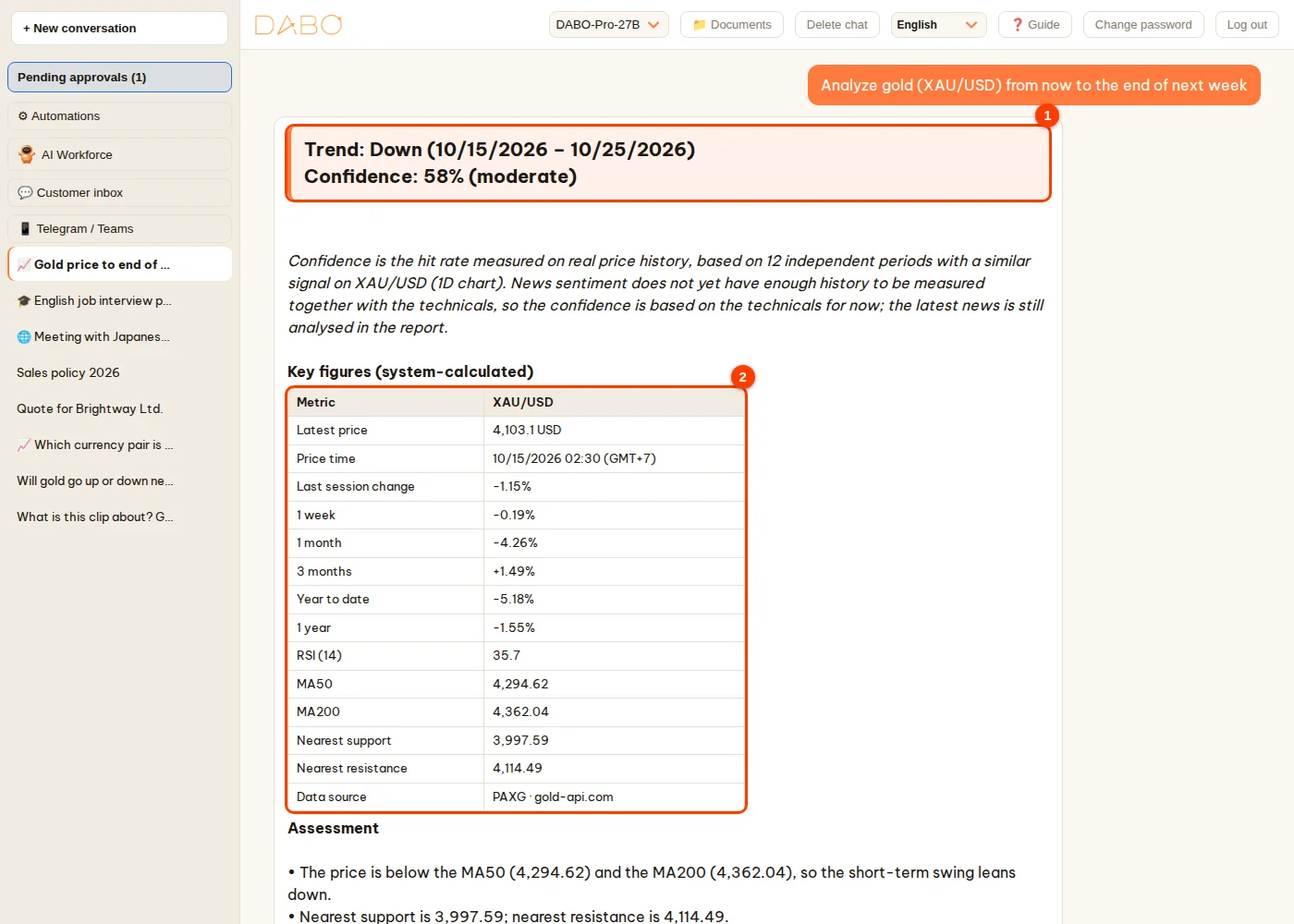
- Highlighted block at the top (1): Trend (Up / Down / Sideways) with the exact date range from your question (for example 10/15/2026 – 10/25/2026), and Confidence as a percentage. The line in italics just below explains how the figure was measured.
- Key figures (system-calculated) (2): latest price and the time of that price, change from 1 week to 1 year, RSI, MA50, MA200, nearest support / resistance, data source.
- The assessment, scenarios and risks are written by the AI from exactly those figures and end with “Analysis for reference only — consider carefully before investing.” and the Source line.
- Candlestick chart (1 in the next figure): MA lines, support / resistance zones, RSI, MACD. The Download row (2) saves an image, Excel, PowerPoint, Word or PDF; or ask DABO to “export this report to Word”.
| Confidence | Meaning |
|---|---|
| 70% or more — high | In the past, after similar signals, the price moved in this direction at least 7 times out of 10 over the period you asked about. |
| 62–69% — fairly high | Clearly leans one way. |
| 55–61% — moderate | An edge, but not a big one. |
| below 55% — low | Close to a coin toss — treat it as a reference only. |
- Confidence is a probability measured on the real price history of that very symbol: the system finds the times with a similar technical signal and counts how often the price moved in the stated direction over exactly the period you asked about. When there is a long enough history of news sentiment, the news part is also measured on history and added or subtracted — the explanation line says so. There are no caps and no bonus points based on gut feeling.
- If the price comes from a source with live prices, the exact time is shown; if the source only has end-of-day prices, DABO says clearly that it uses “the end-of-day price of …, not the price at the time of your question”.
- Mistyped a symbol (for example AUX/USD)? DABO works out the right one (XAU/USD — gold) and says so at the top, so you can correct it if that is not what you meant; if the symbol does not exist, DABO asks you again.
Compare several symbols
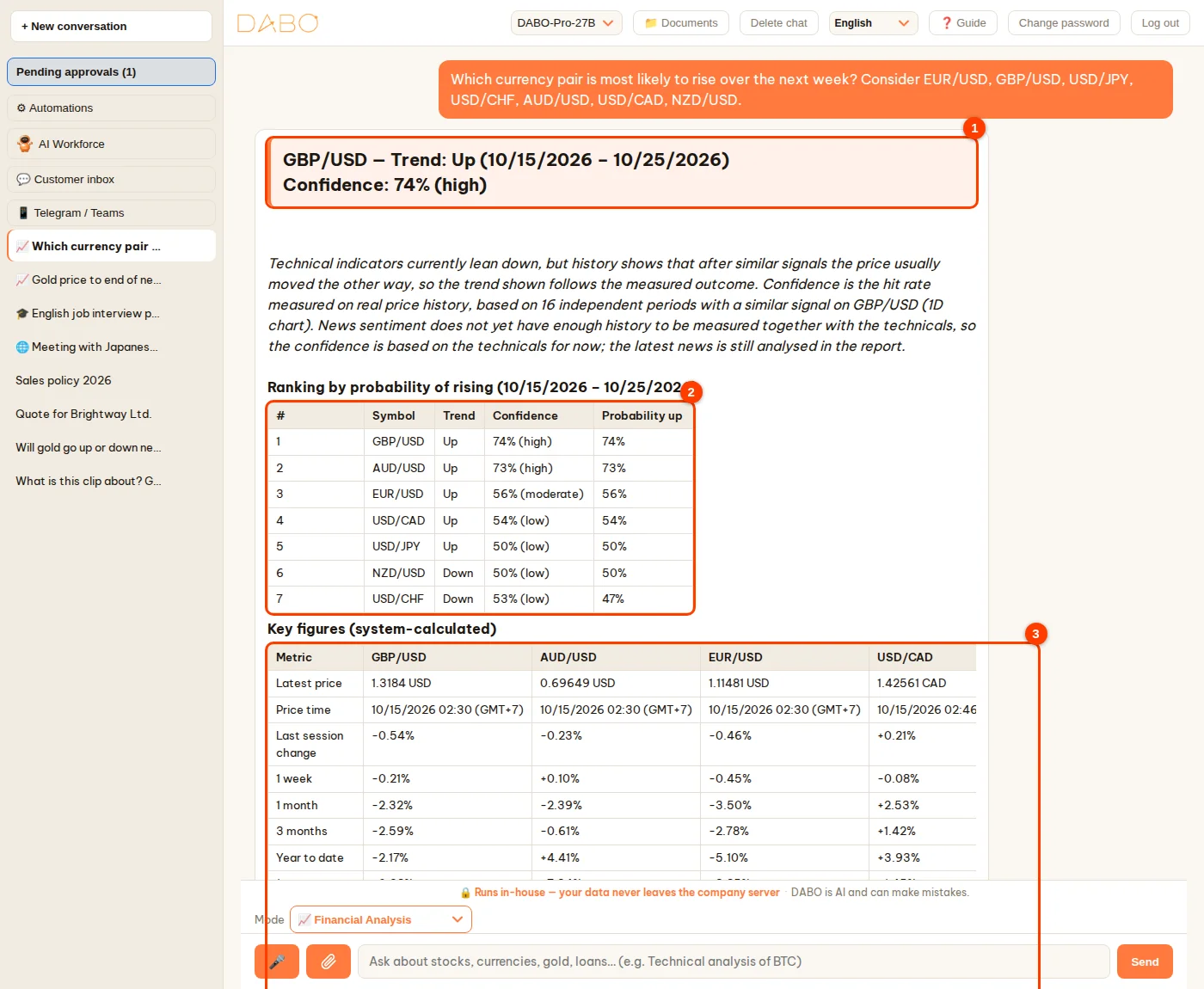
Ask something like “Which currency pair is most likely to rise over the next week?” (you can add a list of symbols). With 3 or more symbols, DABO ranks them all in the direction you asked about (up or down): the top symbol appears in the highlighted block (1), below it a ranking table (2) with each symbol’s trend, confidence and probability, then the key figures for the top 4 symbols (3).
Find the best symbol in a whole basket
When you ask for the best symbol without naming one — for example “Which currency pair has the highest confidence this week?” — DABO scans the whole basket itself: every currency pair MT5 offers for trading (majors, crosses, popular exotics, gold, silver), the 25 largest cryptocurrencies, commodities, the VN30 basket, 25 large US stocks or 20 indices. Each symbol is screened for reliability: at least 8 independent periods of real price history, fresh data, price sources in agreement and a clear trend; symbols that pass are ranked by confidence, highest first. The top 3 are analysed in detail (charts, several news sources, scenarios); the italic line below the three highlighted blocks says how many symbols were scanned and how many met the criteria. All other symbols are listed in the “Other symbols — for reference only” table at the end, with the number of periods measured and the reason they missed the top (few historical samples, outdated data, sideways, no data available…). Symbols that need a keyed data source (for example silver or stocks) are only scanned once your administrator has added that source in the admin panel.
What DABO can do
| You ask | DABO does |
|---|---|
| The trend of one symbol — stocks on any exchange, indices, currencies, gold, oil, crypto | Trend + confidence (%) for exactly the period you ask about; MA, RSI, MACD, Bollinger, Ichimoku…; support / resistance, Fibonacci; candlestick patterns; scenarios; latest news; overall technical signal (if your administrator turned it on) |
| Which of several symbols is the best | Ranking table by probability of rising / falling · ask for the best symbol → scans the whole basket and analyses the top 3 in detail |
| Prices, comparing several symbols | Latest price with its time, performance from 1 week to 1 year, comparison chart rebased to 100 |
| Company ratios | P/E, P/B, ROE, margins, dividends… (needs a data source added by your administrator; otherwise DABO looks it up on the Internet and cites the source) |
| Mortgages, rental property, valuation (DCF), bonds, savings plans | Exact calculators + charts: monthly payment, total interest, repayment-method comparison, cash flow, IRR… |
| A country’s macro data | Inflation, GDP growth, interest rates, exchange rates… by year |
- The same ticker can exist on several exchanges — add the exchange or suffix when needed, for example
7203.T(Tokyo),SAP.DE(XETRA),VOD.L(London). - This is analysis, not investment advice — the decision is yours.
- Mode missing or shown with 🔒: your company’s plan does not include it yet, or your administrator has not enabled it for your account.
- Confidence calibrated against real-world testing: the figure shown is the actual hit rate measured over many years of data (currencies 2008–2026, cryptocurrencies 2018–2026), not the rate measured on one symbol alone, so for short horizons it is often close to 50%; below 55% means there is no signal strong enough to trade on. When screening many currency pairs, pairs that are hard to trade in practice (USD/TRY and EUR/TRY because of very high interest rates; USD/HKD because of its pegged rate) are kept out of the top 3, with the reason shown.
- Currencies — Interest-rate + Valuation model: DABO uses the policy rates of 35 central banks (BIS, updated daily) and ECB reference rates to find pairs that both earn an interest-rate differential of at least 3% a year and are cheap against their 3-year average. Tested 2008–2026 on 51 currency pairs (after costs), qualifying signals were right 59% of the time after 1 month, 64% after 3 months and 66% after 6 months — the highest of the methods tested. A currency screen shows the Most reliable picks for a 3–6 month horizon; when no pair qualifies, DABO says so plainly and advises trading small or staying out instead of showing a flattering number. This strategy loses heavily in market panics (as in 2008 and 2015) — always use a stop-loss.
- Currencies — Multi-factor model (6-month horizon): DABO combines the interest-rate differential, valuation versus the 3-year average and 1–12-month price momentum using machine learning. Out-of-sample testing year by year 2010–2026 on 49 currency pairs (counted by independent episodes, including overnight interest, after costs): high-level signals were right 70% of the time after 6 months, very-high-level signals 79%; about half of all months had at least one pair at the high level. When you ask about a horizon longer than 3 months, the confidence comes from this model if it is higher; when screening, DABO lists the pairs at the high level or says plainly that there are none right now.
- Expected range for day / week trading: for currencies, when the horizon asked is 5 weeks or less, DABO shows the price range for the next session and the next 5 sessions with 80% likelihood (tested 2010–2026 on 20 currency pairs: the actual price stayed inside the range 80.0% of the time for 1 session and 79.9% for 5 sessions) — use it to set stop-loss / take-profit. Price direction over 1 day to 1 week is right only about 50–55% of the time, so DABO does not inflate confidence for short horizons.
Ask by voice & listen to answers (Pro plan and above)
- Click 🎤 and speak; click again to stop. Ask by voice and the AI answers by voice; type and it answers in text.
- Under each answer, 🔊 Listen reads it aloud; ⏹ Stop reading stops it.
- The first time, the browser asks for microphone access — choose Allow. The microphone only works when DABO is opened at an address starting with
https://.
Modes, Conversation Interpreter & Language Tutor
Choose a mode in the Mode box just above the message box (1).
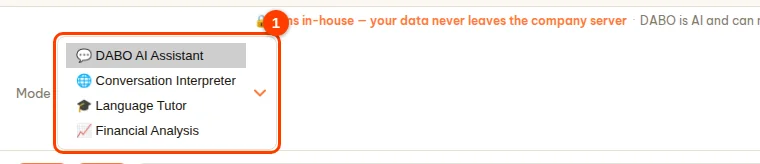
| Mode | Use it for |
|---|---|
| 💬 DABO AI Assistant | Everyday work: asking about company documents, drafting texts, email, calendar, CRM/ERP, charts, lookups, handing jobs to the AI Workforce. |
| 🌐 Conversation Interpreter | Talking face to face with someone who speaks another language — see below. |
| 🎓 Language Tutor | Learning and practising a foreign language with an AI tutor — see below. |
| 📈 Financial Analysis | Stocks, currencies, gold, crypto, loans… — see Financial Analysis. |
Each mode has its own conversations: switching modes during a conversation opens a new one (DABO shows “Opened a new conversation in … mode”), and the old one stays in the list with a 📈 🎓 🌐 icon before its title. If you ask about something that belongs to another mode, DABO points this out and shows a Switch to … mode button — click it to move to that mode, and your question is sent again there. Changing the language in Translate with / Learn does not open a new conversation.
Face-to-face interpreting
- Choose Mode → Conversation Interpreter, then pick your partner’s language in Translate with.
- Type or say what you want translated. DABO recognizes which language is being spoken and translates into the other one.
- Meeting someone in person: click 🎤 for continuous conversation — an orb appears; each time someone finishes speaking, DABO stops listening, translates and reads the translation aloud. Tap the orb to pause or speak again; click ✕ to exit.
Company glossary
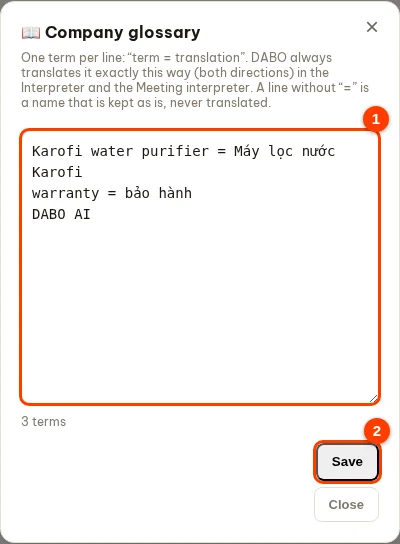
To make sure product names and industry terms are always translated the same way, an administrator sets up the glossary once — it applies to the Conversation Interpreter and the Meeting interpreter (including suggested replies).
- In Mode choose 🌐 Conversation Interpreter → click 📖 Glossary next to Translate with.
- One term per line, as
term = translation, for examplewarranty = garantía. A line without “=” is a name that is kept as is (for example a brand). Click Save — it applies right away.

Language Tutor
Choose Mode → Language Tutor and the language you want in Learn. The tutor explains in your own language, corrects your wording, practises conversations for real situations (meeting customers, presenting, interviews…) and can even prepare a long speech, for example “write me a 5-minute company introduction to give to a customer, with pronunciation help”. Click 🎤 to practise speaking continuously, like with a real teacher.
Practise work situations
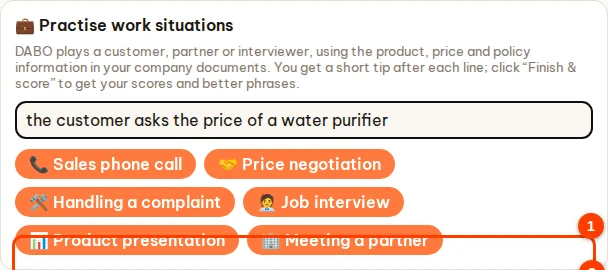
In 🎓 Language Tutor (adult profile), DABO plays a customer, partner or interviewer so you can practise for real. DABO uses the product, price and policy information in the company documents you can access and the company’s own terms — it never makes up prices.
- In Mode choose 🎓 Language Tutor. On the start screen, find 💼 Practise work situations.
- (Optional) type a detail, e.g. which product the customer asks about. Click a situation, e.g. Sales phone call.
- DABO describes the scene, then says the first line in the language you are learning. Answer by voice or by typing; after each line DABO gives a short tip and a more professional way to say it.
- When you are done, click 🏁 Finish & score in the bar at the top: DABO scores fluency, accuracy, politeness and effectiveness, and gives 3 better phrases to reuse.

Online meeting interpreter (Max plan and above)
DABO listens to your meeting, shows subtitles translated into your language, suggests replies in your partner’s language and writes the minutes when you finish. Follow the 5 steps below.
Step 1 — Open it and choose the languages
- Open 🧰 DABO Tools in the left sidebar (on a phone: tap ☰ first) → 🎧 Meeting interpreter.
- Your language: the language you want to read subtitles in. Partner’s language: the language the other side speaks. DABO remembers this for next time.
Step 2 — Choose where DABO listens to the meeting
Under Listen to the meeting from, choose exactly one line that matches how you meet:
| You meet with… | Choose | What you need |
|---|---|---|
| Google Meet, Zoom or Teams open in a Chrome / Edge tab | Meeting in the browser | Nothing to install |
| The Zoom, Microsoft Teams, Google Meet… app installed on a computer (Windows, macOS, Linux) | Meeting app on “DESKTOP-…” (computer name) | DABO AI Desktop installed on that same computer |
| Face to face, in the same room | In-person meeting | A device with a microphone (laptop, phone, tablet) |
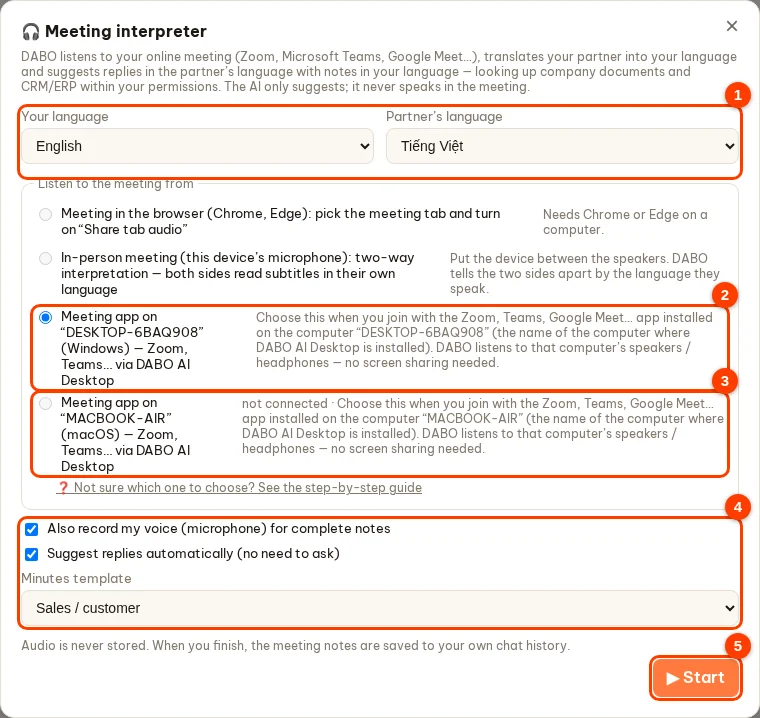
What does the line “Meeting app on “DESKTOP-6BAQ908” (Windows) — Zoom, Teams…” mean?
- DESKTOP-6BAQ908 is the name of the computer where DABO AI Desktop is installed — every computer has its own name (yours will be different). The word in brackets (Windows, macOS, Linux) is that computer’s operating system.
- This line only appears once that computer has DABO AI Desktop installed and connected. One line per computer — each line carries a computer’s name.
- With this line, DABO AI Desktop on that computer listens to what the computer plays through its speakers or headphones — the voices of the other people in Zoom / Teams. No screen sharing and nothing to click in Zoom / Teams.
- The meeting app must be running on that very computer. For example, if you join Zoom on “LAPTOP-SALES”, choose the line named “LAPTOP-SALES”.
- The DABO chat page can be open anywhere (the same computer, another one, or a phone) — subtitles and suggestions show on that page.
How do I find my computer’s name?
- Way 1 — right in DABO: open 🧰 DABO Tools → 💻 DABO AI Desktop. The list shows the name of every connected computer: 🟢 = on, ⚪ = off. If there is only one, choose that name.
- Way 2 — on the computer itself: open the DABO AI Desktop window (Windows: click Start and search for “DABO AI Desktop”; Mac / Linux: the window opens by itself right after installation). The name is on the This computer: … line.
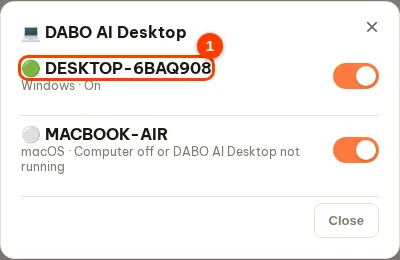
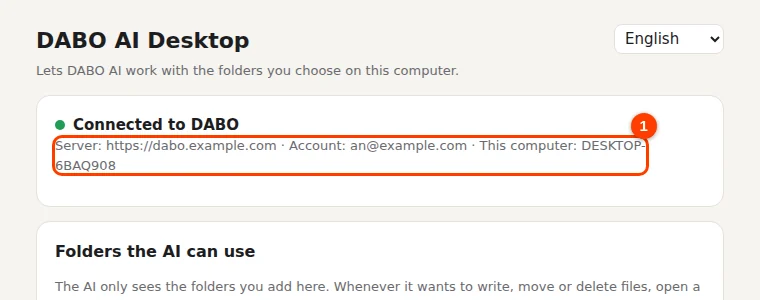
Steps:
- On the computer you meet on, make sure DABO AI Desktop is running (it usually starts with the computer; first install: see DABO AI Desktop).
- Open Zoom / Teams and join the meeting as usual.
- In DABO, choose the line with that computer’s name → click Start.
- Subtitles appear a few seconds after someone starts speaking.
Line greyed out? Read the words next to it:
| not connected | the computer is off or asleep, or DABO AI Desktop is not running. Turn it on. Windows: click Start, find and open “DABO AI Desktop”. Mac / Linux: restart the computer (DABO AI Desktop starts by itself). Then close and reopen the interpreter window. |
| needs macOS 14.2 or later | update macOS (System Settings → General → Software Update) or meet in the browser. |
| missing PulseAudio / PipeWire | ask your IT team to install it; meanwhile, meet in the browser. |
| updating, try again in a minute | wait about a minute and try again. |
Meeting in the browser — steps:
- Open the meeting in a Chrome or Edge tab. In DABO choose Meeting in the browser → click Start.
- Chrome opens a picker: ① click the meeting tab — the share button only lights up after you pick a tab; ② keep tab audio sharing on; ③ click Share.
- Using the Zoom / Teams app on Windows without DABO AI Desktop: in the picker choose Entire screen and turn on Share system audio.
- Clicking Stop sharing on Chrome’s bar ends the interpretation.
In-person meeting — steps:
- Choose In-person meeting → click Start, then click Allow when the browser asks to use the microphone.
- Put the device between the two sides. DABO tells the sides apart by the language they speak; each side reads subtitles in its own language (large text by default).
Step 3 — Options before you click Start
- Also record my voice (microphone) for complete notes: the minutes include what you say (recommended).
- Suggest replies automatically (no need to ask): DABO suggests replies by itself when the other side asks something.
- Minutes template: General, Sales / customer, Project, Job interview, Board / management, Training — the minutes follow the type of meeting.
Step 4 — During the meeting
- Subtitles run continuously; the small line below is what was originally said.
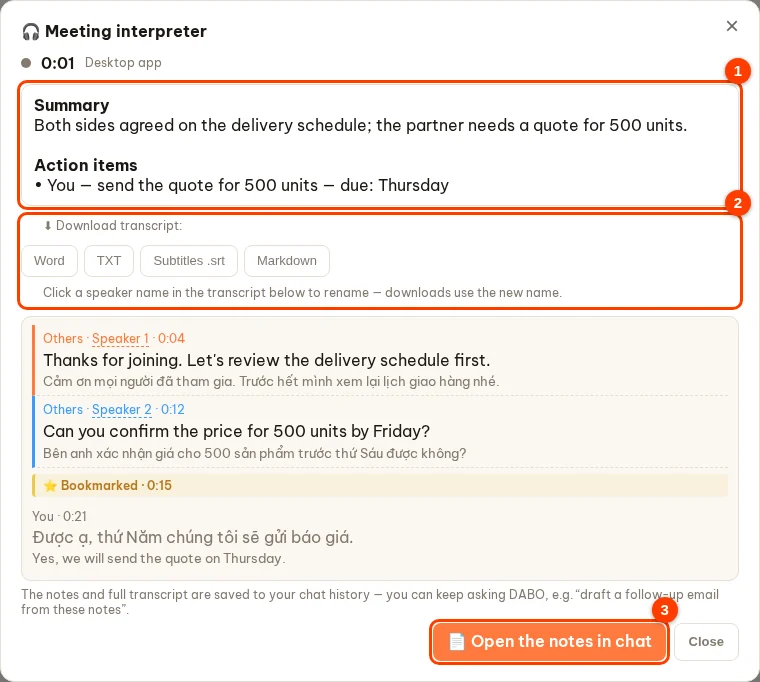
- Several people talking: each voice gets a label such as “Speaker 2”. Click the label, type a name (for example “Anna”) and press Enter — subtitles, minutes and downloads all use that name.
- 💡 Suggest a reply: type what you want to say (optional) and click — DABO gives 2–3 sentences in your partner’s language with pronunciation and meaning, checking company documents when needed.
- ⭐ Bookmark: click when something important is said — the minutes get a section for your bookmarks.
- Large subtitles · Pause · 🪟 Floating window (subtitles float above the Zoom / Teams window, Chrome / Edge only).
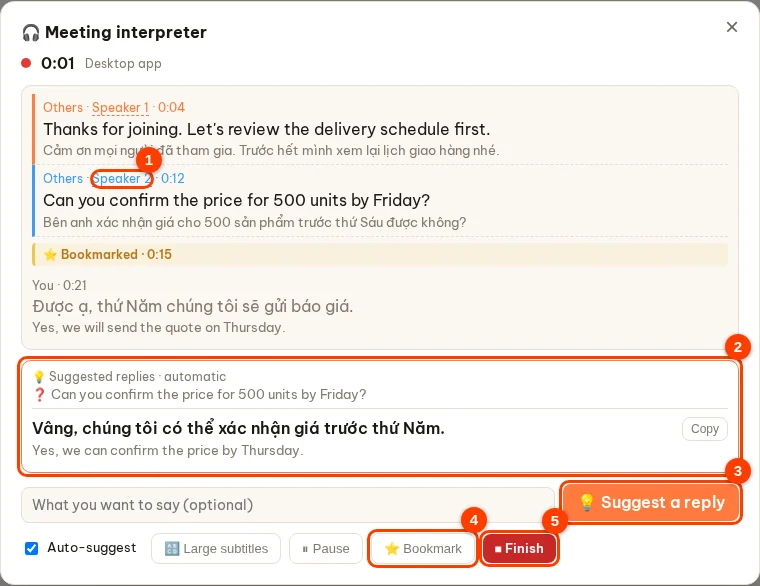
Step 5 — Finish and get the minutes
- Click Finish. DABO writes the minutes: summary, topics with times, key points by speaker, decisions, an action table (owner, deadline), your bookmarks and a follow-up email.
- Click Open the notes in chat to keep asking DABO, for example “draft an email to the customer from these notes”.
- Download transcript: Word, TXT, Subtitles .srt, Markdown.
AI speaks for me — let the AI talk to your partner out loud (in person and online)
For anyone who is not confident in a foreign language: turn on the switch and the AI listens to your partner and answers out loud in the partner’s language — naturally, speaking as you (“I”). Every sentence the AI says is shown with its meaning in your language, so you can follow along.
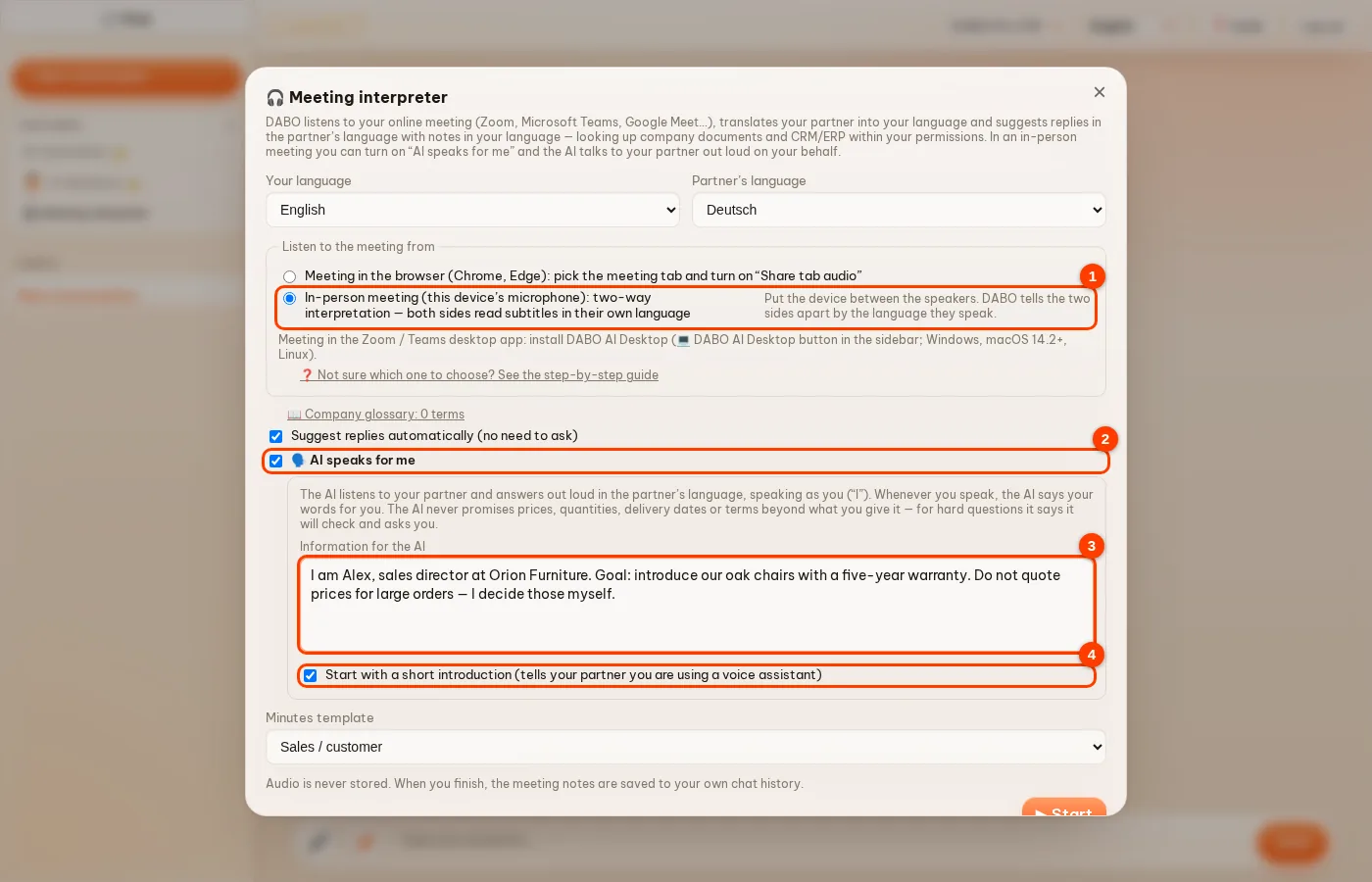
- In Step 2, choose In-person meeting (for online meetings, see Online meetings below).
- Turn on 🗣️ AI speaks for me.
- Fill in Information for the AI: who you are, your company, the goal of the meeting, prices and the maximum discount, and what must not be promised. The AI only uses this information, what is said in the meeting and the company data you are allowed to see.
- Keep Start with a short introduction ticked so the AI greets your partner and says you are using a voice assistant (recommended — your partner will understand the short pauses). Click Start, put the device between you and turn the speaker up.
During the meeting:
- When your partner finishes speaking, the AI answers out loud. The 🗣️ AI (for you) line shows the meaning in your language, with the sentence the AI said underneath; the top bar shows “The AI is speaking…”.
- Want to say something yourself? Just speak in your language — the AI drops the reply it was preparing and says your words in the partner’s language (your line gets 🔊 Said for you). Or type in the box below and click 🗣️ Say it for me.
- If your partner asks about something not covered by your information (price, quantity, delivery date, discount, terms…), the AI does not promise anything: it says it will check (orange line “promised to check”) and shows a Your partner asked card in your language. Type your answer and click 🗣️ Let the AI say it — the AI says exactly the figures you typed.
- Click ⏹ Stop speaking to stop the AI at once; untick AI speaks for me in the bottom row to go back to suggestions only.
- When you finish, everything the AI said is in the notes and the transcript, labelled AI (for you).

Online meetings (Zoom, Teams, Meet…): the AI speaks into the call through a virtual microphone
In an online meeting your partner only hears what goes into your microphone in the meeting app. So DABO uses a virtual microphone — a virtual audio device on your computer: DABO plays the AI voice into it, and in Zoom / Teams / Meet you choose the virtual microphone as your microphone. This works with every meeting platform DABO connects to: meetings in the browser (tab sharing) and meeting apps on your computer via DABO AI Desktop.
One-time setup:
- Windows, macOS: install the DABO virtual microphone right from DABO AI Desktop — a single click, see Install the DABO virtual microphone below.
- Linux: open DABO AI Desktop and turn on Create DABO virtual microphone (card DABO virtual microphone). The computer gets a virtual speaker “DABO-Voice” and a virtual microphone “DABO-Mic”.
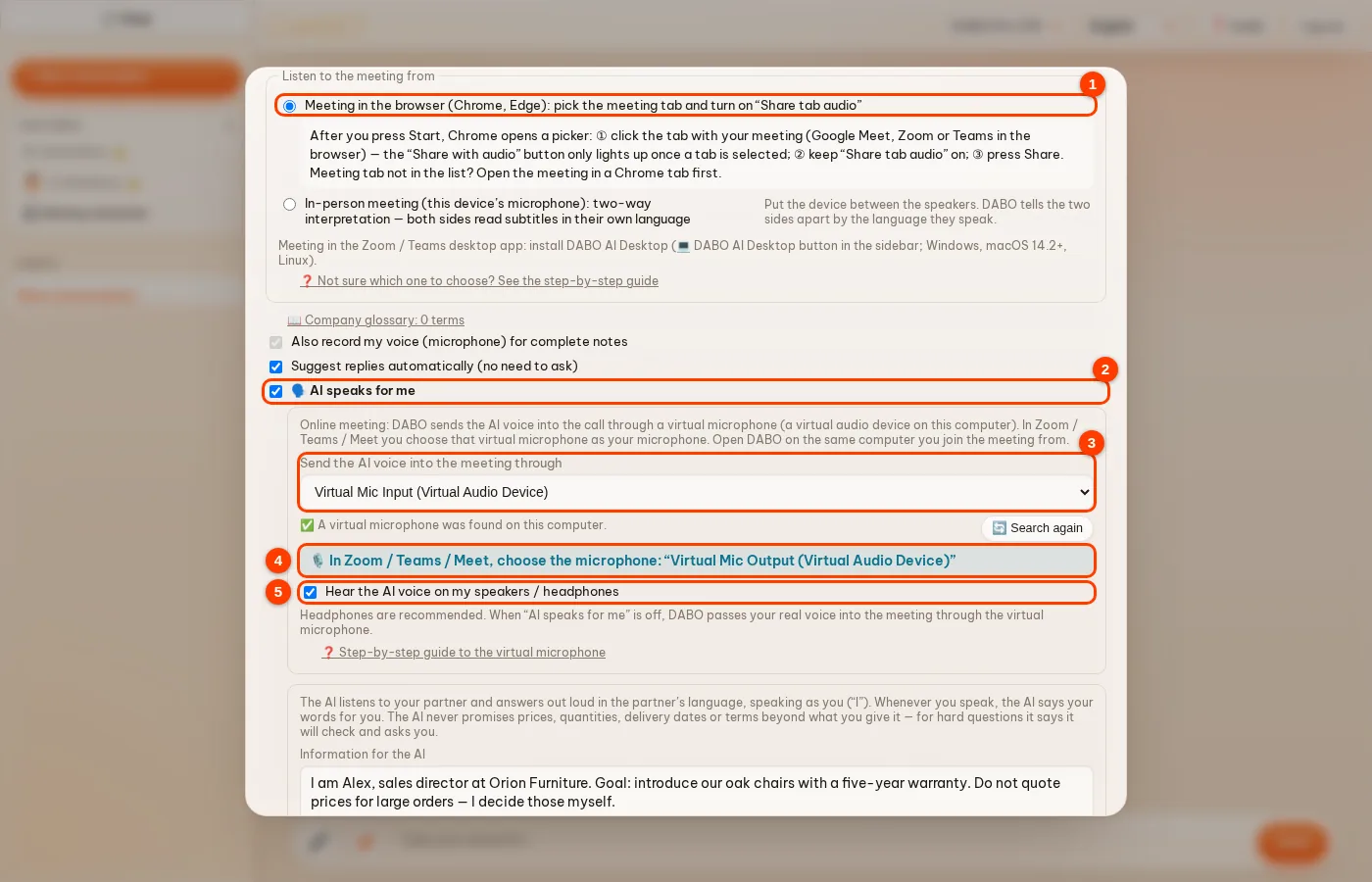
- Open DABO in Chrome or Edge on the same computer you join the meeting from, open 🧰 DABO Tools → 🎧 Meeting interpreter and choose an online source: a meeting in the browser, or a meeting app on your computer via DABO AI Desktop (①).
- Turn on 🗣️ AI speaks for me (②). If the browser asks, allow the microphone — DABO needs your microphone to hear you and to list your audio devices.
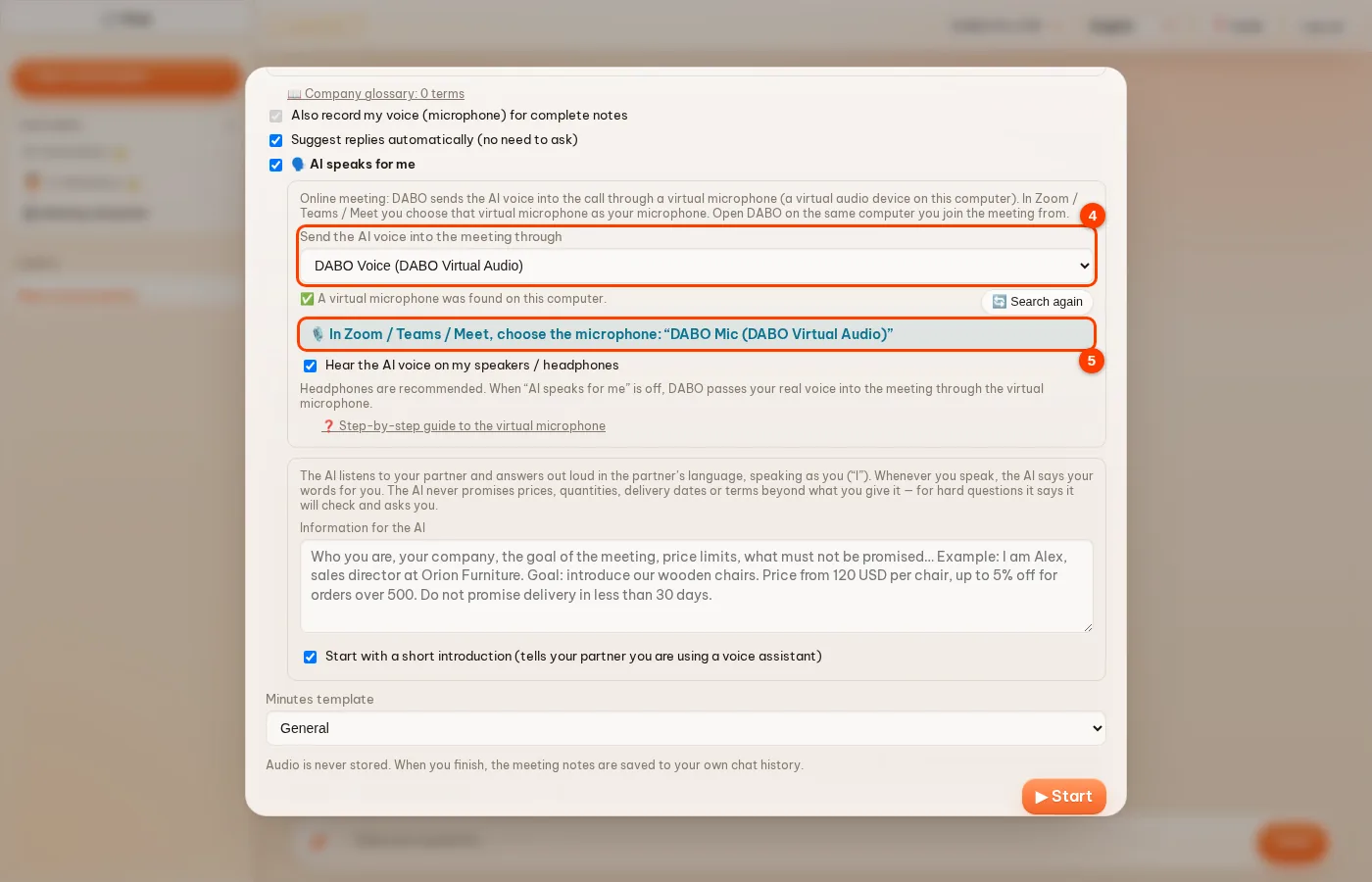
- In Send the AI voice into the meeting through (③) DABO picks the virtual microphone it found on your computer (✅ line). If none is found, set one up as described above and press 🔄 Search again.
- In Zoom / Teams / Meet, open the audio settings and choose exactly the microphone DABO shows in line ④ (for example “DABO-Mic” on Linux). Keep your usual speakers / headphones in the meeting app.
- Keep Hear the AI voice on my speakers / headphones (⑤) on if you want to hear what the AI says. Fill in Information for the AI and press ▶ Start.
During the meeting:
- The top bar shows Your partner hears the AI voice while the AI speaks for you; ● On air lights up whenever sound goes into the virtual microphone.
- Speak your own language at any time and the AI says your words in your partner’s language. To talk in your own voice, turn off AI speaks for me (or press ⏸ Pause): DABO passes your real voice into the meeting through the virtual microphone and the top bar shows Your partner hears your real voice.
- Use headphones so your microphone does not pick up your partner’s voice.
Install the DABO virtual microphone
The DABO virtual microphone is a pair of virtual audio devices on your computer: DABO Voice — a virtual speaker that DABO plays the AI voice into; DABO Mic — a virtual microphone that the meeting app listens to. Everything played into DABO Voice comes straight out of DABO Mic. Install it once on each computer you use for online meetings.
Windows
- Install DABO AI Desktop if this computer does not have it yet: on the DABO page open 🧰 DABO Tools → 💻 DABO AI Desktop (see DABO AI Desktop).
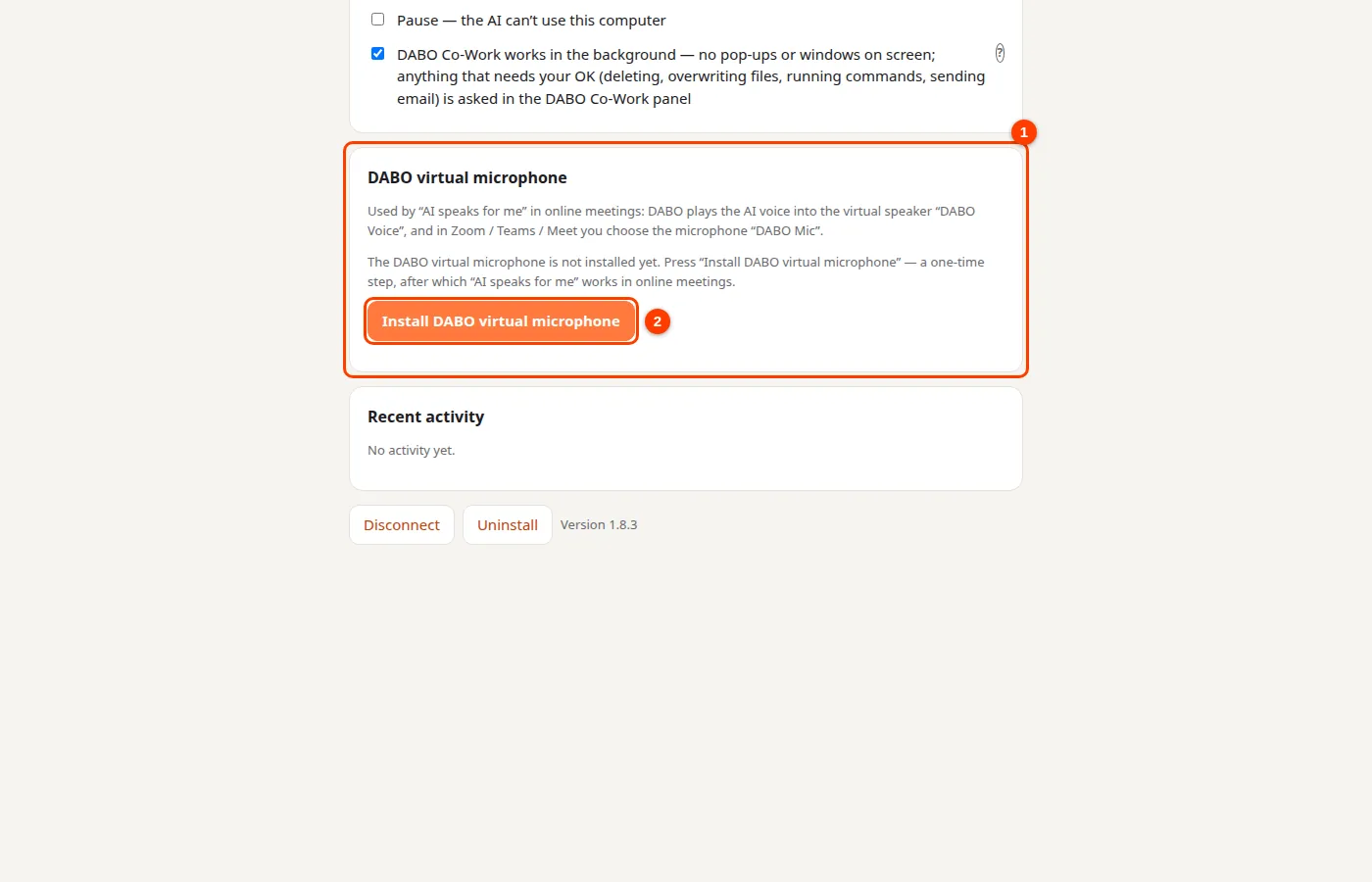
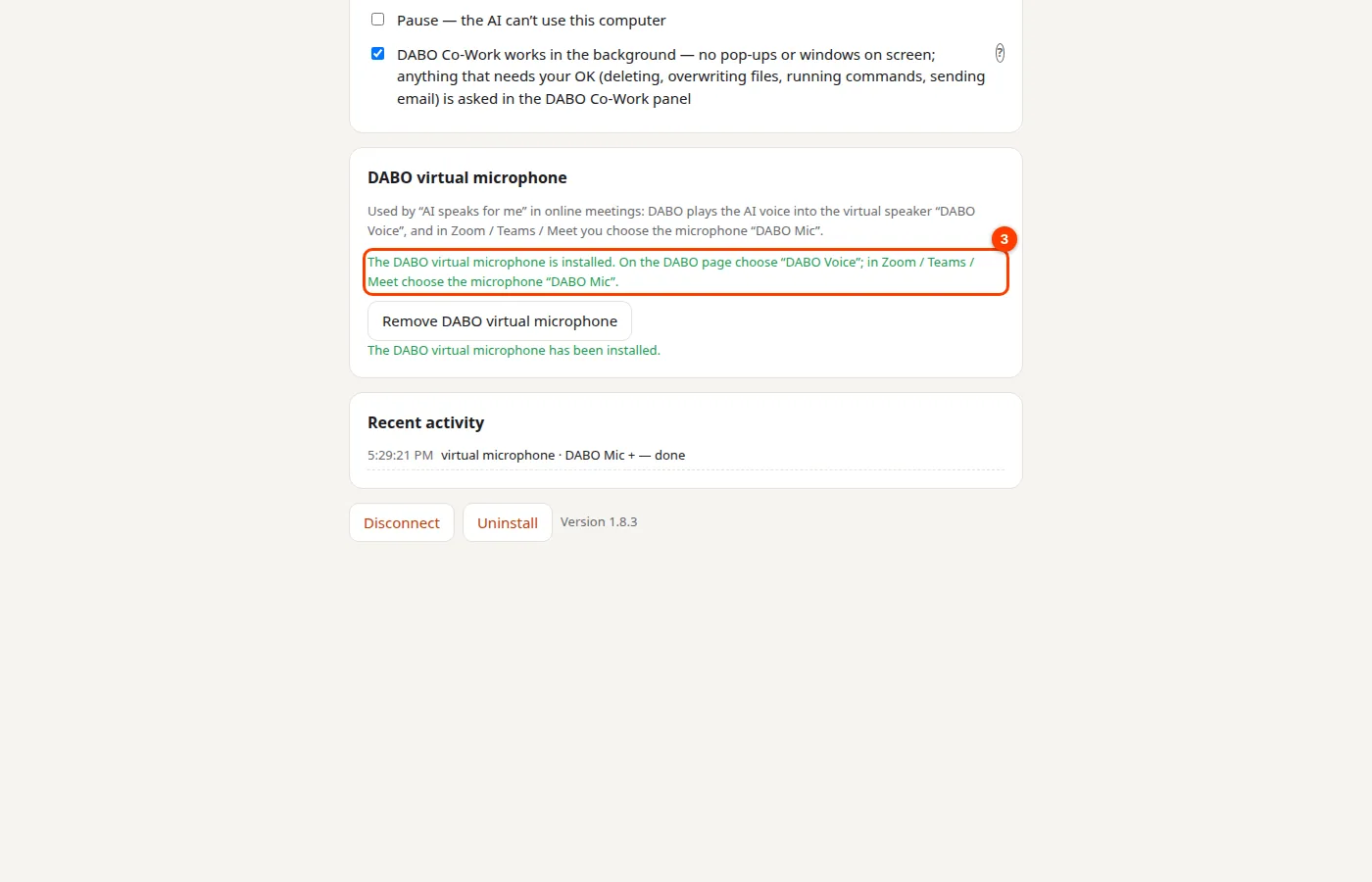
- Open DABO AI Desktop, find the DABO virtual microphone card (①) and press Install DABO virtual microphone (②).
- Windows shows an administrator permission prompt (User Account Control) — click Yes. It only appears once, during installation.
- Wait a few seconds until the card says The DABO virtual microphone is installed (③). If the card asks you to restart the computer, restart it.
- Check: open Settings → System → Sound — Output lists DABO Voice and Input lists DABO Mic.
macOS
- Open DABO AI Desktop, go to the DABO virtual microphone card and press Install DABO virtual microphone.
- Your Mac asks for a password — enter your computer login password and click OK. It is only asked once, during installation.
- When the card says The DABO virtual microphone is installed, open System Settings → Sound: Output lists DABO Voice and Input lists DABO Mic.
Linux
Open DABO AI Desktop, go to the DABO virtual microphone card and turn on Create DABO virtual microphone. The computer gets a virtual speaker “DABO-Voice” and a virtual microphone “DABO-Mic”; no password is needed.
Use it in a meeting
- On the DABO page: 🧰 DABO Tools → 🎧 Meeting interpreter → choose an online meeting source → turn on 🗣️ AI speaks for me. The Send the AI voice into the meeting through box picks DABO Voice by itself (④), and the line below names the microphone to choose (⑤).
- In Zoom / Teams / Meet: open the audio settings and choose DABO Mic as the microphone. Leave the speaker / headset as it is.
Quick test: open the microphone test in Zoom / Teams / Meet, then press ▶ Start in DABO — while the AI says its introduction, the DABO Mic level meter moves, which means the voice is getting into the meeting.
Remove the DABO virtual microphone: open DABO AI Desktop → DABO virtual microphone card → Remove DABO virtual microphone (Windows asks for administrator permission, macOS asks for the password). On Linux, turn off Create DABO virtual microphone.
Troubleshooting
- It is installed but DABO still says no virtual microphone was found: press 🔄 Search again; if it is still not found, close the browser completely and open it again.
- The card says administrator permission was not given: press Install DABO virtual microphone again and choose Yes in the Windows prompt.
- The card says it is installed but not running: restart the computer; if it stays that way, press Remove DABO virtual microphone and install it again.
- Use Chrome or Edge — other browsers cannot send audio to a virtual microphone yet.
Already have a recording of the meeting?
Click the attach button (paper clip) in the chat box and choose an mp3, m4a, wav… file (up to 2 GB). DABO listens to the whole file, separates each speaker, adds times and fills in a request for minutes — just click Send.
DABO Co-Work (Max plan and above)
DABO Co-Work finishes jobs for you: it finds, reads and organises files on your computer through DABO AI Desktop and combines them with company documents, email and the Internet — in the background, so you can keep working. Web tasks (ordering, filling in forms…) it does itself in the browser in the right-hand panel, where you can watch; for apps on your computer it only works on your screen when you allow it. Give it a job: DABO makes a plan, works through each step on its own, saves the results and only asks you here when something needs your OK.
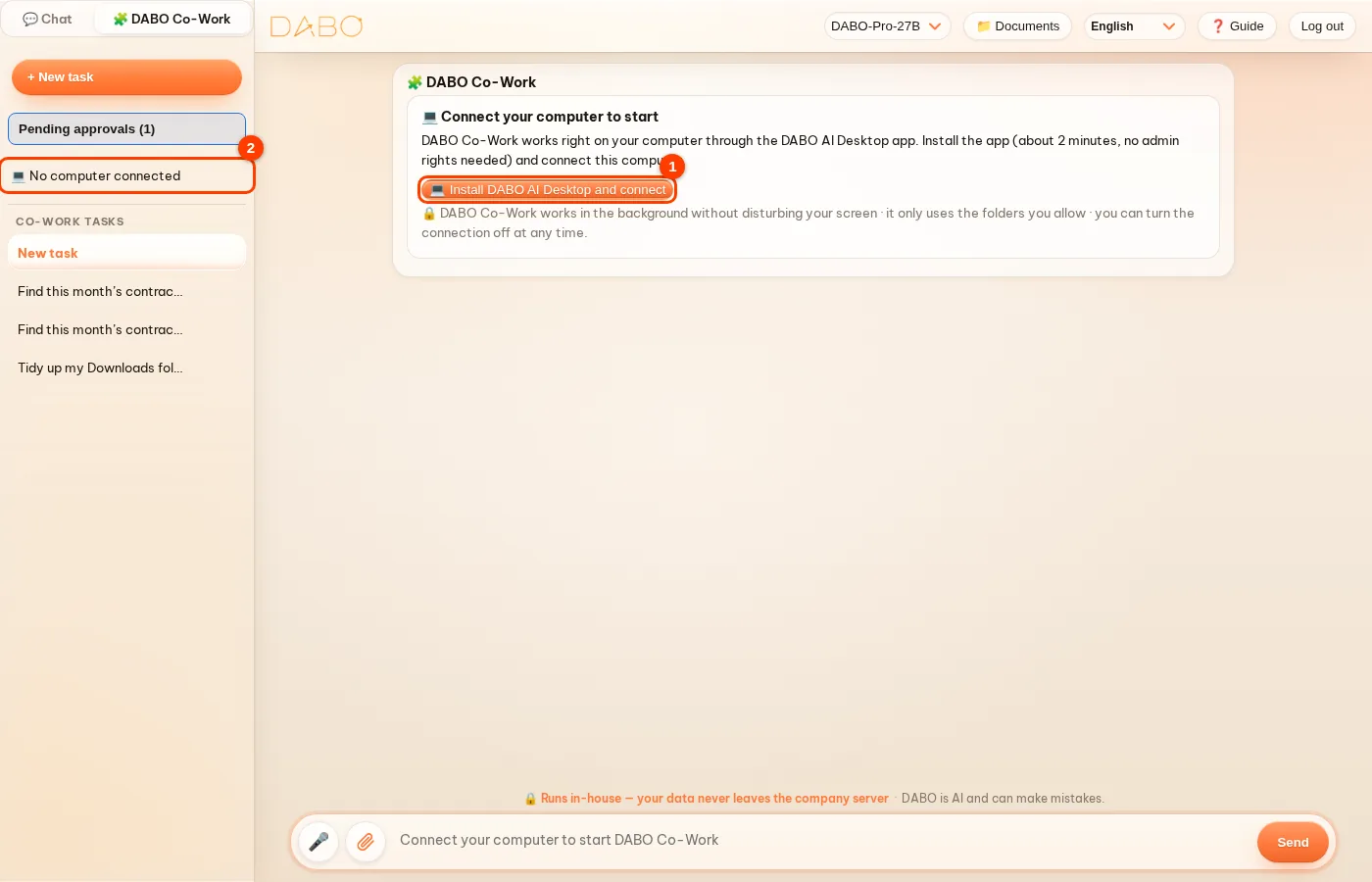
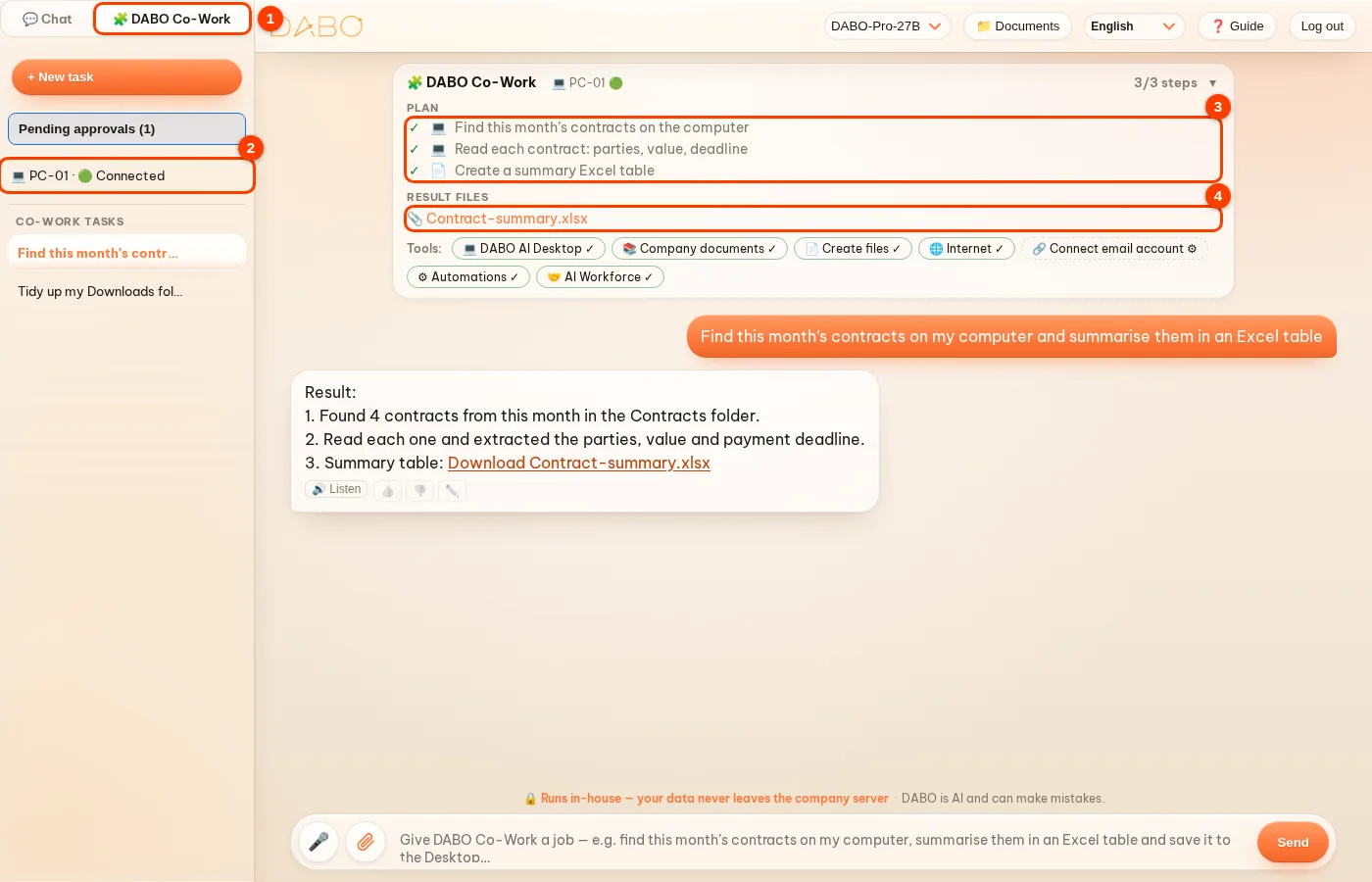
- At the top of the sidebar, click (1) 🧩 DABO Co-Work (next to 💬 Chat). DABO Co-Work has its own task list, separate from your conversations.
- First time: click Install DABO AI Desktop and connect to install the DABO AI Desktop app (about 2 minutes, no admin rights needed) and connect your computer — see DABO AI Desktop. Once connected, card (2) in the sidebar shows the computer’s name with 🟢. If the computer is off or DABO AI Desktop is not open, DABO reminds you to open the app — DABO Co-Work only works while the computer is connected.
- Click + New task and type the job, e.g. “Find this month’s contracts on my computer, summarise them in an Excel table and save it to the Desktop”, or click one of the examples → send.
- The right-hand panel has 2 tabs: 📋 Progress — the steps with their status ✓ done · ● in progress · ⏸ waiting for your OK · ✕ could not be done (with a note on why), Used in this task and the ⬇ Download checklist (Excel) button; 🌐 Web page — the page DABO is searching, reading or working on. Click the 📋 Step x/n button at the top of the DABO Co-Work frame to open or close the panel. When your OK is needed (deleting, overwriting a file, running a command, placing an order, sending an email), that step shows ⏸ and two buttons appear under the answer: Yes, go ahead / No — click Yes, go ahead and DABO carries on.
- When the job is done, the AI answers with a Results section. Files it created are listed under Results in the Progress tab — click to download; they are also saved on your computer. The plan, web pages and files stay with the job, so you can reopen it any time.
- Web tasks (ordering, booking a table, filling in forms, signing up…): DABO opens a browser right in the right-hand panel — it runs on the DABO server, not on your screen — and you watch each step live. Pages that need a sign-in, a one-time code or online payment: you click and type on the page in the right-hand panel yourself, then press I’m done. DABO never types passwords and always asks you once before the final button (order, pay, send). This panel is a full browser: it has tabs (click + for a new tab, × to close one), ← → ⟳ buttons and an address bar — type a web address or search words and press Enter. The 🌐 Browser button at the top of DABO Co-Work opens this panel at any time, even before you give it a task. The page in this panel runs live like a normal browser: click, drag, scroll with the mouse or swipe, and type straight into the page (click a field, then type; on a phone tap ⌨ if the keyboard does not appear). The ⤢ button at the top expands the panel to the whole window; click it again or press Esc to restore it. Right-click the page for the usual browser menu (back, reload, open link in new tab, copy…); select text and press Ctrl+C to copy it to your computer. Downloads — when you or DABO click a download link in this panel, software installers included — appear under the ⬇ button on the address bar: click Save to computer to have DABO AI Desktop copy the file into your Downloads folder (program files must have a valid digital signature), or Download to download it in the browser you are using; files are kept for 2 hours. While your computer is connected to DABO AI Desktop, web tasks in regular chat also run in this panel — DABO does not open a browser on your computer. The DABO browser works just like the browser you already use: drop-down lists, date pickers and the page’s own dialogs appear right in the panel; upload files to a page by choosing them on your computer or dragging them in; the ⋮ menu has Print / Save as PDF, Save page, Find in page (Ctrl+F), Zoom (Ctrl + / −), History, Bookmarks (☆), Translate and Delete browsing data; your sign-ins, tabs and history are kept (encrypted) when you come back. The DABO browser can replace the browser on your computer: you hear the page’s sound; when a page asks for your microphone, camera, location or to send notifications, DABO asks you first (click the lock icon in the address bar to change a site’s permissions); it saves and fills in passwords and addresses (encrypted for you alone, the AI cannot read them; viewing a password requires your DABO password again); it blocks ads; you can pin and group tabs (right-click a tab); tabs you have not used for a while sleep to free up memory; F12 opens developer tools; F11 goes full screen and keeps shortcuts such as Ctrl+W. Your microphone and camera reach meeting pages as a continuous stream, video up to 1080p, with almost no delay; in the meeting page you can choose your own microphone, camera and speakers. You can turn on saving payment cards (⋮ menu → Passwords and autofill): card numbers are encrypted for you alone, the CVV is never saved, and filling a card asks for your DABO password again. The DABO browser responds instantly, like the browser you are used to: mouse, keyboard and the page image travel over one continuous channel at up to 60 frames per second; mouse-wheel scrolling glides smoothly and swipes on a phone keep their momentum. On Windows computers, DABO AI Desktop installs the DABO Browser app for you (with shortcuts on the desktop and in the Start menu): a real browser that runs on your own computer like the browsers you are used to — smooth, light on memory, keeping your tabs, history and bookmarks, and saving downloads straight to your Downloads folder — with the DABO panel beside the page; when your computer has the app, DABO AI works directly in your real tab (you see every step) and the 🌐 button opens the app instead of the browser on the server (which is still used on phones or on computers without the app). DABO Browser is now available for Windows, macOS and Linux; every web page DABO opens on your computer (DABO AI opening a page or a link) opens in DABO Browser, and DABO Setup also installs DABO Browser on the server and opens DABO in it. DABO Browser blocks ads (including YouTube video ads), trackers, cookie consent pop-ups and phishing or malware sites (click the shield in the address bar to turn blocking off for one site); it has a password manager (offers to save, fills in, imports from a CSV file), imports bookmarks and history from your previous browser, private tabs, reader mode, scrolling full-page screenshots (Ctrl+Shift+S), resuming videos where you left off when you reopen a page, a small preview of each screenshot in the bottom corner (click to open it, like on iPhone), and dragging a tab out to open it in a new window (Ctrl+N opens a new window; drag a tab onto another window to merge), picture in picture, pause / resume downloads, a choice of search engine, a bookmarks bar, a task manager (Shift+Esc), a Settings page, and can be made your default browser. Select text and right-click → Ask DABO or Translate; right-click on a page → Summarize or Translate this page with DABO; type “?” before a question in the address bar to ask DABO right away. On YouTube, DABO removes ads from the video data before the player receives it, so videos start right away with no ad breaks, and they play in the highest quality the platform offers (Settings → Performance → Always play videos in the highest quality; applies to YouTube and Twitch). The Ask DABO button at the right of the tab strip shows or hides the DABO panel; Settings → Languages sets the browser language, your preferred languages for websites and spell check. When a new version is ready, an orange ⟳ Update button appears on the toolbar — click it and the browser restarts into the new version (your tabs reopen). DABO Browser is included from the Free plan; DABO AI working in your tabs and on your computer follows your plan. A new tab shows the DABO logo and its background can be changed: pick a preset color or your own picture (stored only on this computer) in Settings → Appearance, or click Customize in the corner of a new tab.
- Tasks inside apps on your computer (for example signing in or importing bookmarks in a browser installed on your computer, Excel, accounting software): DABO works on your screen when you have turned on Full control in DABO AI Desktop. If it is off, a Allow DABO to work on your computer’s screen card appears under the answer — click it, choose Yes in the box on your computer, and DABO carries on. Tasks that need to run a command show an Allow DABO to run commands on your computer card in the same way.
- Installing software (for example “Install WinRAR”): DABO checks whether it is already installed, then installs it through the Windows software catalogue (winget) or downloads the installer from the vendor’s official site — checking the digital signature before saving and before installing; files without a valid signature are discarded. Windows always asks for administrator permission (UAC) — click Yes on your computer.
- Resizing: drag the dividers between the list, the chat and the right-hand panel to change each column’s width; double-click a divider to reset it. The widths are remembered in your browser.
- DABO Co-Work does the real work — it does not hand you instructions, scripts or receipts to do it yourself. Anything DABO cannot do (such as making a phone call) is stated clearly, and that step shows ✕ with the reason instead of being marked done. About your computer, DABO only reports what it actually checked (whether something is installed, versions, paths) — if nothing is found, it says so, and any detail it could not confirm is flagged in a note under the answer. DABO also does not stop halfway after saying it will do something.
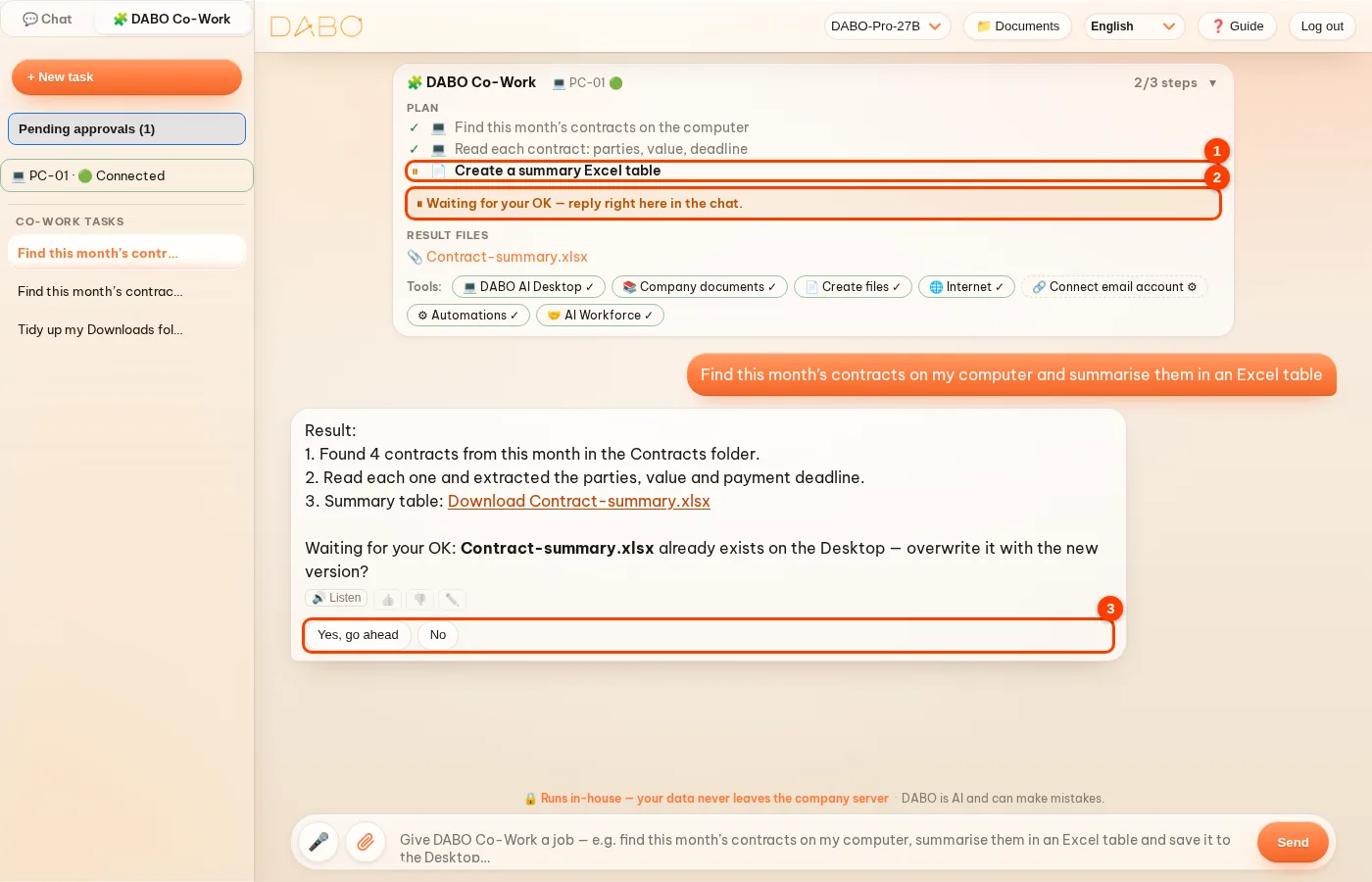
- Works through to the final step: for web tasks, if a platform does not deliver to the address, is sold out or requires sign-in right away, DABO switches by itself to another platform of the same kind (for example, another food-delivery app) and does every step: choosing the shop, the items, the cart and the delivery address. DABO asks you only once, at the final step — sign-in (if the site requires it), missing details, and confirming the order and total.
- Uses the whole computer: when a task needs a folder outside the ones you chose (Downloads, Desktop, drive D:…), an Allow full computer access button appears under the answer — click it and choose Yes on the computer, and DABO carries on. See DABO AI Desktop.
- No made-up results: DABO only organizes files after it has seen the real file list; at the end of the answer, What was actually done on the computer (system record) lists where folders were created, where files were moved, and what could not be done and why.
- Knows many platforms: DABO has a directory of popular platforms in each country (food delivery, groceries, shopping, electronics, pharmacies, rides, flight / train / bus tickets, hotels, cinemas) — it knows which ones take orders on the web, which only work in their app and which have shut down. DABO tries the web-orderable platforms one by one, compares them and picks the best option itself; if a sign-in is needed, it asks you to sign in only once, on the chosen platform.
Hand big jobs to the AI Workforce (Ultra plan)
For jobs with many parts — a quarterly report, a tender package, market research, reconciling receivables… — the AI Coordinator makes a plan, splits the work among several AI staff who work in parallel in the background, checks the quality of each part, cross-checks them and sends you the combined result. You can close the window and do something else.
- Click AI Workforce in the sidebar → + New task → describe the job (you can Attach files or Use a saved template…) → Assign. Or simply ask in the chat as usual: when DABO sees a big job it shows a Hand this to the AI Workforce? card — click Assign now.
- After a few seconds the Task map shows the plan: each step, the AI staff member in charge and the data sources to be used. Review it, change an AI staff member or Remove this step if it is not needed, then click Run.
- Follow progress on the map: Working · Waiting · Result handed over. When an AI staff member needs to ask you something, the task shows Needs you — answer, then click Send answer.
- When the job is done, the Result appears in the task with charts and files. Download it as Word, Excel or PowerPoint. Click Assign again to rerun it with new instructions, or Save as template for monthly repeats.

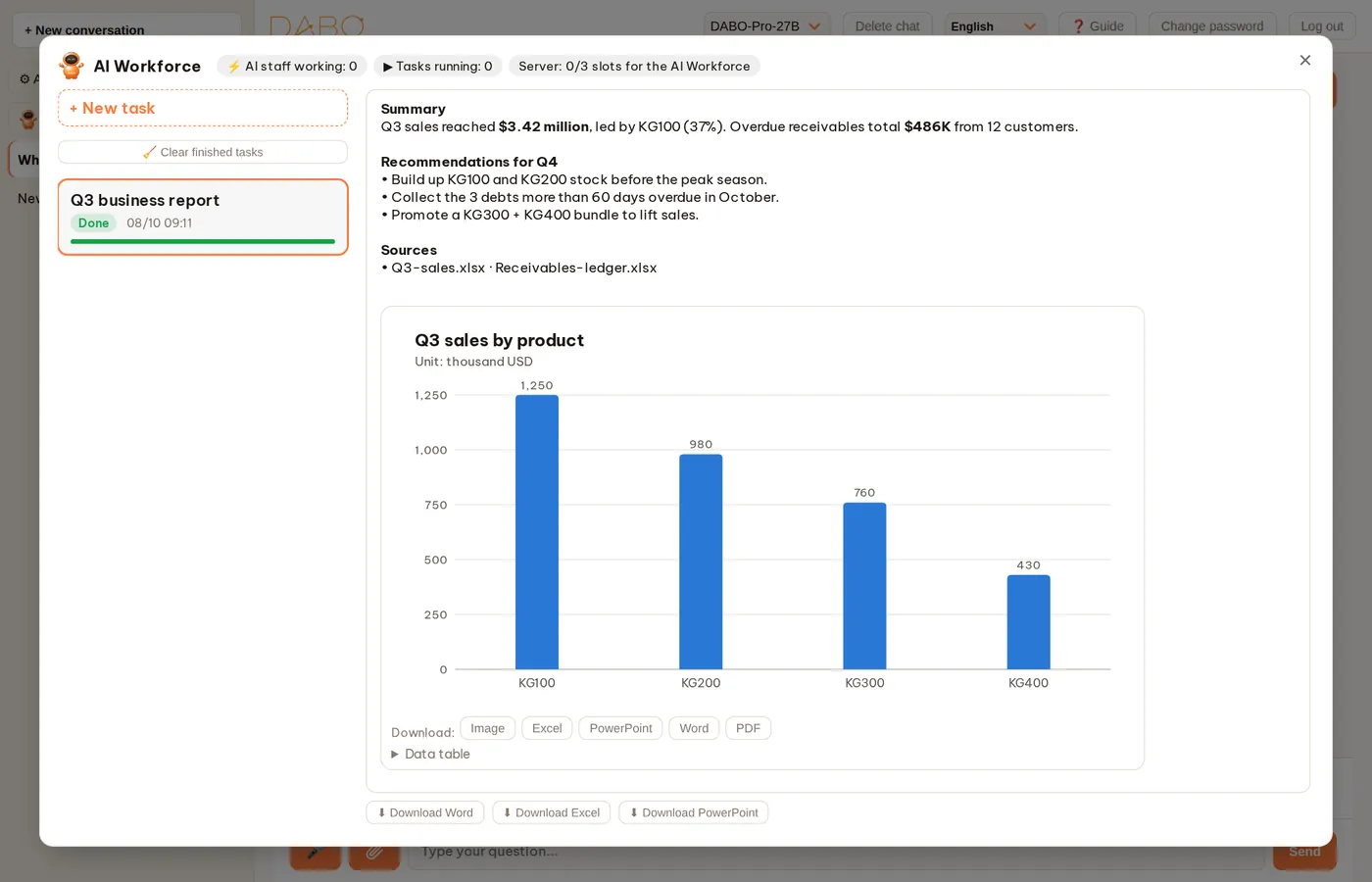
- The AI Coordinator splits the work into parts that run in parallel whenever possible (for example one part per month or per data system) and then combines them — so the task finishes sooner. On the Task map, steps that run at the same time sit side by side.
- Every data write or outgoing action (sending email, writing to CRM/ERP…) still becomes a request waiting for your approval. Requests drafted by AI staff are held until the whole task is finished (label Waiting for the task to finish), then appear at the end of the Result with Approve / Reject buttons. Report emails automatically attach the task’s report files (Excel, Word, PDF…); if the figures in an email do not match the result, a ⚠ warning is shown. If the task is cancelled, the request shows Cancelled (task stopped).
- AI staff only use data sources that both you and they are allowed to use. If access is missing, click Ask the admin to add it.
- When the server is busy, tasks queue up and start when there is room; during working hours the AI Workforce always leaves room for people who are chatting. Click Turn on desktop notifications to be told when a job is done.
- Each task has a limit on AI calls and running time. When it reaches the limit it pauses — click Resume to let it continue.
Pending approvals — the AI never acts on its own
When the AI proposes to send or delete email, create a meeting, write data to CRM/ERP, call another system…, a request card appears right in the answer and under Pending approvals in the sidebar (the number in brackets is how many are waiting). Nothing happens until you approve.
- Read the request: recipients, subject, content, attachments… are shown in full, and long content uses the full width of the chat. To change something, click straight into the content to edit it (1).
- Click Approve (2) to carry it out. When you approve right in the chat, the AI carries on with the remaining steps by itself (if any) — you do not need to send another message.
- Want the AI to rewrite it? Click 💬 Ask AI to revise (3) — DABO takes you back to the chat, with the request being revised highlighted (or pinned above the message box). Tell the AI what to change, or edit the request yourself, then click Approve.
- Don’t want it done? Click Reject (4). In the Pending approvals window, a request to delete email lets you untick each message you want to keep.

Automations (Pro plan and above)
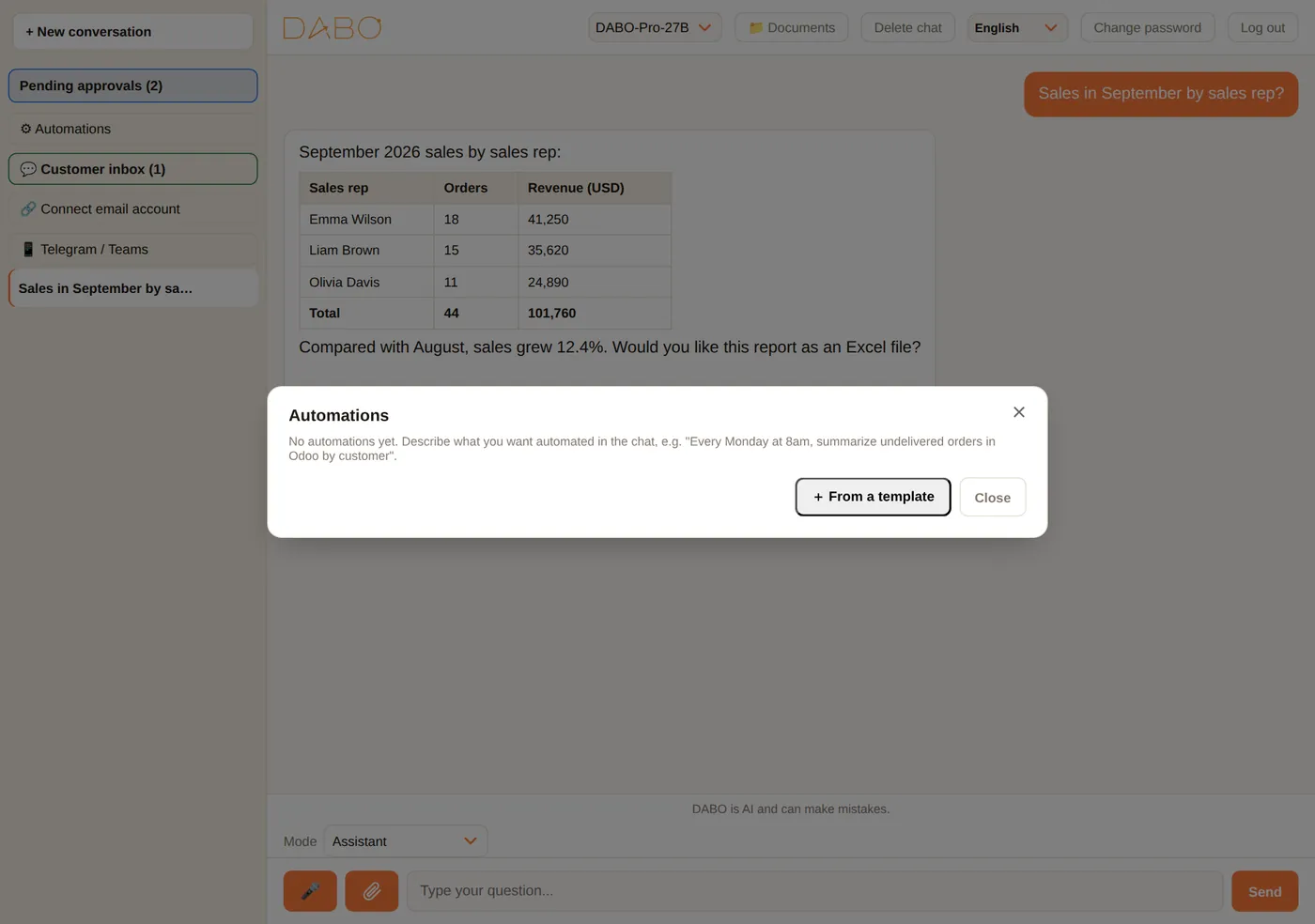
Let DABO do repeating work on a schedule or when something happens. The quickest way is to say it in the chat, for example “every Monday at 8 am, send me last week’s sales report with an Excel file”. Or click ⚙ Automations → From a template (48 templates for 30 industries).
- Triggers: a schedule, a new email, a new CRM record, or a call from another system (webhook).
- Delivery: by email, Teams, Slack, Telegram, or saved to OneDrive / Google Drive.
- Ultra plan: choose Run with the AI Workforce so several AI staff work together, with quality checks.
- For each automation: Edit, Turn off / Turn on, Run now and see Run results.
Connect email, apps, Telegram / Teams / Slack
Email & calendar (Max plan and above)
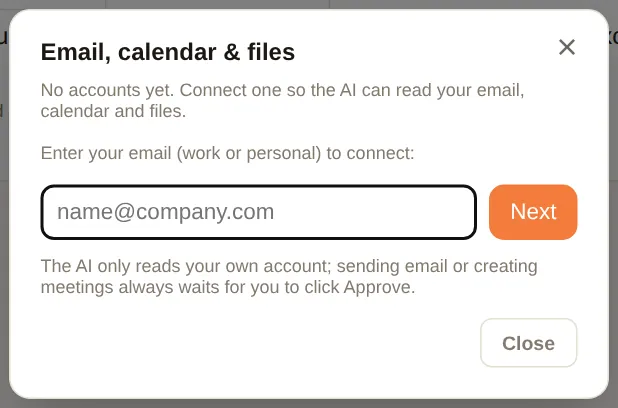
- Open 🧰 DABO Tools → 🔗 Connect email account → enter your email → Next. DABO detects your provider automatically.
- Microsoft (Outlook, Microsoft 365): click the orange Copy code & open Microsoft button → paste the code → sign in → accept.
- Gmail, Yahoo, iCloud…: follow the on-screen steps to create an app password (name it “DABO AI”) → paste it into the box → Connect.
- Then ask: “summarize today’s email”, “draft a reply to Michael”, “what meetings do I have next week?”.
My apps
If your company has enabled connections to apps (for example a project management tool or an online CRM), click 🔌 My apps → Connect with your own account. The AI then searches, reads and summarizes in that app for you; every write waits for your approval. Only you can use your connections.
Ask DABO in Telegram / Teams
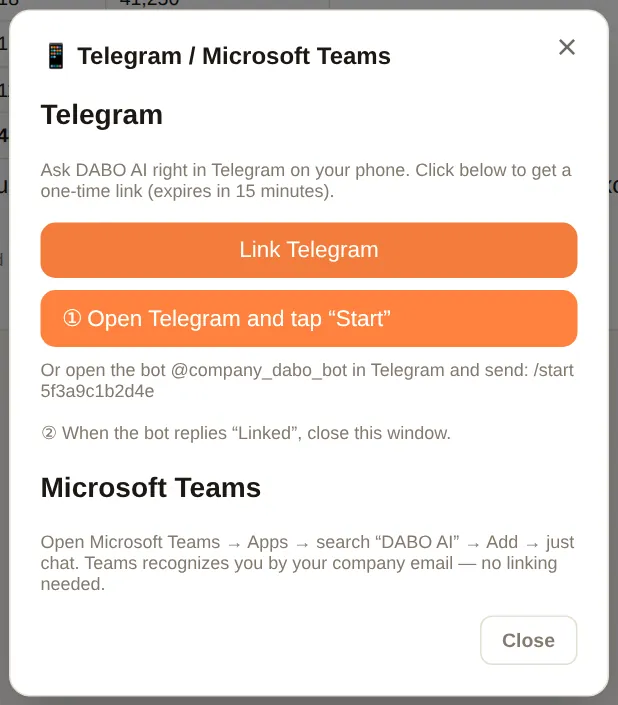
- Click 📱 Telegram / Teams → Link Telegram → click the button to open Telegram, then tap Start (on a phone: tap the link).
- The bot replies “✅ Linked” — from now on you can ask DABO right in Telegram. Type
/newto start a new topic,/unlinkto remove the link. - Microsoft Teams: open Apps → search for DABO AI → Add → send a message; no linking needed.
Customer inbox
If you are in charge of a customer messaging channel (WhatsApp, Messenger, website chat…), click 💬 Customer inbox: each conversation shows the customer’s message and a draft reply written by the AI. Edit it if needed and click Send; AI redraft writes a new draft; Close removes the conversation from the list.
Ask DABO in Slack
- In Slack, open Apps (or search for DABO AI) → send a direct message to DABO AI. No linking needed.
- Ask just like in webchat. Type
newto start a new topic.
- Slack recognizes you by your Slack email, which must match your DABO account email. If the bot says you have no account, ask your administrator to create one with exactly that email.
- DABO only answers direct messages, not messages in shared channels.
- Files the AI creates and actions that need approval: open webchat to download the file or click Approve.
DABO for Office — Word, Excel, PowerPoint, Outlook
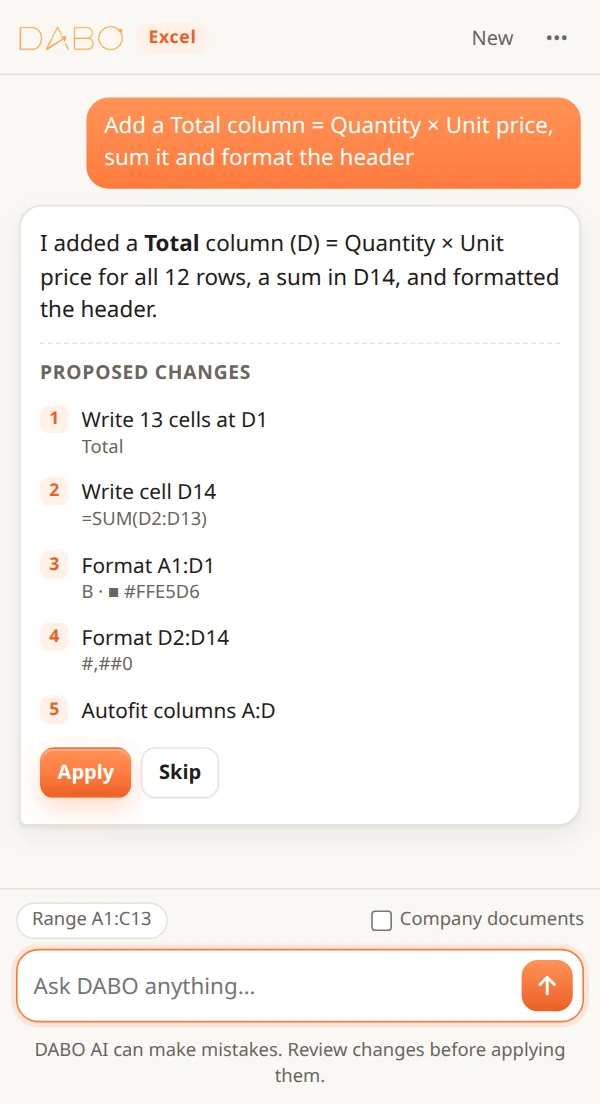
DABO AI works right inside Microsoft Office. Click Ask DABO to open the DABO pane and ask anything in your own words, like a personal AI assistant: write, rewrite, summarize, translate, analyze data, build tables and charts, draft slides or reply to emails. DABO reads what you have open, answers, and lists the proposed changes — nothing in your file changes until you tap Apply.
What you can ask
- Word — write or rewrite the selected text, summarize, translate, fix spelling and grammar, insert tables, replace a word everywhere, add comments.
- Excel — analyze the sheet, write formulas into empty columns, clean data, format, sort, freeze headers, create tables, charts and summary sheets. Undo restores the cells exactly as they were.
- PowerPoint — create slides on a topic, rewrite the selected text, summarize the presentation. Undo removes the slides DABO added.
- Outlook — summarize an email, list dates and deadlines, translate, open a ready-to-edit reply; while writing: improve, shorten, set the subject.
Filter or summarize into a new sheet or a new file
When you ask DABO to filter, extract or summarize information, it creates a new sheet or a new file — your original data stays unchanged:
- Excel — e.g. “make a new sheet with all deals of distributor ABC”: DABO reads every row of the sheet (even tables with tens of thousands of rows), filters exactly by your conditions and creates a new sheet that keeps number and date formats, with filter buttons and a frozen header row; summaries by group (sum, count, average, min, max) come with a total row. Say “into a new Excel file” to get a separate file.
- PowerPoint — “make a new file with only the revenue slides”: DABO copies exactly those slides into a new file with the same design, notes and pictures; or writes a new summary deck.
- Word — “compile the key points into a new document”: DABO writes a new Word document in the DABO template.
Original formatting and quick access
- Your formatting stays — DABO replaces only the words that need to change, right where they are: font, size, colour, bold, italic, paragraph style, lists and tables stay as they were. New paragraphs follow the formatting around them; deleting removes only the paragraphs named. In Outlook, your signature and the quoted reply/forward stay untouched.
- Word — Track changes: tick this box before tapping Apply to see each DABO edit as a tracked change and accept or reject them one by one.
- PowerPoint — DABO reads the text in text boxes, grouped shapes and tables (pictures are skipped) and knows which fonts the deck uses; it can change the font of the whole deck or of some slides while keeping sizes, colours, bold and italic. Undo brings back the previous text and fonts.
- Quick access — Word, Excel, PowerPoint: ••• menu ▸ Open DABO with this document, then save the file; next time you open it, the DABO pane opens by itself. Outlook (Microsoft 365/Exchange mailboxes): click the pin icon on the DABO pane to keep it open as you move between emails. If you installed DABO for Office before, install the new add-in file once to get these two features.
Install for yourself
- In DABO, open 🧰 DABO Tools ▸ 📝 DABO for Office and download the two setup files: Word · Excel · PowerPoint (
DABO-Office.xml) and Outlook (DABO-Outlook.xml). - Word, Excel, PowerPoint on the web: open a document ▸ Home ▸ Add-ins ▸ More Settings ▸ Upload My Add-in ▸ choose
DABO-Office.xml▸ Upload. - Word, Excel, PowerPoint on Mac: copy
DABO-Office.xmlinto~/Library/Containers/com.microsoft.Word/Data/Documents/wef(Excel:com.microsoft.Excel, PowerPoint:com.microsoft.Powerpoint; create theweffolder if it does not exist), restart the app, then Home ▸ Add-ins ▸ DABO AI. - Word, Excel, PowerPoint on Windows: the easiest way is installation for the whole company by your administrator (below). Without Microsoft 365: put
DABO-Office.xmlin a shared network folder ▸ File ▸ Options ▸ Trust Center ▸ Trust Center Settings ▸ Trusted Add-in Catalogs ▸ enter the folder path in Catalog Url ▸ Add catalog ▸ tick Show in Menu ▸ OK ▸ restart Office ▸ Home ▸ Add-ins ▸ Advanced ▸ SHARED FOLDER ▸ DABO AI ▸ Add. - Outlook (new Outlook, Outlook on the web, classic Outlook with a Microsoft 365 account): open
aka.ms/olksideload▸ My add-ins ▸ Add a custom add-in ▸ Add from file ▸ chooseDABO-Outlook.xml▸ Install. - Click Ask DABO on the Home tab (Outlook: while reading or writing a message, or under Apps) and sign in with your DABO account — or Sign in with company account if your company uses single sign-on.
Install for the whole company (administrator)
- In the Microsoft 365 admin center: Settings ▸ Integrated apps ▸ Add-ins ▸ Deploy Add-in ▸ Next.
- Choose to upload a custom add-in, upload the manifest file
DABO-Office.xml▸ Upload ▸ choose Everyone or specific groups ▸ Deploy. Repeat withDABO-Outlook.xml. - The Ask DABO button appears on everyone’s ribbon by itself — this can take 24–72 hours; users may need to restart Office.
If DABO’s address changes, download the two files again from DABO and upload them again (select the add-in ▸ Update).
HTTPS requirement
Office opens add-ins only from an https:// address with a certificate it trusts. In the admin page, Network tab ▸ HTTPS mode: use Let’s Encrypt (public domain) or Company certificate. With the default Self-signed mode the DABO pane stays blank unless IT installs the DABO server certificate as trusted on every computer. The setup files contain the address you opened DABO with — download them from the official company address.
DABO AI Desktop (Max plan and above)
Install DABO AI Desktop so the AI can work right on your computer: find, read and organize files in the folders you allow, and use apps and the browser for you. DABO AI Desktop is also required for DABO Co-Work.
- Open 🧰 DABO Tools → 💻 DABO AI Desktop → Connect this computer.
- Windows (fastest): press Windows + R, paste the command shown on screen and press Enter. Or: click Download DABO AI Desktop for Windows → unzip the downloaded file → open the DABO-AI-Desktop folder → double-click Setup.cmd (if Windows warns you, choose More info → Run anyway). No admin rights needed. If nothing happens when you double-click, Windows blocked the downloaded file — use the command instead. macOS / Linux: copy the command shown on screen, paste it into the Terminal app and press Enter. The DABO AI Desktop window shows the setup progress: downloaded, installing, done or error.
- The setup page opens in your browser → click Choose folder… to pick the folders the AI may use.
- Go back to the chat and ask, for example “Find the September contracts on my computer and summarize them”, “Sort my Downloads folder by file type”.
- Whenever the AI wants to write, move or delete a file, open a web page or run a command, your computer shows a DABO — AI asks permission box — the AI only goes ahead when you click Yes. Deleted files go to the Recycle Bin / Trash. DABO Co-Work works in the background instead: anything that needs your OK is asked in the Co-Work panel, not in a box on your computer.
- Full-control mode (if your administrator allows it and you turn it on yourself on the computer): the AI controls the mouse, keyboard and every app — useful for multi-step work such as filling in forms or ordering on the web. You always see what the AI is doing.
- The AI does not read password files or security keys. Data only travels between your computer and your company’s DABO server.
- To stop for a while: turn on Pause on the DABO AI Desktop page, or switch that computer off in 💻 DABO AI Desktop.
- Use the whole computer: when DABO needs a folder outside the ones you chose, an Allow full computer access button appears under the answer — click it and choose Yes on the computer (this also turns on Full-control mode). DABO can then use every folder and drive (“Downloads”, “Desktop”… go to the computer’s real folders), but it never reads password or security-key files, never changes system folders, and deleting only moves files to the Recycle Bin. Turn it off anytime on the DABO AI Desktop page.
- The AI works in its own window: when it needs the web, DABO Browser opens a separate DABO AI — work window (like Chrome opening a new window), so the window you are using never switches tabs or loses the keyboard. It shares your sign-ins; when the AI asks you to sign in or confirm, do it right on the page in that window. Click Open in main window to move a page to your own window.
- One simple choice: in DABO AI Desktop, tick Allow DABO AI to use this computer so the AI can use all drives, apps and DABO Browser for you; untick it at any time — the AI then only uses folders you add yourself.
- Suggestions as you type: in the DABO Browser address bar, a few letters bring up search suggestions, sites you visit often and popular sites in your country (like Google); you can turn this off in Settings → Search engine. Private tabs never send what you type.
Memory & learning from feedback
The AI remembers your preferences
Tell DABO what you want it to remember, for example “Remember: call me Sarah”, “From now on, always present quotes as a table”, “Regular customer: ABC Corp, contact person Tom”. DABO applies it in all later conversations — for you only. To remove something, say “Forget …”. DABO never remembers passwords, one-time codes or card numbers.
Rate answers — DABO learns from mistakes
- Under each answer there is 👍 (helpful) and 👎 (not right).
- Click 👎 → choose what was wrong: Wrong information, Didn’t find the right document, Wrong language or format or Did the wrong action.
- Write the correct answer (or how you want DABO to answer) → choose Apply to: Only me, or the whole document library (approved by the library manager) → Send.
- From the next question on, DABO uses this lesson and does not repeat the mistake.
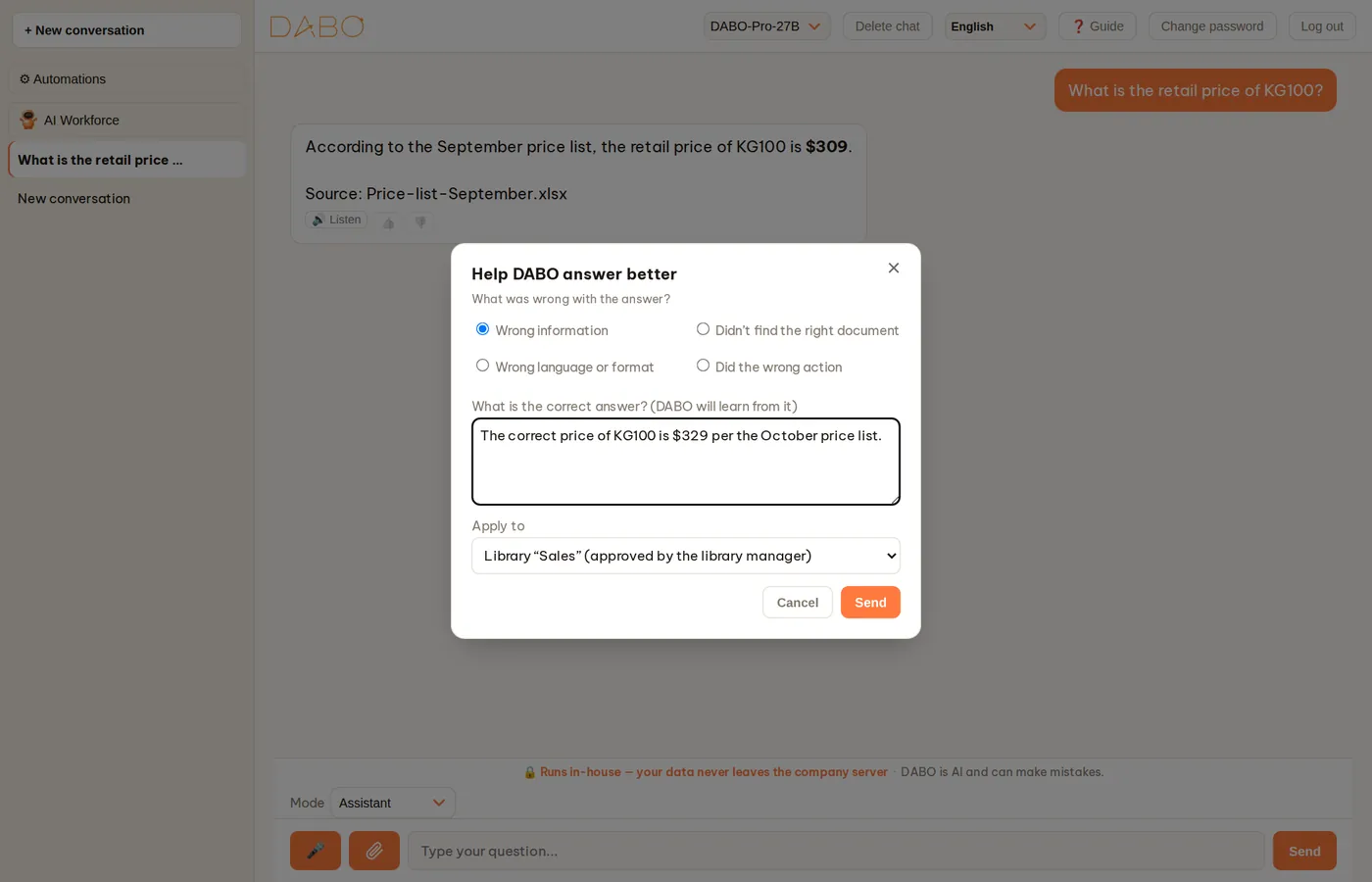
Correction notebook (library managers)
Library managers see 📘 Correction notebook in the sidebar: approve or reject lessons sent by staff (Pending), check lessons that need review because the source document changed (Needs review), the Active lessons, and Questions without documents — hints about documents worth adding to the library. Approved lessons take priority over documents and are re-checked automatically when the company changes its AI model.
How your data is protected
- The AI model, documents and chat history are on your company’s server — they are not sent to any outside AI provider.
- The AI answers everyone within their own permissions: you cannot get answers from libraries you are not allowed to see, and colleagues cannot see your conversations.
- Email, calendar, computer, apps: the AI only uses the accounts and folders you yourself connected.
- Every write or outgoing action waits for your approval; every action on your computer asks you first.
- To delete a conversation, click × next to its name in the sidebar.
Frequently asked questions
| Question | Answer |
|---|---|
| The AI says it found nothing, but I know we have that document? | You may not have access to the library that holds it, it may not be uploaded yet, or the library may be locked. Ask the library manager. Click 👎 → Didn’t find the right document so they know. |
| I can’t see AI Workforce, 🎤, 💻 DABO AI Desktop…? | Features depend on your company’s license plan and the permissions your administrator gives you. Ask your administrator. |
| The microphone doesn’t work? | Open DABO at an https:// address. Allow the microphone: click the lock icon next to the address bar → Microphone → Allow, then reload the page. iPhone: Settings › Safari › Microphone. Close Zoom / Teams if they are using the microphone. |
| The browser says “Your connection is not private”? | This usually means your company uses an internal security certificate. Only if it really is the DABO address your company gave you, choose Advanced → Continue; or ask your administrator to install the certificate on your computer. |
| Lost the connection while the AI was answering? | The AI still finishes on the server. Reopen the conversation to see the answer. |
| The answer is wrong? | Click the source name under the answer to check the exact passage in the document. Click 👎 and give the correct answer — DABO learns not to repeat it; or click ✏️ to edit the answer directly. |
| Forgot my password? | Click Forgot password? on the sign-in screen. Once your administrator approves, you receive a setup code (by email or from your administrator) → click 🔑 Create a password with a code to set a new password. If you sign in with Microsoft / Google, change the password of that account. |
| The AI Workforce is taking a long time? | Big jobs can take from a few minutes to a few dozen minutes, longer when the server is busy. You can close the window; turn on notifications to be told when it is done. |
| A downloaded file won’t open? | Click the download link in the answer again. If it still fails, ask the AI to “export the file again”. Download links only work while you are signed in to DABO. |
| Need more help? | Contact your company’s DABO administrator. |
| DABO says I have “used up today’s question limit”? | Your company limits how many questions each person can ask per day so the AI server is shared fairly. The limit resets at midnight; ask your administrator if you need more. |
| A button or mode shows 🔒? | Your company’s current plan does not include that feature — click it to see which plan does. When the company upgrades, it unlocks automatically, no page reload needed. |
| A “license is about to expire” reminder appears at the top? | Tell your administrator — the company’s license (or trial) is ending soon. After it ends some features are paused, but your data stays as it is. |
| Does changing the AI model at the top of the page affect the modes? | No. Which tools each mode uses, one conversation per mode and the mode-switch button are all decided by DABO, not by the model. A larger model writes reports, translates and teaches more naturally; a smaller model runs faster. Financial figures (trend, confidence, figure tables) are calculated by the system, so they are the same with every model. |
| What does a confidence of 58% mean? | In that symbol’s own past, after similar signals, the price moved in the direction shown on the Trend line 58 times out of 100 over the period you asked about. Below 55% is close to random. See Read the results. |
| Why doesn’t the answer appear word by word? | DABO checks the figures, sources and layout before showing you the answer, then displays it complete, all at once. While you wait, the bubble shows the steps the AI is taking. |
DABO AI — your own AI, on your own servers
Your data never leaves your company. Internal documents, CRM/ERP, email and automated workflows in one platform.
Contact us